

May 29, 2025
Back
There are further options for Page Builders in Akumina Page Edit Mode
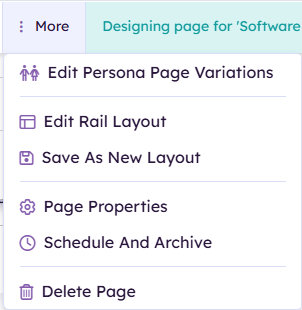
Edit Persona Page Variations
allows the page to have different page variations based on Akumina Persona. Check out our article on Persona Page Variations to learn more

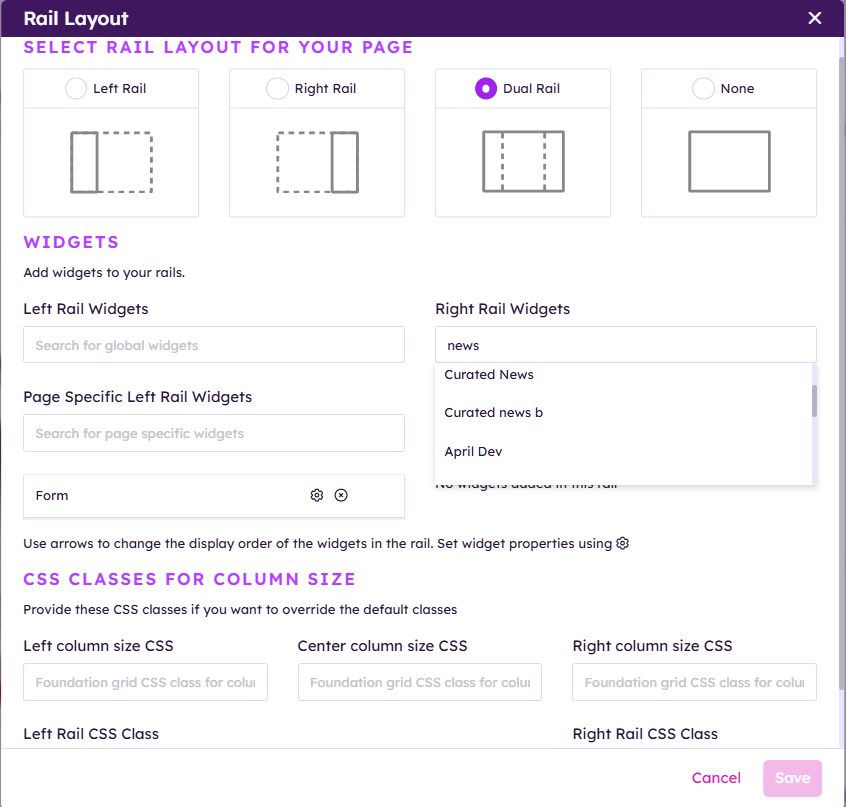
Edit Rail Layout
allows you to add Rail space to the right and or left of the main page content

 Choose between the Rail options. By default pages will not have a Rail Layout
After choosing a Rail choice
You can then add widget instances into each rail by typing in a widget instance name. It is possible to apply CSS classes to the Rail as well. Click Save when finished.
Save as a new layout

Save as a new layout allows the page builder to create a page starting template for building new pages. This new template will include page rows and configuration along with starting widget instances if Include Widget Instances is selected. There is an Optional Page Layout Icon (PNG) that can be assigned to the layout and a Page Layout description. Click Save when done.

Page Properties
 Page Properties allow you to change certain settings of the page.
Change Page Title
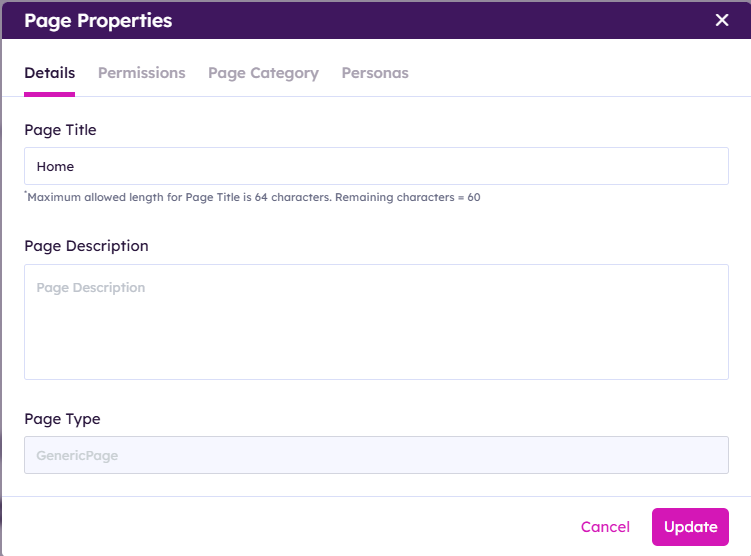
Change Page Permissions
 By default your page will inherit permissions. If you need to change permissions for just this page you can click Unique Permissions.
You can set SharePoint Security Groups to have View, View & Edit and N/A permissions to the page.
Page Category allows you to assign Page Properties to a page. These come from the TermStore of the intranet's Central Site.
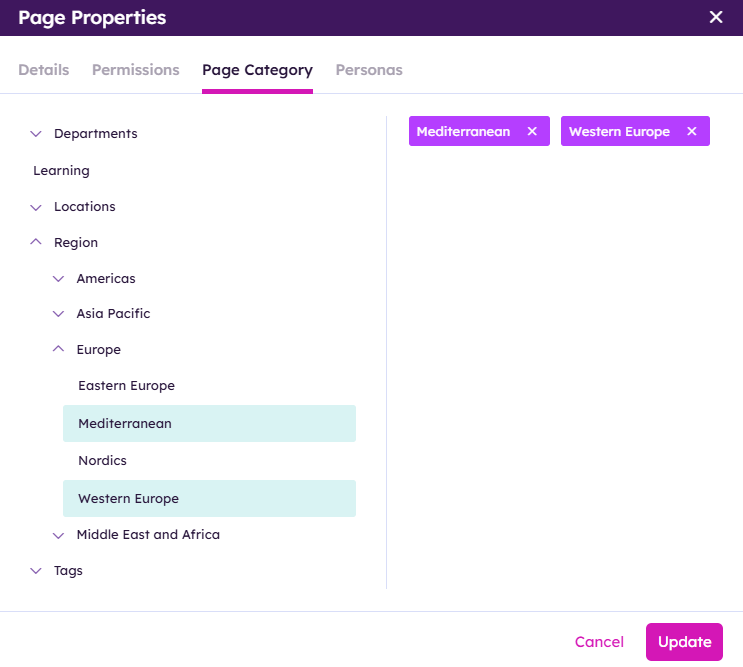 Click on applicable Page Categories then click Update.
Personas
 Assign applicable persona(s) that should be assigned to the page. By default the All persona will be assigned to the page. Click Update when finished.
Schedule And Archive

By default pages that are published are published immeditely. If you have a need to publish a page in the future or have the page be archived after a set period of time you can configure that here.

Publish Date is the date that the page will be made availbe for view.
Archive will Archive the page and mark it as Archived.
Delete Page

Allows you to Delete the Page
To actually Delete the page click Delete Page
Then you will have to enter the Page name then hit Delete again
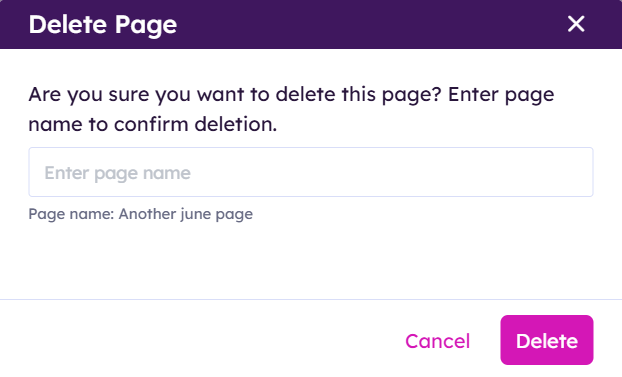
Please note Delete is final. But given the safe guards we can know it wasn't done by a misclick.