August 19, 2026
Document Intelligence for Akumina AI
Configuring Azure AI Document Intelligence, directly and through Azure API Management


This document shows the page experience in Edit Mode.

First let's talk about some of the buttons we see at the container level. We have the ability to modify and add additional containers.

Change Layout allows the page editor to change the container column configuration

If you select a different layout it will change the number of columns
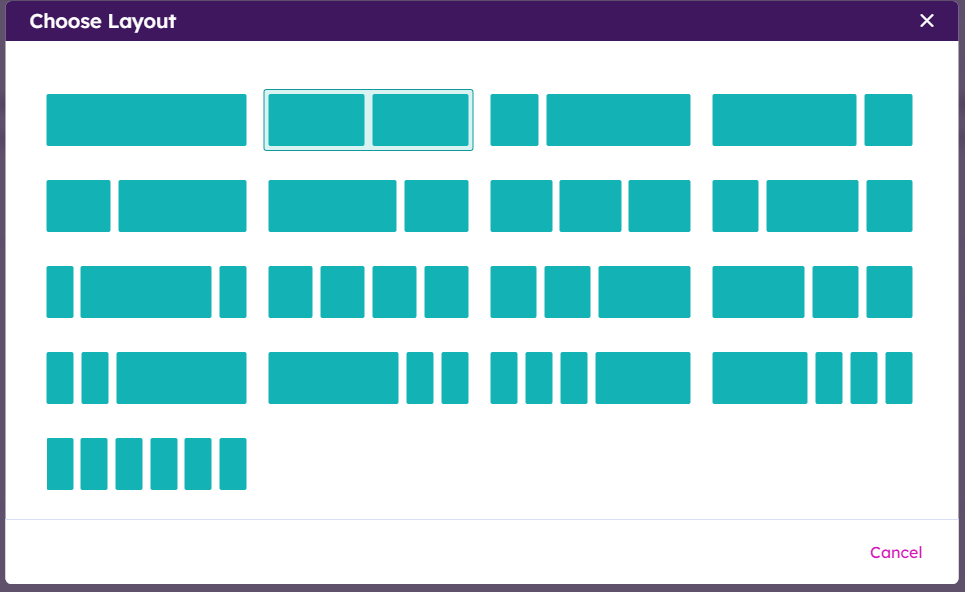
By selecting the two column layout our row container now has two columns
 Clicking the trashcan will delete the row container along with any widgets in the row.

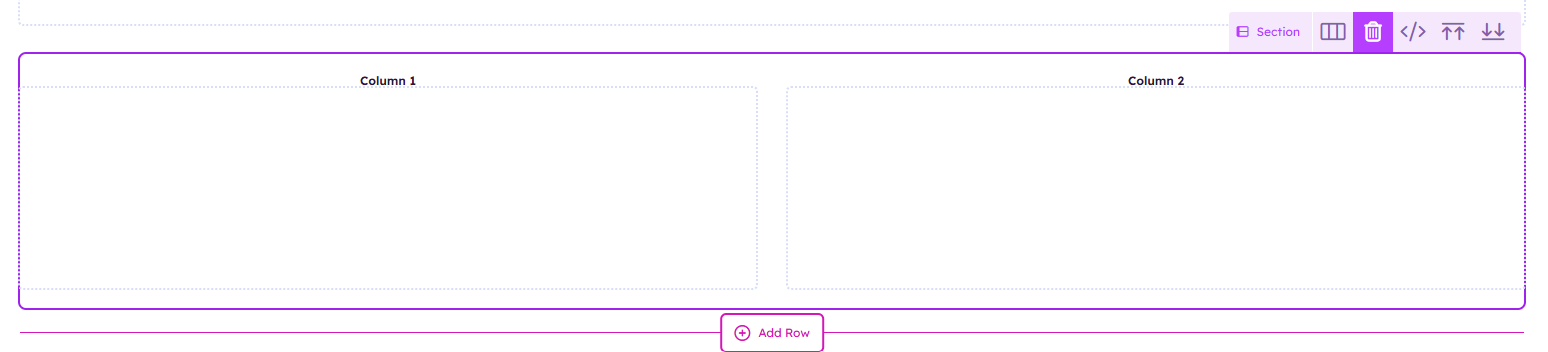
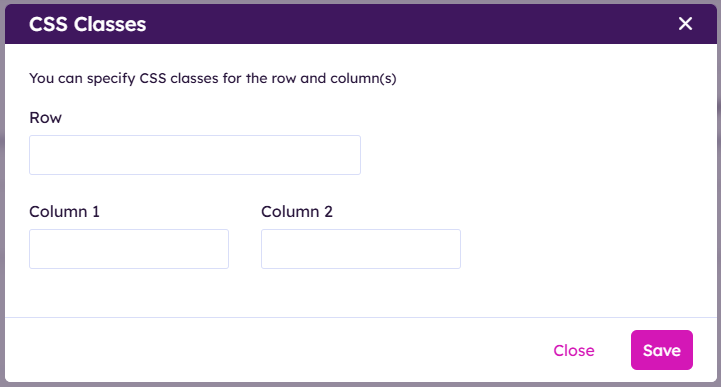
Clicking CSS Classes will allow us to refrence existing custom CSS classes to impact the row and or containers in the row

If you want to add a row container above or bellow your selected container click the up or down arrows to add an additional row

When Editing a Page we can add widget instances by hovering over a container by clicking
Add Widget
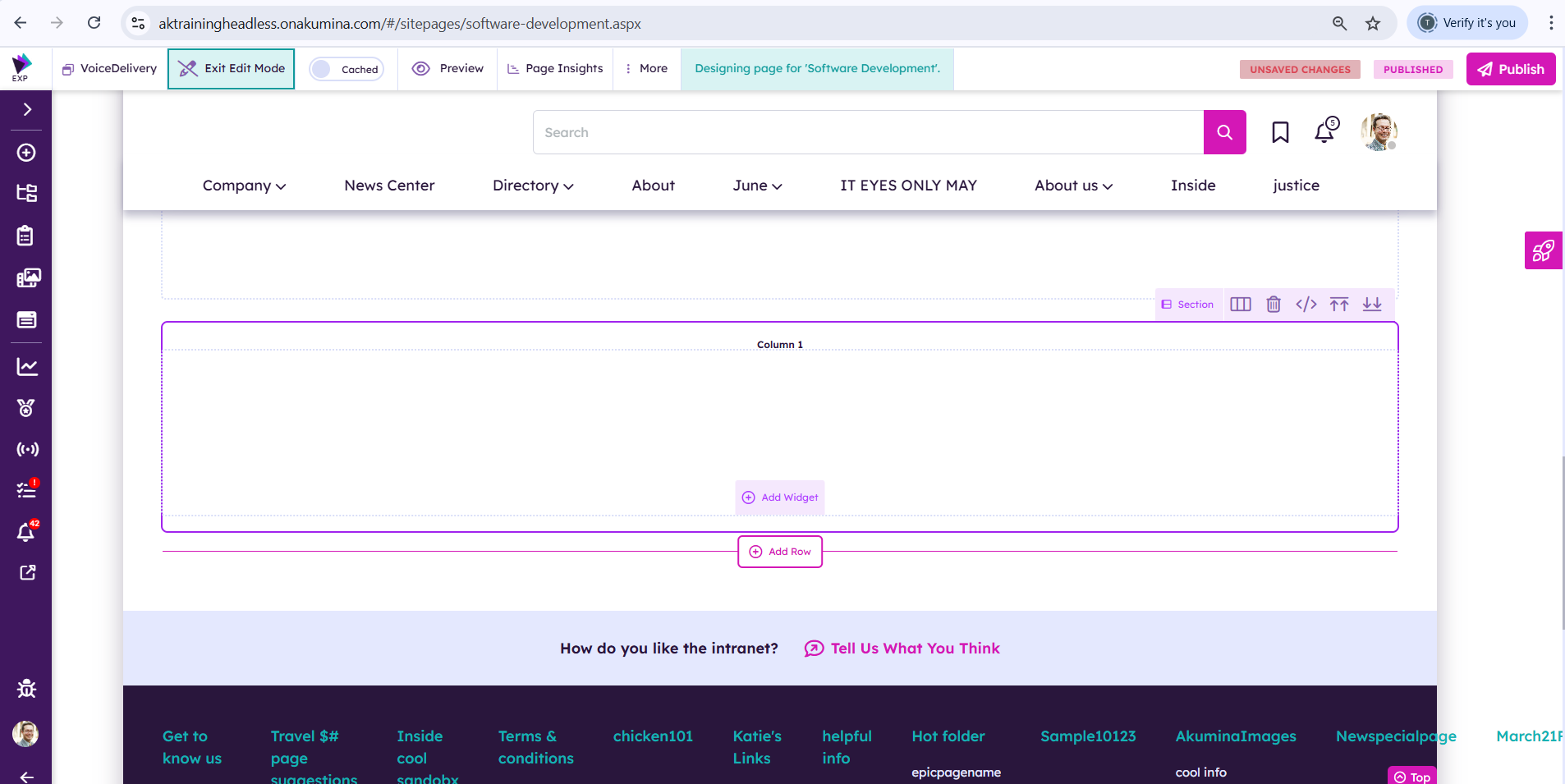
Then Choose between using a Local Widget Instance or a Global Widget Instance
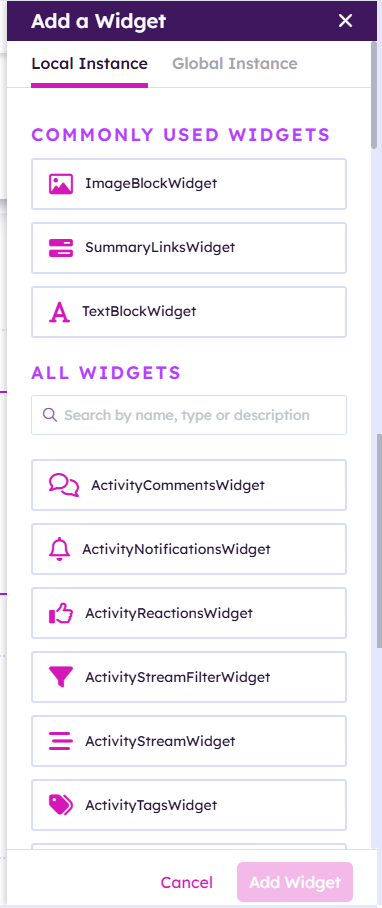
After Selecting a widget click add Widget
With every Akumina Widget you can view the Reference Guide related to the particular Widget.
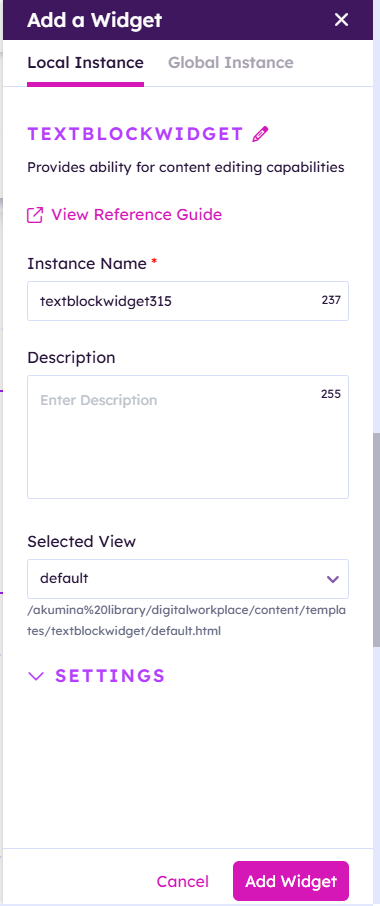
Once you are satisfied with the widgets that you have added
click Publish
