September 08, 2026
Akumina AI Configuration for Content Safety
Akumina AI Configuration for Content Safety
KMWorld Webinar: Oct 15th, 2:00pm ET. Beyond Search: Connecting Employees to Answers and Action (REGISTER)


The prerequisites pertain exclusively to self-hosted and single-tenant customers.
• AppManager version should be greater than or equal to v7.0.
1. Log in to Azure Portal
Open https://portal.azure.com and sign in with your Azure account.
2. Navigate to the Resource Group
Go to Resource Groups and select the resource group where the PeopleSync Azure Function will be created.
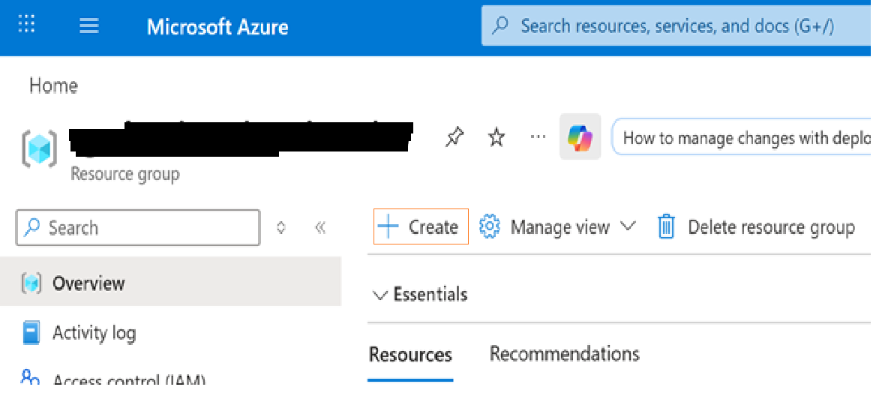
3. Start Creating the Function App
Click Create, search for 'Function App', and select Create.
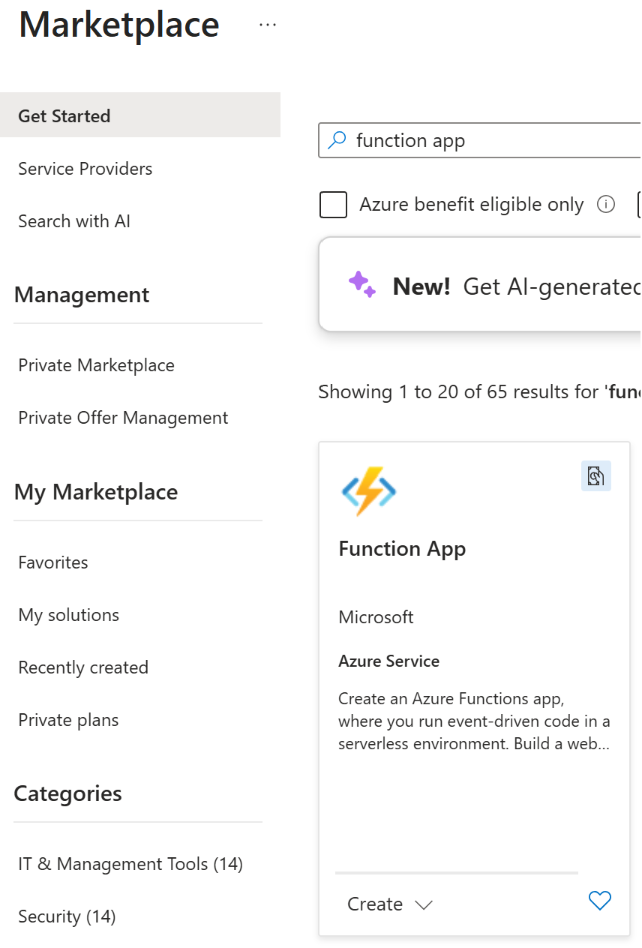
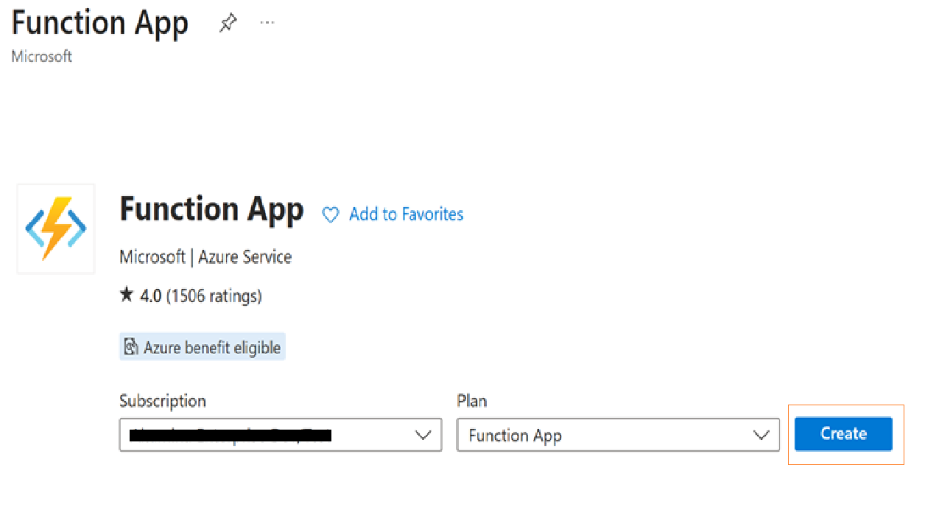
4. Select Hosting Option
Choose 'Functions Premium' and click Select.
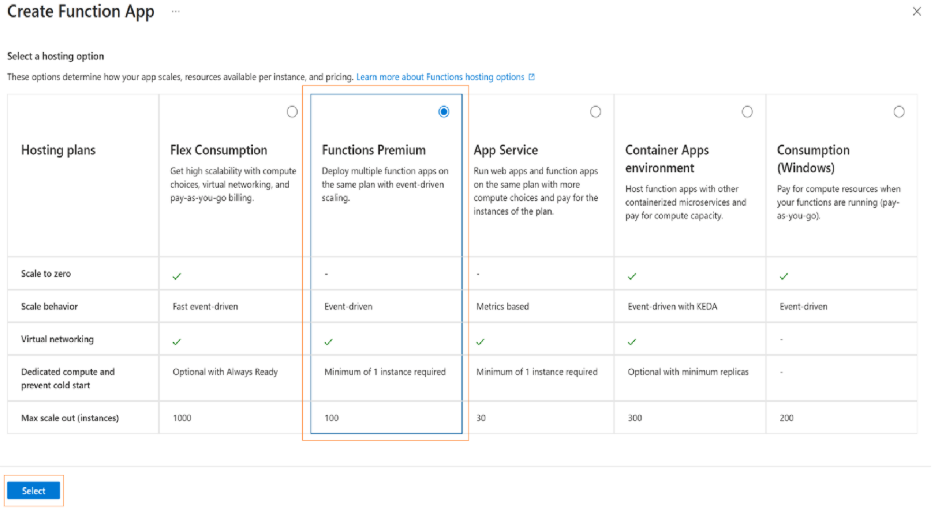
5. Basics Tab Configuration
- Provide a unique Function App name
- Operating System: Windows
- Runtime Stack: .NET
- Version: .NET 10 (LTS) – Isolated Worker Model
- Hosting Plan: Create new Windows plan
- Pricing Plan: Elastic Premium EP1 (minimum)
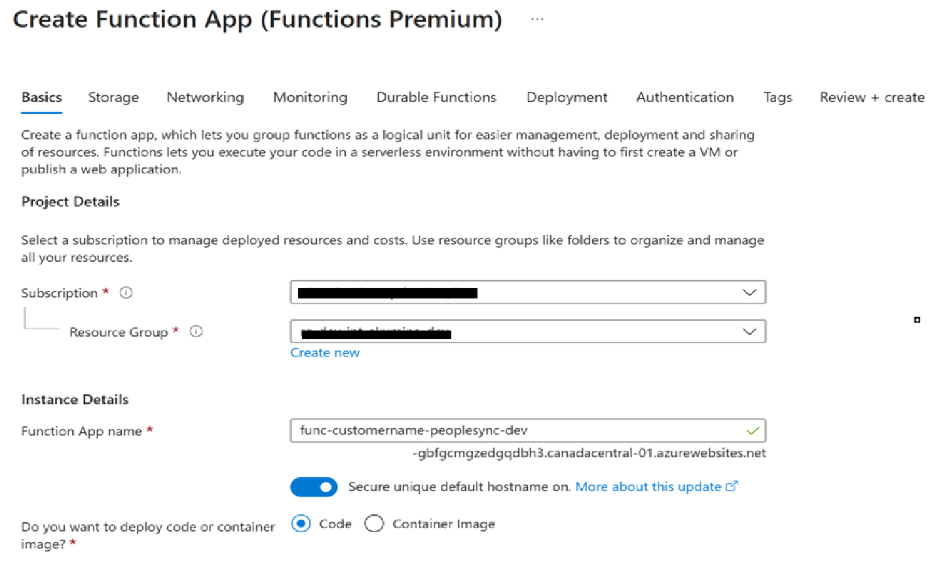
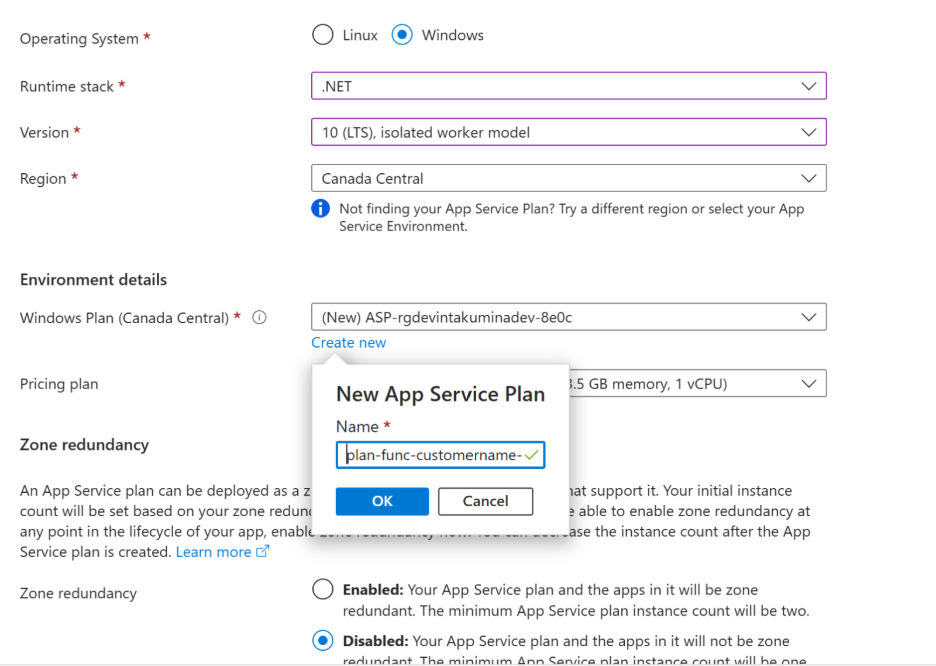
6. Storage Tab
Select the App Manager storage account.
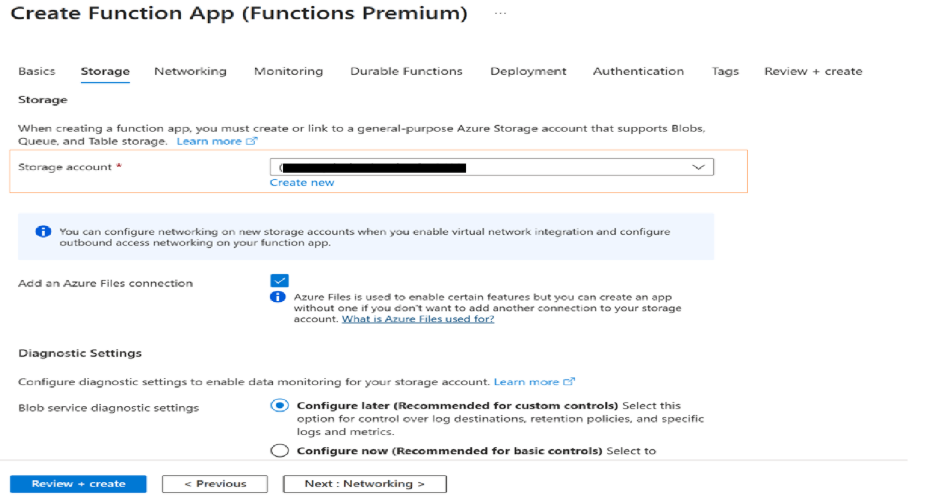
7. Networking Tab
No changes required. Keep default settings.
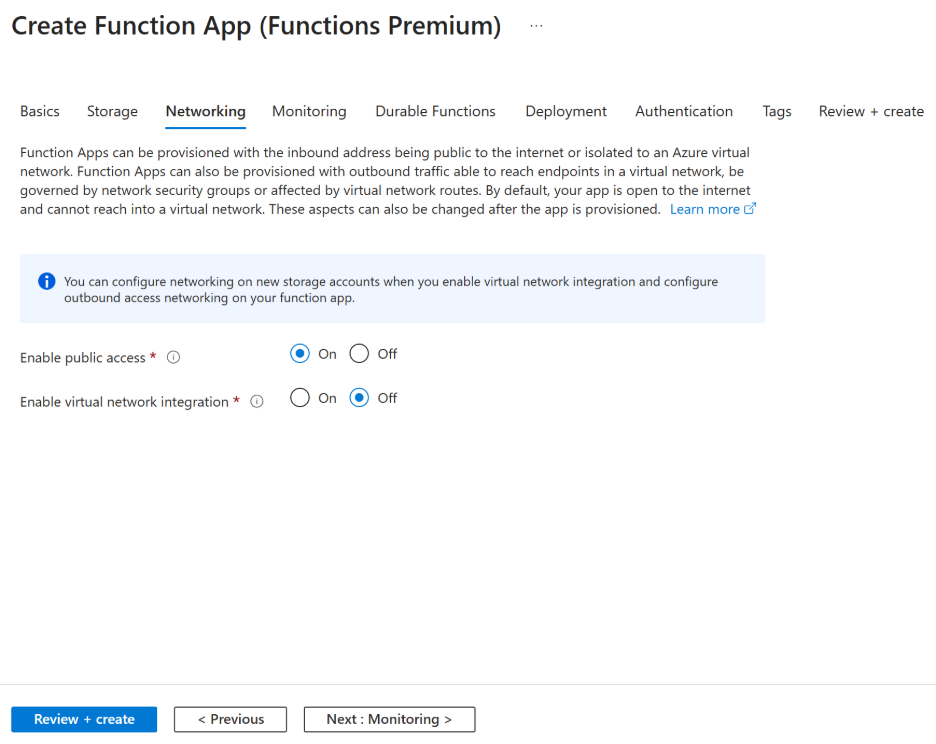
8. Monitoring Tab
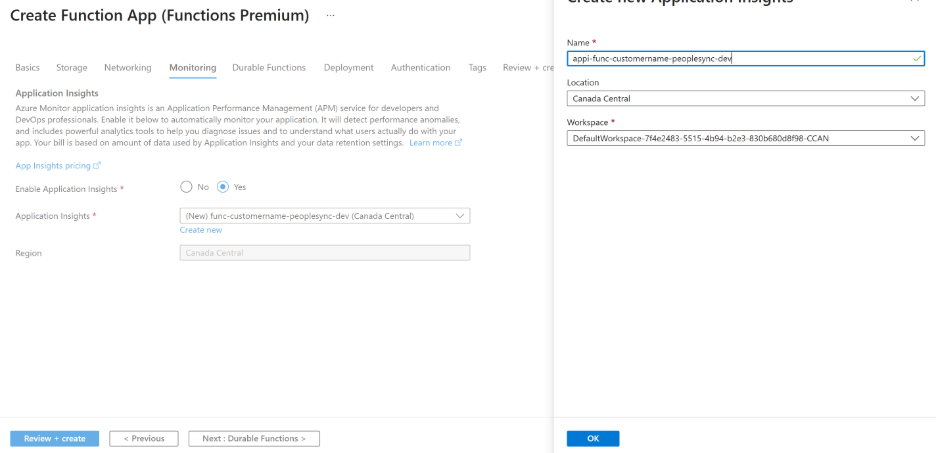
Enable Application Insights and create a new resource. Initially map an existing Log Analytics workspace; you can create and link a new workspace later if required.
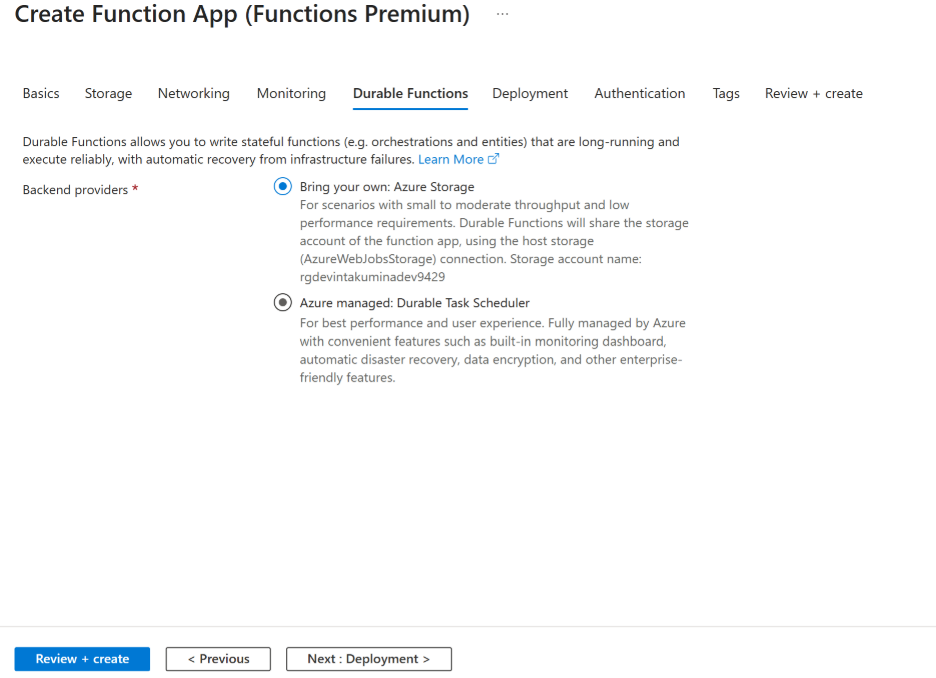
9. Durable Functions Tab
No changes required.
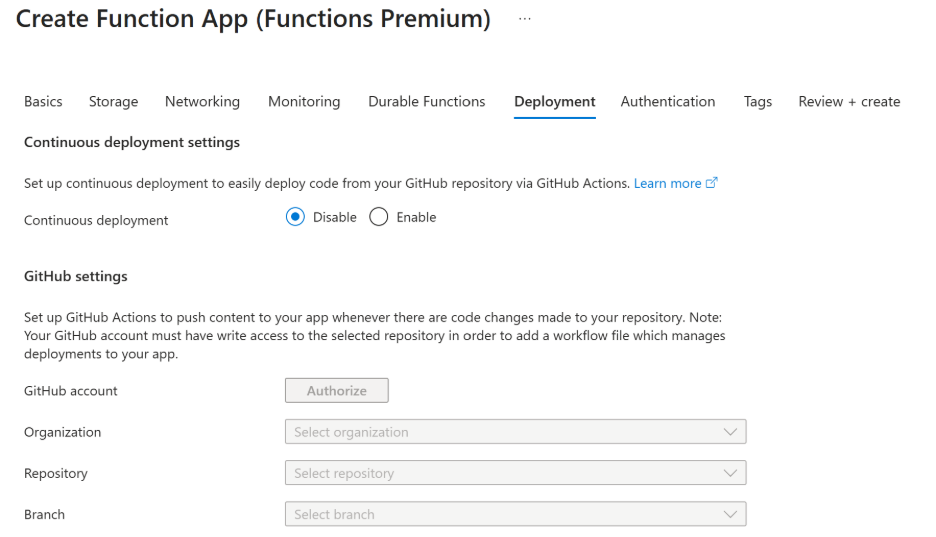
10. Deployment Tab
No changes required.
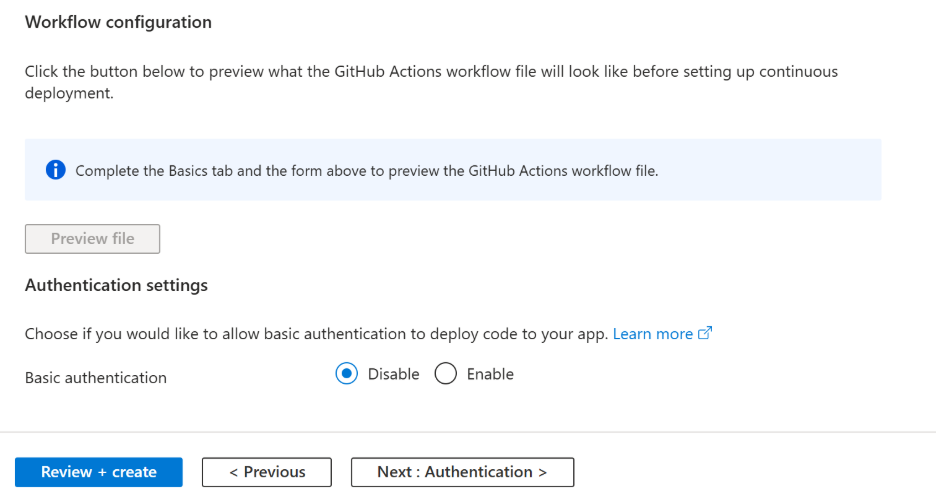
11. Authentication Tab
No changes required.
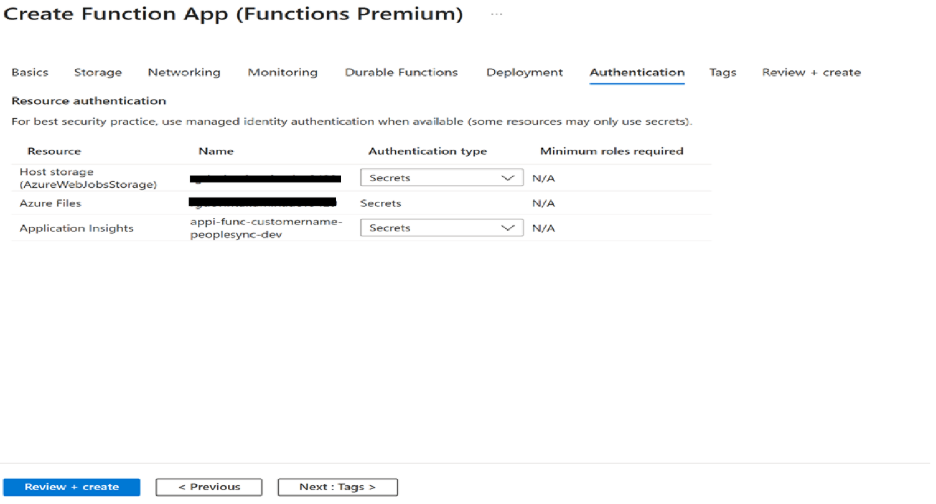
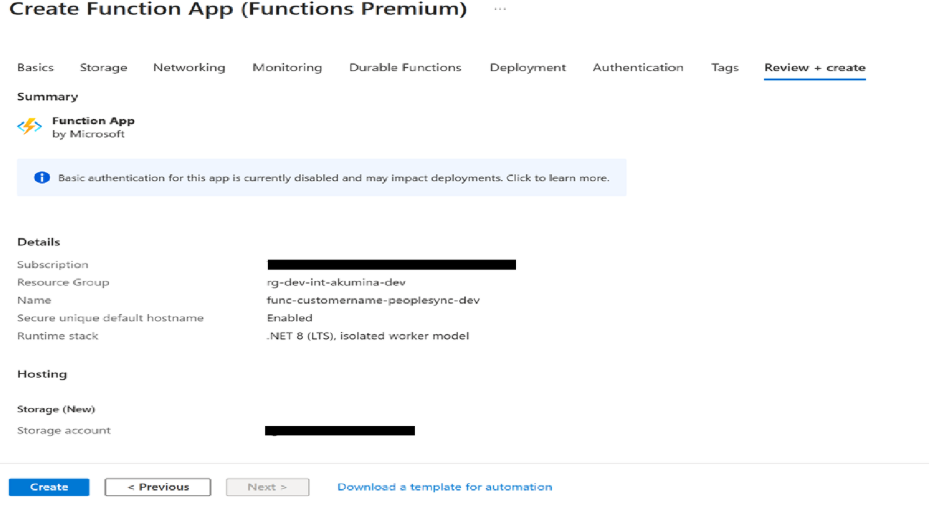
12. Review and Create
Review all configuration values and click Create to deploy the Function App.
Follow the steps below to deploy the PeopleSync code to the Azure Function App.
1. Navigate to the PeopleSync Serverless Azure Function App in the Azure portal.
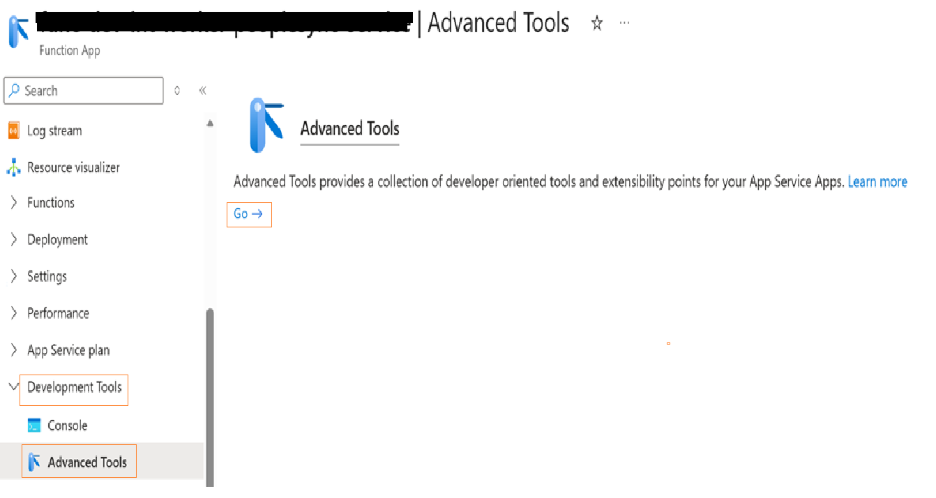
2. In the left-hand menu, select Development Tools, then click Advanced Tools.
3. In the Advanced Tools section, click Go to open the Kudu Services console.
4. In Kudu Services, navigate to Tools and select Zip Push Deploy.
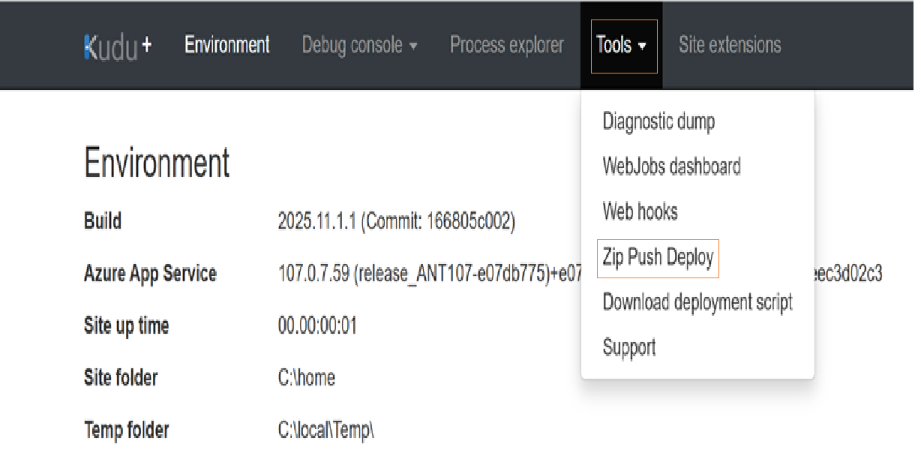
5. Drag and drop the PeopleSync Serverless build (.zip file) into the Zip Push Deploy window (download build from below path).
https://akuminadownloads.blob.core.windows.net/interchange/peoplesync/peoplesync_serverless.zip
6. Wait for the deployment process to complete and verify the deployment status.
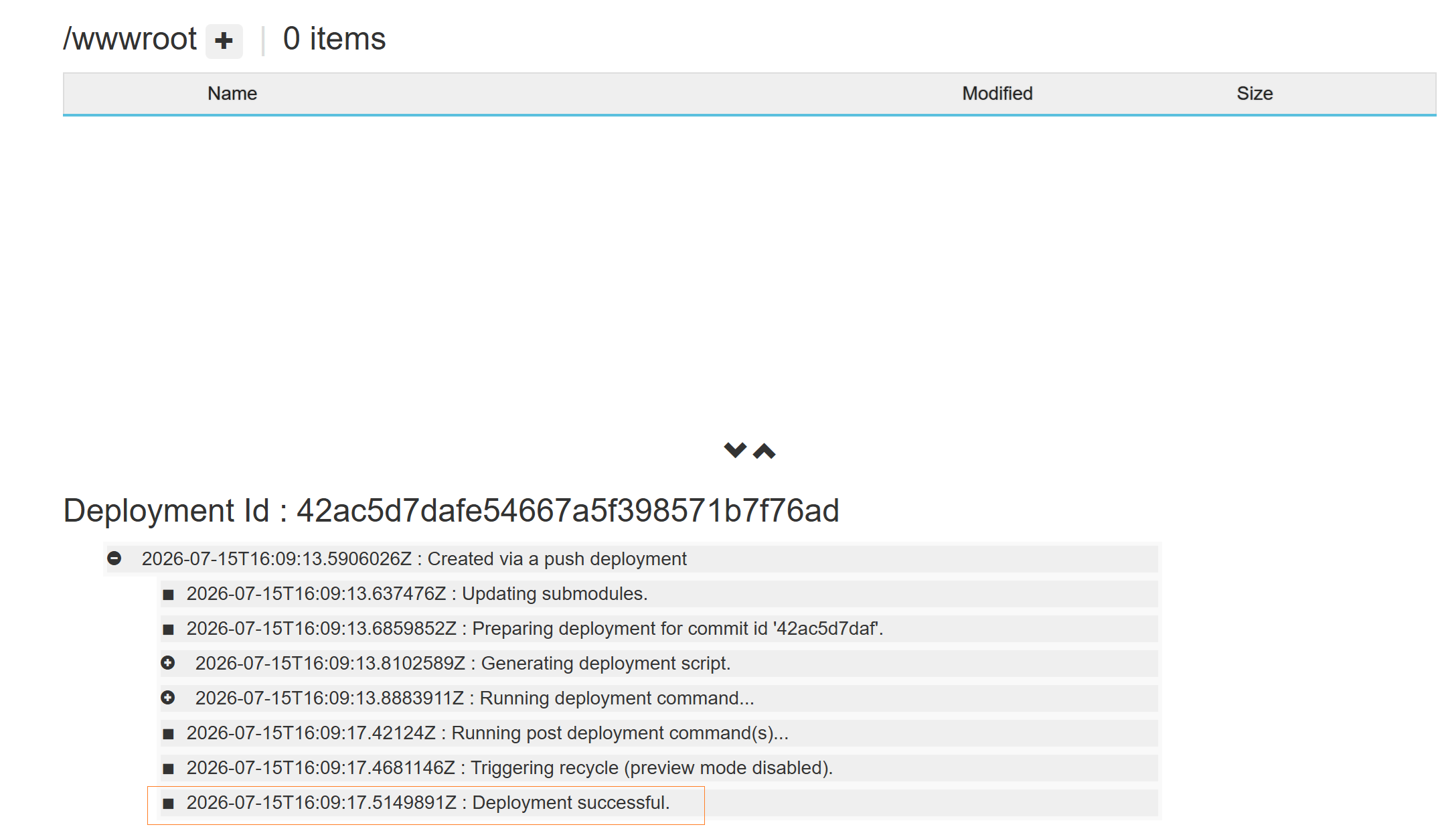
Configuring PeopleSync Azure Function
1. Navigate to the PeopleSync Serverless Azure Function App in the Azure portal.
2. In the left-hand menu, select Settings, then click Environment variables.
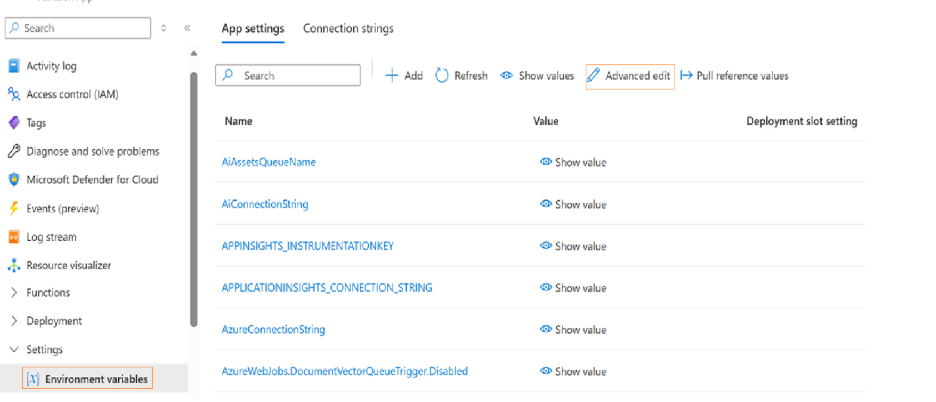
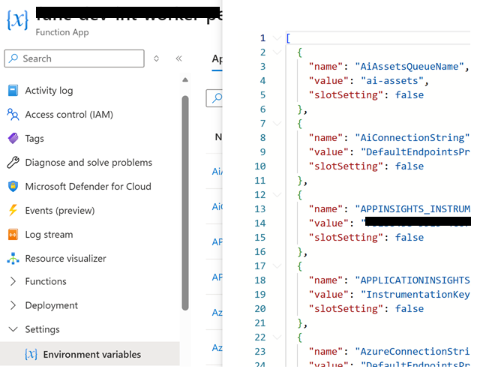
3. Use the configuration below and update the property values enclosed in <> with your environment-specific data. Do not add duplicate properties. Add these configuration values as environment variables to the Function App, alongside the existing default environment variables.
1. Enable the managed identity on the PeopleSync Azure Function App. Go to the Identity section of the PeopleSync Function App, set the status to On, and click Save.
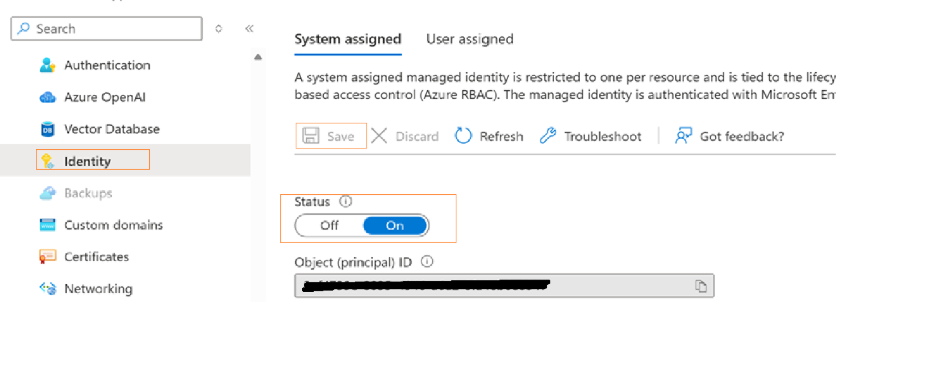
2. In the Key Vault, go to Access policies → Create, select the Get and List secret permissions, assign the PeopleSync Function App as the principal, and click Create to save the policy.
1. Add the following properties to the App Manager Key Vault secret. Change the property values appropriately if the customer has an existing console version of the PeopleSync process.
“AiRemoteStorageConnection “:””,"SupportsPeopleSyncAzureFunction": "true", "PeopleSyncAzureFunctionQueue": "peoplesynctask", "AkEnvironment": "DEV", "AkDomain": " azurewebsites.net", "PeopleDataEntityPrefix": "akad", "FieldNameCasing":"Mixed", "StandardV2Tokenizer": "", "AsciiFoldingAnalyzer":"givenName,surname,displayName,city", "AsciiFoldingKeywordAnalyzer": "givenName_keyword,surname_keyword", "KeywordAnalyzer":"department_keyword,jobTitle_keyword,officelocation_keyword", "VectorSearch": ""
|
Property |
Description |
| AiRemoteStorageConnection | AI assets document storage account connection string: This property should be added to the App Manager Key Vault for the document vectorization process. If document vectorization is not being used, you can skip this property. |
|
AkEnvironment |
Environment Name (for example: DEV, QA, or PROD, or based on your naming convention). If you have a customized field mapping file and custom filter, create a folder named after the environment on the Azure Function build. This folder will contain the field mapping JSON file and any custom filter references maintained within it. Also update the Function App environment variable EnvironmentName with the same value. |
|
AkDomain |
Domain name of your App Manager. Also update the Function App environment variable DNSName with the same value. |
|
PeopleDataEntityPrefix |
Use the default value “akad”. If the existing environment has a different PeopleDataEntityPrefix, use that value instead. |
|
VectorSearch |
If you want to vectorize People data, set this property to “people”. Otherwise, leave this property empty. |
Ensure the following configurations are completed on the PeopleSync container (users):
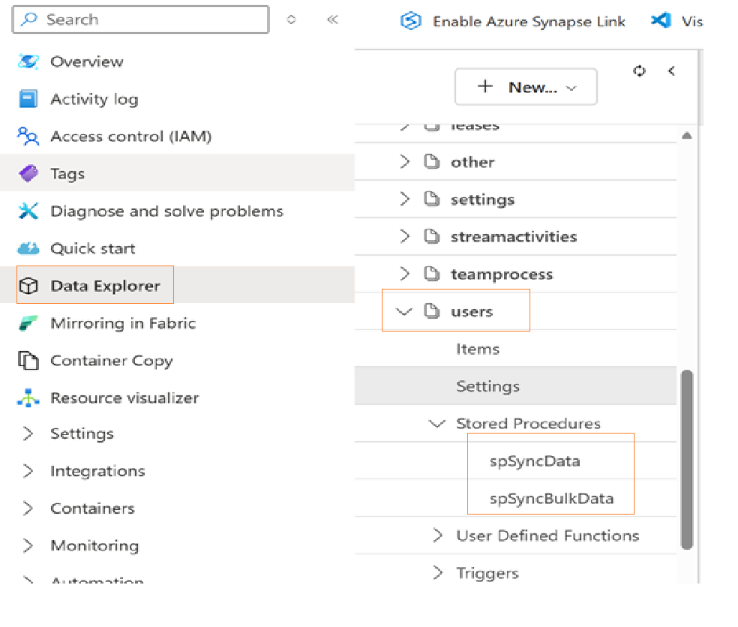
1. Verify that the following stored procedures already exist in the users container. If they are not present, create the required stored procedures in the container. If they already exist, update them. The stored procedure source is provided below.
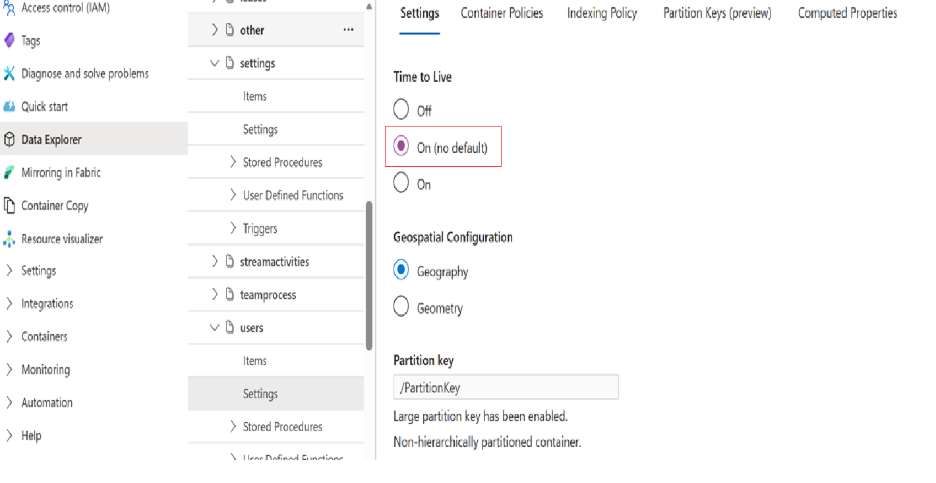
2. In the PeopleSync container settings, set Time to Live (TTL) to On (No default).
Follow the steps below to configure PeopleSync properties and initiate the first synchronization.
1. Launch the AppManager tenant configuration page and save it to create a TenantSetting entry in the PeopleSync table on the AppManager storage account.
2. Use the Fetch Properties base template provided below for configuration. Review the template and update the properties according to your requirements or existing configuration if any.
{"TagExtension":"groupname",
3. Use the Fetch Options base template provided below for configuration. Review the template and update the properties according to your requirements.
{"SyncUsers":true,
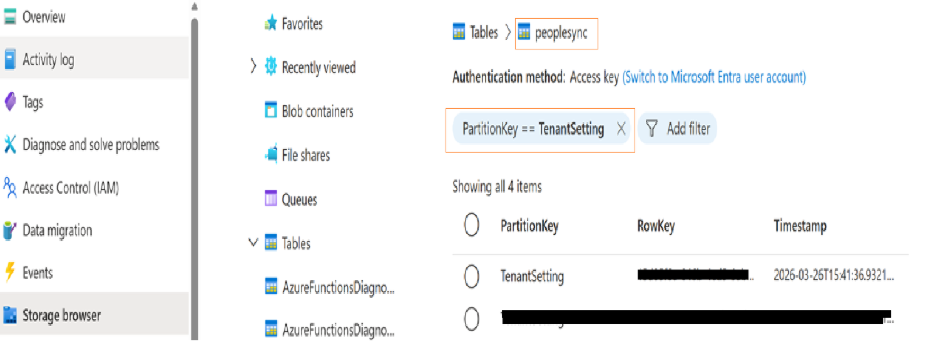
4. After finalizing the PeopleSync properties, navigate to the AppManager Storage Account in the Azure portal and open Tables. Search for entries with PartitionKey = "TenantSetting". In the results, update the FetchPropertyData and FetchOptionsData fields with the finalized configuration values.
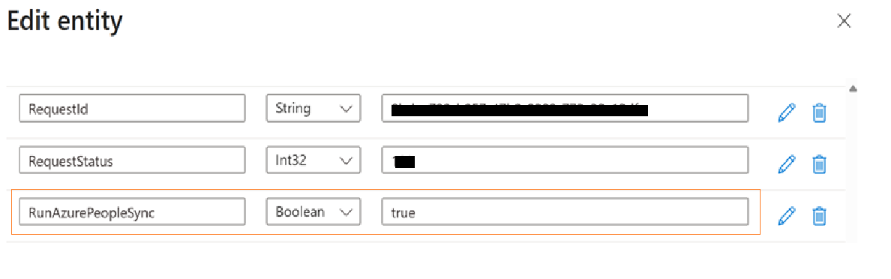
5. Ensure the RunAzurePeopleSync property is set to true to trigger the initial synchronization.
|
Option |
Type |
Default |
Description |
|
SyncUsers |
Boolean |
true |
Synchronize configured user properties |
|
SyncGroups |
Boolean |
true |
Synchronize Active Directory Groups |
|
SyncUsersAssignedToNoGroups |
Boolean |
true |
Set to true, all users will be synced. If the value is false, then users who are not assigned to any groups will be filtered out of the people sync. |
|
SyncTags |
Boolean |
false |
Set to true if Akumina Workspace Licensed and configured |
|
SyncTypes |
Boolean |
false |
Set to true if Akumina Workspace License and configured |
|
TrackUserGroupChange |
Boolean |
true |
Enumerates the user changes for ActivityStream Access Control update |
|
TrackUserPersonaChanges |
Boolean |
true |
Enumerates the user changes for ActivityStream Access Control update |
|
MergeGroupFieldsToUserGroup |
Boolean |
true |
Duplicates the GroupFields into UserGroups entity |
|
Property |
Type |
Default |
Description |
|
TagExtension |
String |
"groupname" |
Tenant based TagExtension value. If we need to overwrite the default TagExtension, then we can include the values here otherwise we can keep this empty. |
|
TypeExtension |
String |
“groupuser" |
Tenant based TypeExtension value. If we need to overwrite the default TypeExtension, then we can include the values here otherwise we can keep this empty. |
|
ExpandProperties |
String |
“” |
If the value is returned as JSON, then the system will generate linear string property of the value. For example, if the field defined returns the JSON of “P” as {“P1”:”V1”,”P2”:”V2”} then the property expanded as P_P1 with value V1 and P_P2 with value P2 |
|
UserProperties |
String |
"id,accountEnabled,businessPhones, city,companyName,country, deletionTimestamp,department, onPremisesSyncEnabled,displayName, facsimileTelephoneNumber,givenName, jobTitle,mail,mailNickName,mobilePhone, objectType,officelocation, physicalDeliveryOfficeName, postalCode,preferredLanguage, sipProxyAddress,state, streetAddress,surname, telephoneNumber,usageLocation, userPrincipalName,userType,otherMails, provisionedPlans,provisioningErrors, proxyAddresses,schools,skills,birthday,hiredate" |
You can add remove any properties defined in your Identity provider or data source. |
|
UserExtendedProperties |
String |
"Manager,AssignedLicenses, AppRoleAssignments,DirectReports, OwnedDevices,RegisteredDevices, OtherProperties,UserPreferences" |
Extended properties are complex objects that need multiple calls to data source. You can add or remove any supported properties |
|
GroupProperties |
String |
"id,description,displayName" |
Group properties |
|
PersonaUserProperties |
String |
"mail,displayName,userPrincipalName, businessphones,aklanguageid" |
Persona properties |
|
UserGroupUserProperties |
String |
"displayName,userPrincipalName, businessphones,aklanguageid" |
User Group properties |
|
SkipUsers |
String |
“” |
Specify conditions like “display=xyz,location=boston” it will then skip users whose value starts with defined conditions. Example: "SkipUsers": "givenName=Firstname,givenName=Test,givenName=GiveName,department=Dummy", In the above, users whose givenName, starts with Firstname or Test or GiveName or are in department beginning with Dummy will be excluded. |
|
SkipGroups |
String |
“” |
Specify conditions like “display=group1” it will then skip Groups whose value starts with defined conditions. |
|
LargeContentProperties |
String |
"DirectReports" |
|
|
ConvertValueToLowerCase |
string |
"userPrincipalName,mail,userEmail" |
We will convert these user properties to all lower cases. |
|
DateTimeOffsetProperties |
String |
"CreationDate" |
|
|
AcceptGroups |
string |
“” |
Use this property if you need to accept only specific groups. Provide group Ids as comma separated value on this property. This property will accept a maximum of 15 groups. |
|
AcceptUsers |
string |
“” |
Use this property if you need to accept only specific users. Provide user object Ids as comma separated value on this property. This property will accept a maximum of 15 users. |
|
SavePeoplePictureAs |
string |
“userPrincipalName,mail’ |
|
|
AcceptCustomFilterProperties |
string |
“” |
If the People Sync process uses a custom filter and the filter includes additional fields or properties, those fields must be specified in this property as a comma-separated list. Only the fields listed here will be accepted from the custom filter; any other properties will be ignored. |
|
DelveProperties |
string |
|
Use this property to include any Delve properties |
Some properties are extendable, the following table summarizes the columns included in the UserExtendedProperties.
|
UserExtendedProperties |
Fields retrieved |
|
Manager |
Manager |
|
AssignedLicenses |
All Licenses and Count |
|
AppRoleAssignments |
id, principalDisplayName, principalId, principalType, resourceDisplayName, resourceId |
|
DirectReports |
displayName, givenName, surname, mobilePhone, businessPhones, jobTitle, mail, officelocation, preferredLanguage, userPrincipalName |
|
OwnedDevices |
deviceId, deviceMetadata, deviceVersion, operatingSystem, operatingSystemVersion, trustType, displayName |
|
RegisteredDevices |
deviceId, deviceMetadata, deviceVersion, operatingSystem, operatingSystemVersion, trustType, displayName |
|
OtherProperties |
All the other external properties configured in the AAD |
This step is required only if you have an existing data source for the PeopleSync indexers (users, groups, usergroups, and persona).
• Go to the Search Service.
• Go to Search Management → Data Sources, then click the data source you want to edit.
• Update the highlighted properties below and save.
"dataChangeDetectionPolicy": {
"@odata.type": "#Microsoft.Azure.Search.HighWaterMarkChangeDetectionPolicy",
"highWaterMarkColumnName": "_ts"
},
"dataDeletionDetectionPolicy": {
"@odata.type": "#Microsoft.Azure.Search.SoftDeleteColumnDeletionDetectionPolicy",
"softDeleteColumnName": "IsDeleted",
"softDeleteMarkerValue": "true"
}
Configure AI Container Settings in Cosmos DB
Ensure the following configurations are completed on the AI container (aiassets) in Azure Cosmos DB:
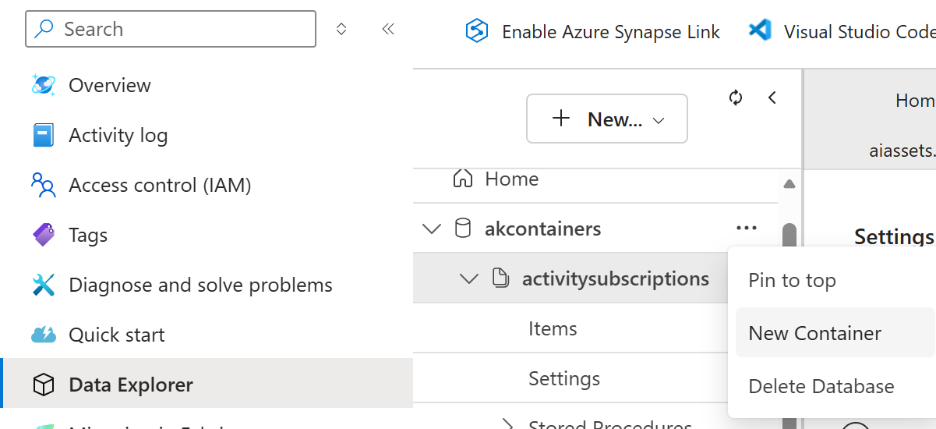
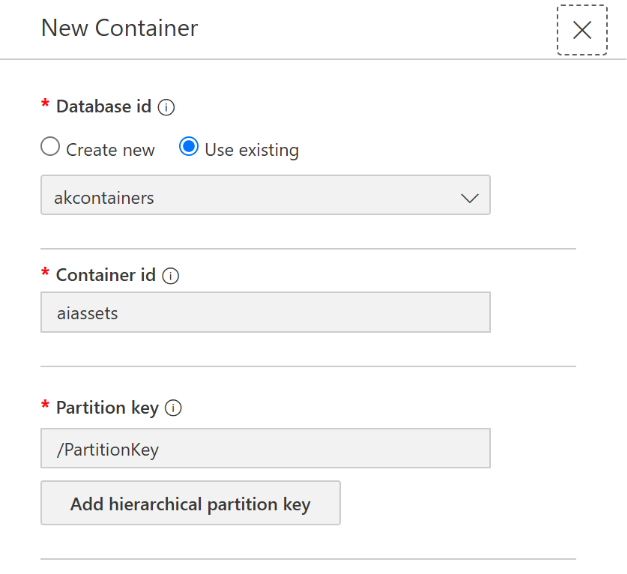
1. Verify aiassets container
Verify that the aiassets container is present in the akcontainers database. If not, create a new container named aiassets in the akcontainers database. Use “/PartitionKey” as the partition key.
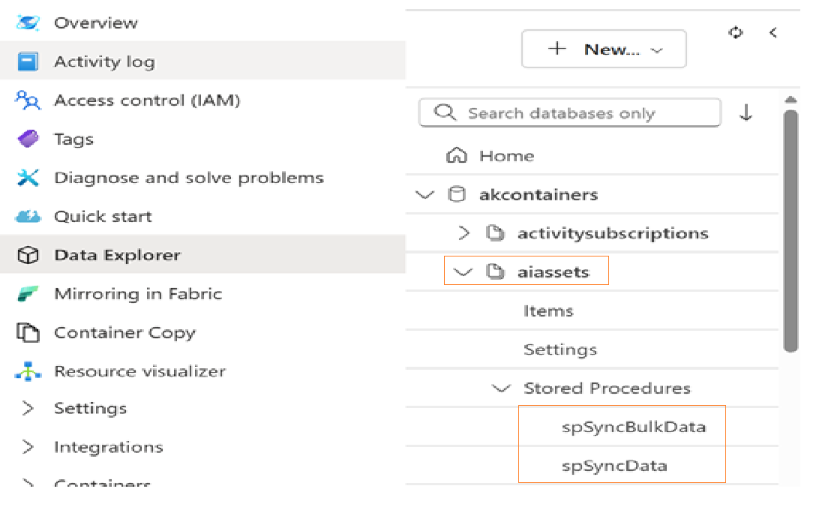
2. Verify Stored Procedures
Verify that the following stored procedures already exist in the aiassets container. If they are not present, create the required stored procedures in the container. If they already exist, update them. The stored procedure source is provided below.
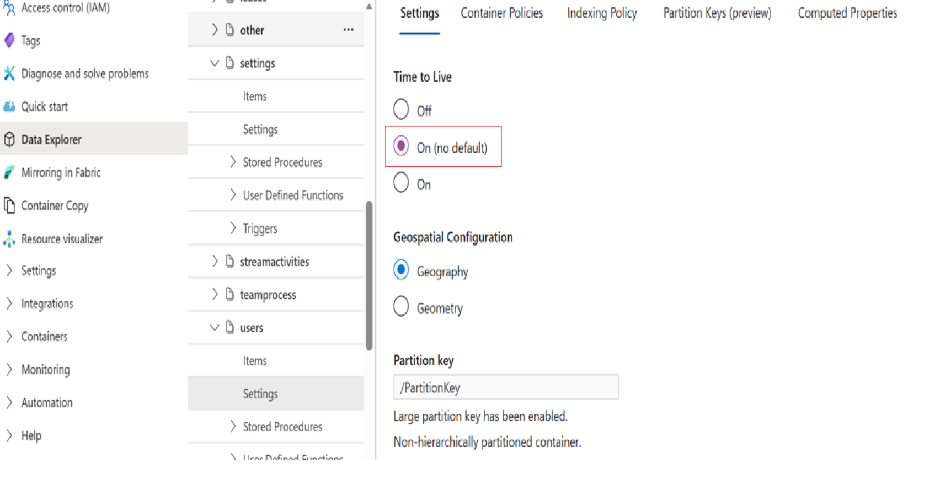
3. Enable Time to Live (TTL)
Navigate to the AI container settings and set Time to Live (TTL) to On (No default).
Update Configuration During PeopleSync Deployment
While deploying the PeopleSync code to the Azure Function App, ensure that the environment variable "AiKeyVaultUri” is added or updated to refer to the AI Key Vault secret.
Create or Update Search Service for Document Vectorization
Follow the steps below to create the new search data sources, indexes, and indexers.
1. Create the Data Sources
• Go to the Search Service.
• Go to Search Management → Data Sources → Add Data Source (JSON).
• Use the attached script to create the akadaiassets, akadknowledgebuckets, and akadaiprompts data sources.
• In the script, update connectionString with the Cosmos DB connection string. When updating the connection string, exclude Database=akcontainers.
2. Create the Indexes
• Go to Search Management → Indexes → Add Index (JSON).
• Use the attached script to create the akadaiassets, akadknowledgebuckets, and akadaiprompts indexes.
3. Create the Indexers
• Go to Search Management → Indexers → Add Indexer (JSON).
• Use the attached script to create the akadaiassets, akadknowledgebuckets, and akadaiprompts indexers.
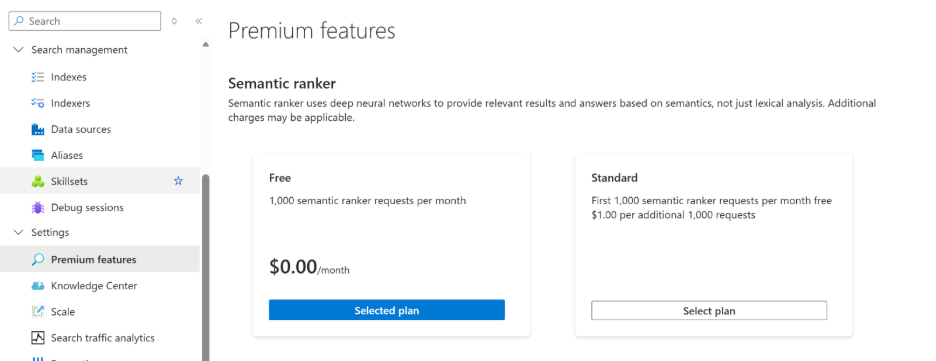
4. Make sure to select the Semantic Ranker plan in the Premium Features section of the Search Service.
1. After completing the steps in this document, if your AI assistant fails, visit the AI tenant configuration page in App Manager settings (refer to AI Configuration :: Akumina). Make sure valid reasoning and embedding models are configured.
2. Review the traces on PeopleSync Application insights to identify any errors or exceptions.
3. If the problem persists, try to stop and start all the services: App Manager, Headless, AI, and PeopleSync.