August 19, 2026
Document Intelligence for Akumina AI
Configuring Azure AI Document Intelligence, directly and through Azure API Management


CDN Version: 7.0.2602.0318
Improvements
Bug Fixes
Improvements
Bug Fixes
App Manager Version: 7.0.2602.0326
Bug Fixes
CDN Version: 7.0.2602.0317
Improvements
Bug Fixes
Improvements
CDN Version: 7.0.2602.0316
Improvements
Bug Fixes
Improvements
Bug Fixes
App Manager Version: 7.0.2602.0325
Improvements
Bug Fixes
CDN Version: 7.0.2602.0315
Bug Fixes
Bug Fixes
App Manager Version: 7.0.2602.0322
Bug Fixes
App Manager Version: 7.0.2602.0321
Improvements
App Manager Version: 7.0.2602.0320
Improvements
Bug Fixes
CDN Version: 7.0.2602.0314
Official Release 7.0 CDN
Akumina 7.0 introduces an enterprise-ready AI Experience designed around governance, precision, and seamless integration with Microsoft 365.
This release also includes significant updates to the Content Experience, including page system enhancements, an improved Writing Assistant, and new authoring and reporting capabilities.
Note: All Akumina AI Experience capabilities are offered as add-on modules and require additional licensing and configuration.
The AI capabilities listed below are what employees experience on the intranet.
AI Experience for Employees
Each capability is made possible by configuration work done in AI Experience Manager by authors and administrators.
AI Experience Configuration & Setup
AI Experience for Employees
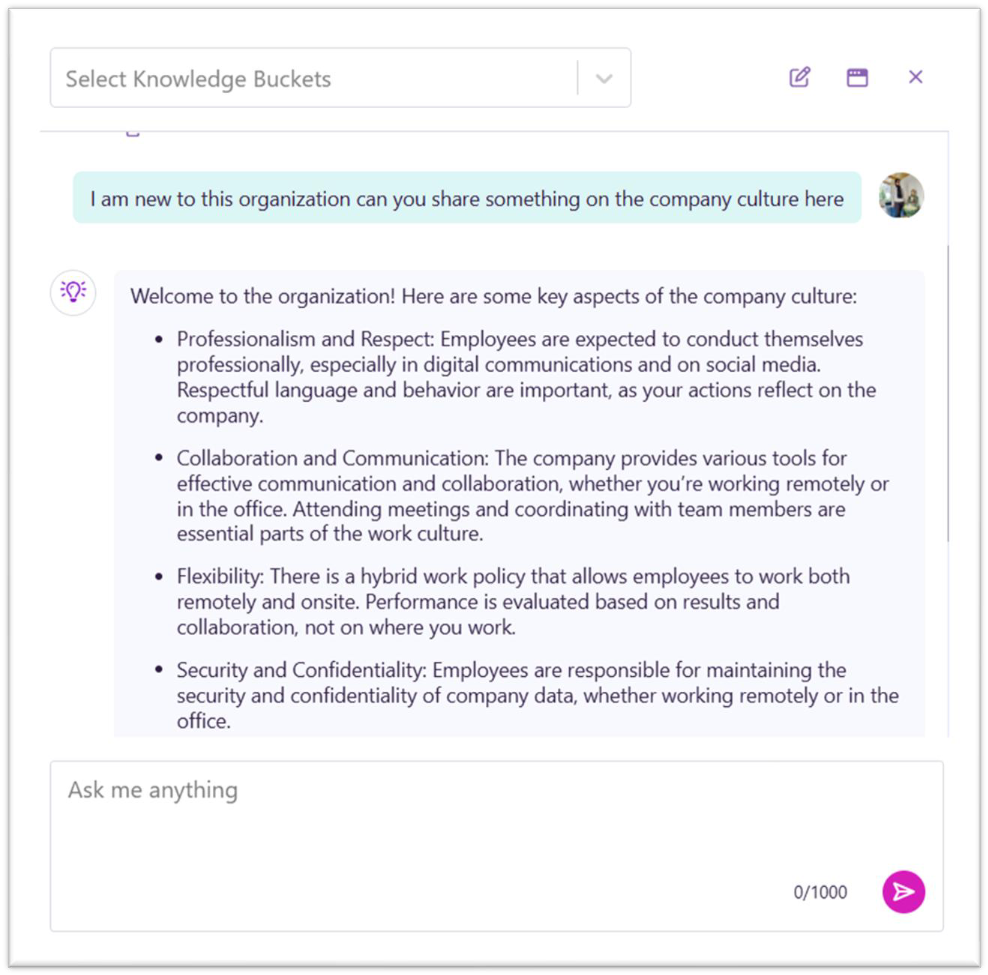
The Chat Experience gives employees a simple, conversational way of interacting with their AI Assistant (known as Max, by default). Employees can ask questions, find information, and quickly complete tasks using trusted knowledge sources and preconfigured prompts.
Employees can either choose a Knowledge Bucket to scope the conversation or ask a question directly. The AI Assistant will automatically select the most appropriate Knowledge Bucket when one isn't specified.
Setup Required
The Chat Experience depends on Knowledge Buckets and Managed Prompts configured in AI Experience Manager.
See: Knowledge Bucket Management
When employees search for information, the platform now provides AI-powered assistance alongside traditional search results. This makes it faster to understand content, explore details, and ask follow-up questions from a single search experience.
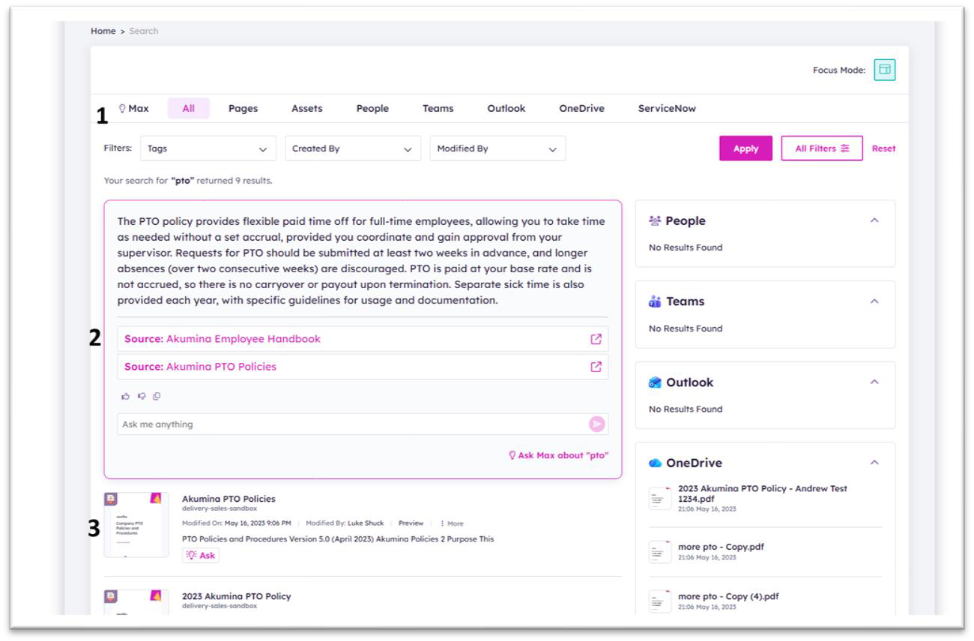
A new AI Assistant tab (shown here as Max, by default) is available in the search results. This tab presents an AI-generated response based on the search query, helping employees understand a topic without opening multiple documents. The response is generated from trusted, approved content sources and is designed to provide clear, concise insights at a glance.
At the top of the search results, employees see a Response Card that summarizes relevant information related to the searched keyword.
Search results include the ability to query AI directly from individual results. Employees can select a document or asset and ask their AI Assistant questions related to that specific content, such as clarifying details or requesting a summary. This enables deeper insights while staying focused on the most relevant information.
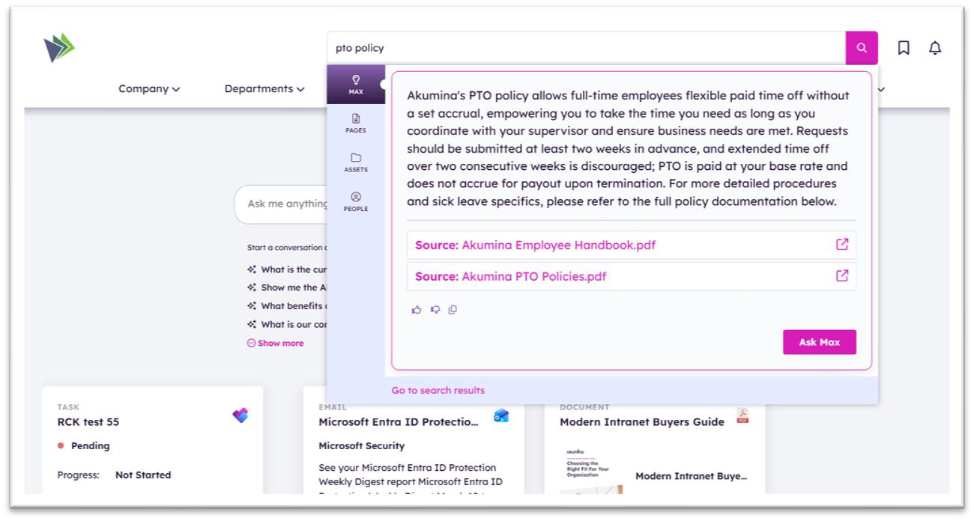
Search typeahead is also enhanced with an AI Assistant tab that provides an instant AI-generated summary as employees type, along with referenced source documents and an option to engage with the assistant further.
Setup Required
The AI search experience depends on content being enabled for AI indexing, organized into Knowledge Buckets, and supported by Managed Prompts in AI Experience Manager. The quality and relevance of search responses reflect those configurations.
See: Knowledge Bucket Management, Managed Prompt Management, and Intelligent Content Processing
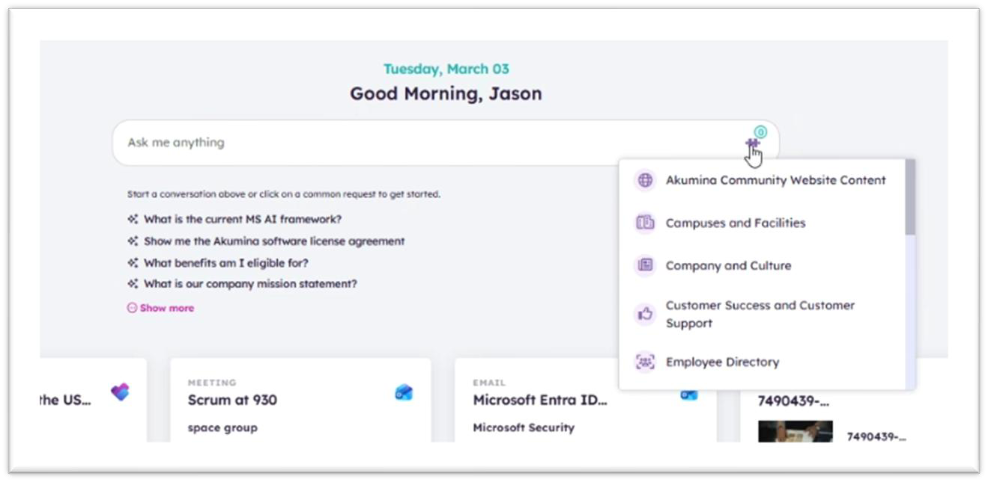
The AI Greetings Widget is the entry point for interacting with AI on the intranet. It provides a simple, conversational entry point where employees can quickly ask a question and seamlessly transition into the full AI chat experience.
The widget can display persona-driven Managed Prompts to guide employees toward common tasks or areas of interest, helping them get started without needing to know exactly what to ask. Employees can also select a Knowledge Bucket to scope the AI's access to a specific set of documents, tools, or resources.
Setup Required
The AI Greetings Widget is configured by authors in AI Experience Manager using Managed Prompts and Knowledge Buckets.
See: Knowledge Bucket Management and Managed Prompt Management
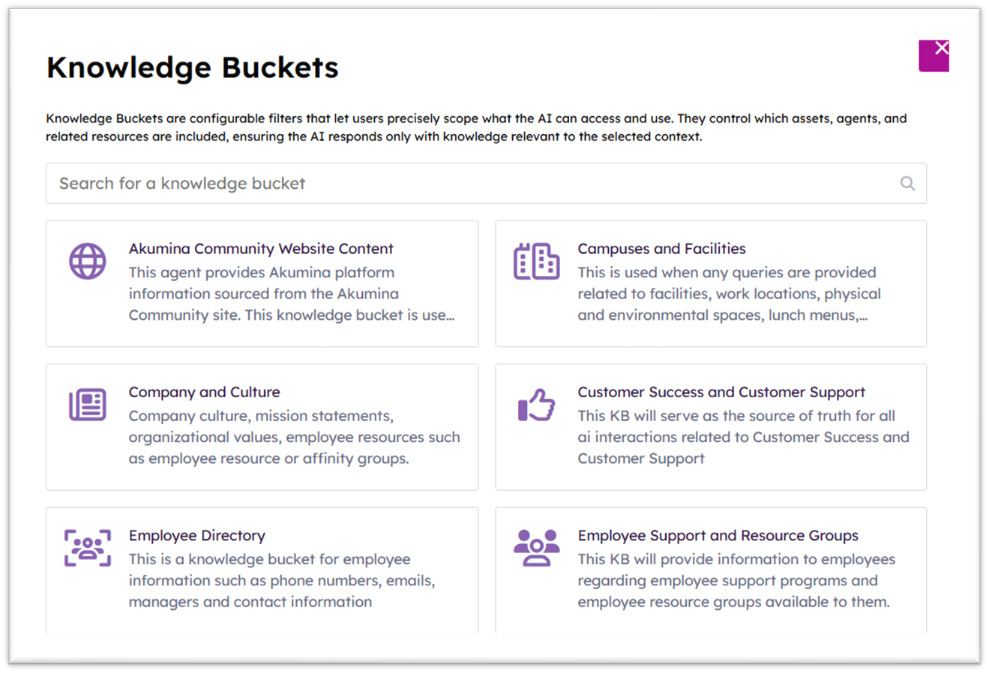
Knowledge Buckets let employees control what information the AI uses. By selecting a Knowledge Bucket, employees ensure the AI only pulls from the most relevant content, assets, and tools for their task.
Employees can select a Knowledge Bucket before asking a question, or their AI Assistant will automatically choose the most appropriate one based on the query.
Knowledge Bucket Listing Widget example:
Setup Required
Knowledge Buckets are created and managed by authors in AI Experience Manager.
See: Knowledge Bucket Management
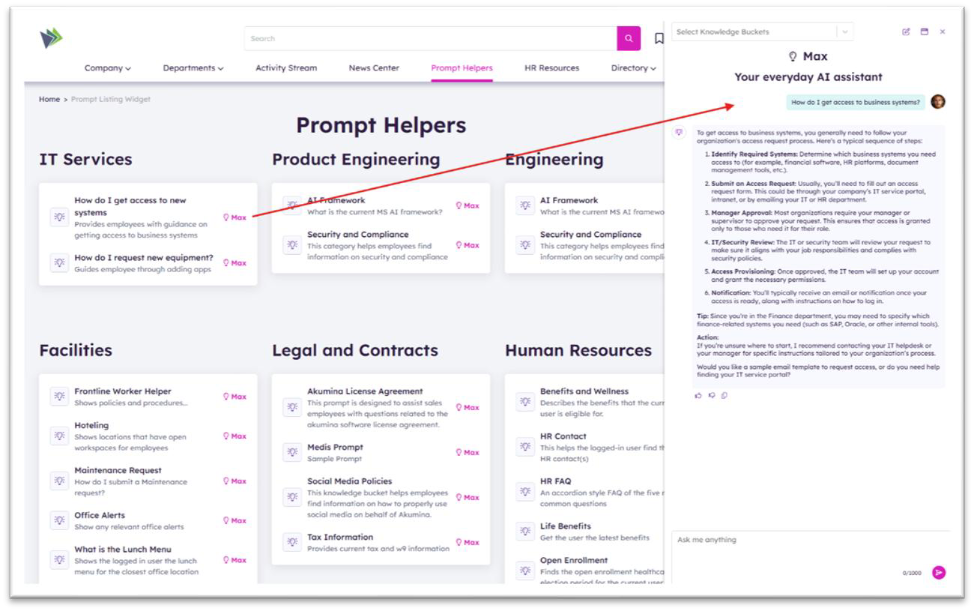
Managed Prompts are prebuilt questions and instructions that guide how the AI responds. They ensure answers are consistent, relevant, and aligned to specific tasks, without requiring employees to create or manage prompts themselves.
Content authors design these prompts to help employees quickly achieve their goals.
Setup Required
Managed Prompts are created and managed by authors in AI Experience Manager.
See: Managed Prompt Management
AI Experience Configuration & Setup
AI Experience Manager is the authoring and administration layer that powers the employee AI experience. The capabilities below are managed by authors and administrators.
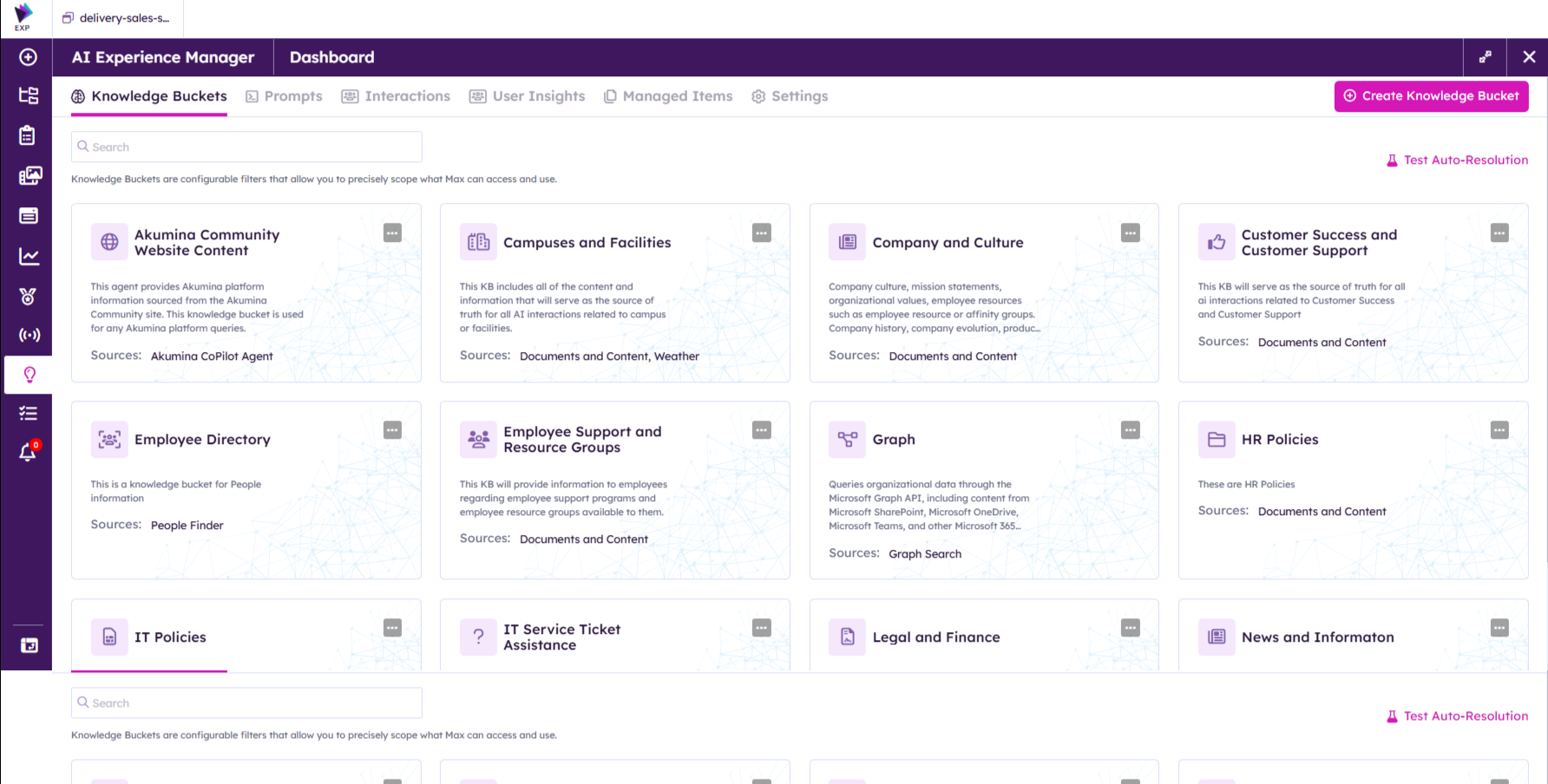
Knowledge Buckets organize and separate AI content by source, making it easy to manage, scope, and target AI responses. Authors manage Knowledge Buckets and define how they are used.
When creating a Knowledge Bucket, authors can:
When employees use a Knowledge Bucket, AI retrieves information only from the sources associated with that bucket. This ensures permission-aware responses, strong governance, and accurate, trusted content tailored to employees' needs.
Knowledge Bucket listing in Voice:
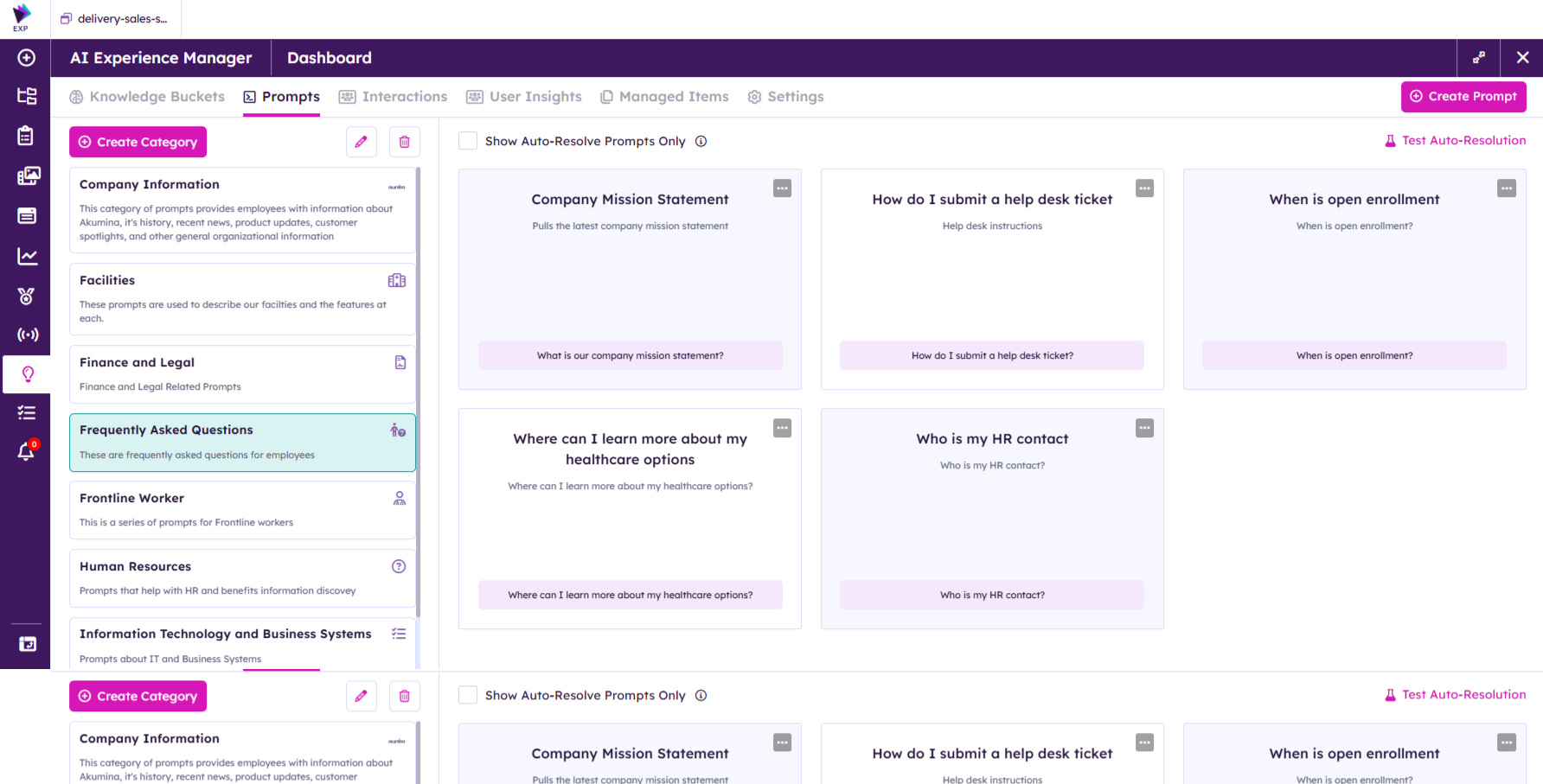
Authors can create Managed Prompts aligned to their organization's content and business needs. To get started, authors define high-level categories, then create prompts within each category to support specific use cases.
When creating Managed Prompts, authors can:
Managed Prompts guide employees through their AI journey, making it easy to ask the right questions, find relevant information, and act with confidence.
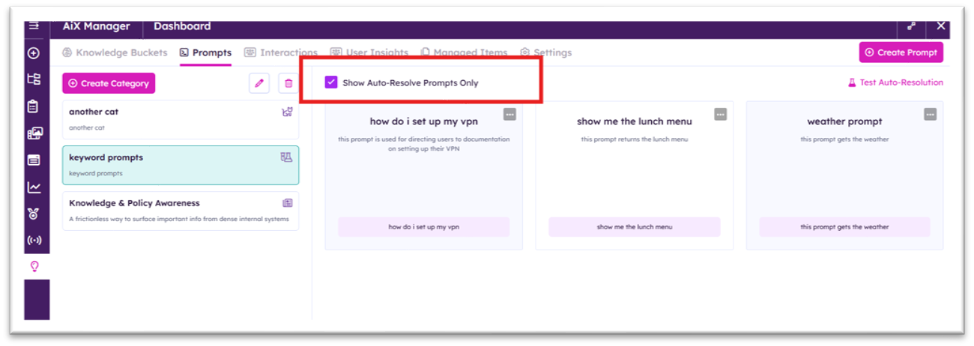
Prompt listing with categories in AI Experience Manager:
Auto Resolve helps employees get more accurate and relevant AI responses, even when they use short or vague search terms. Instead of sending raw keywords directly to the AI, Auto Resolve maps those keywords to a preconfigured Managed Prompt designed to return more accurate results.
This is especially useful for:
When a keyword (for example, "insurance") is mapped to a Managed Prompt, entering that keyword in Search or Chat automatically triggers the mapped prompt and its associated Knowledge Bucket to generate the response.
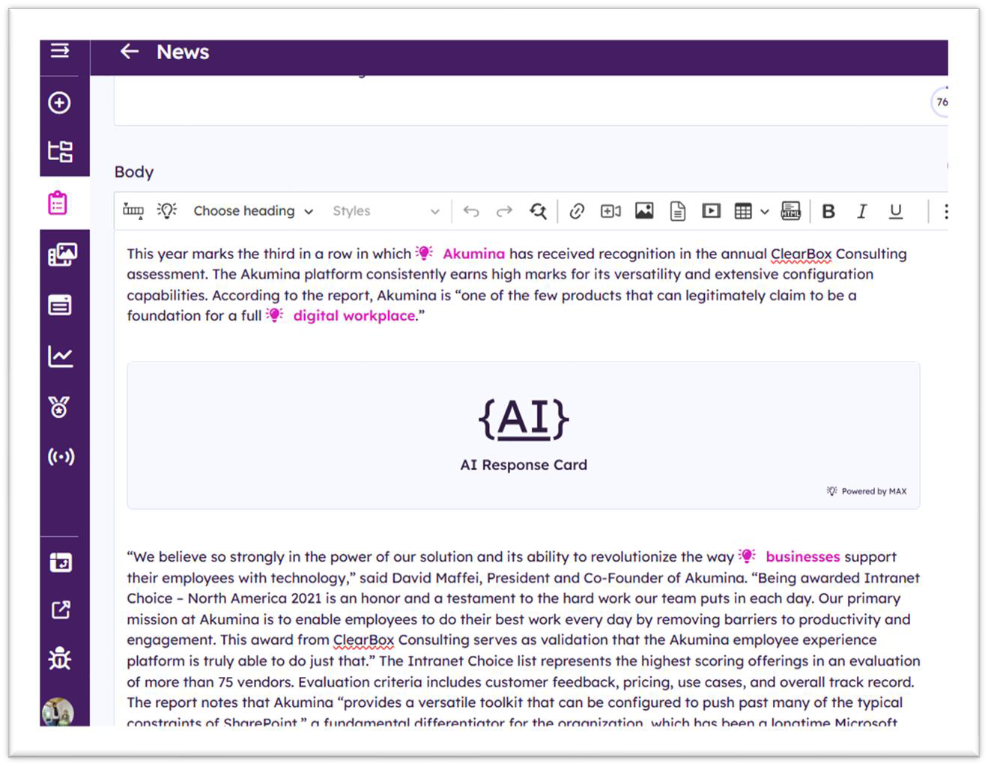
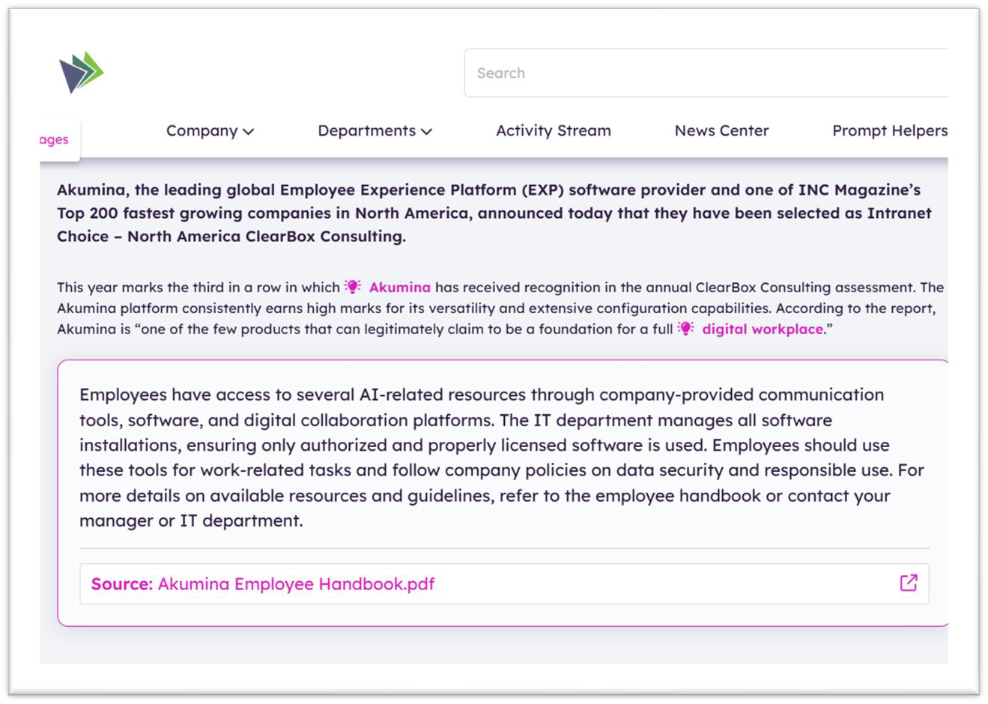
Response Cards are interactive elements that present AI-generated information, suggested actions, or quick replies in a concise, easy-to-use format. These cards can be embedded directly within pages and news content, bringing AI insights into everyday employee experiences.
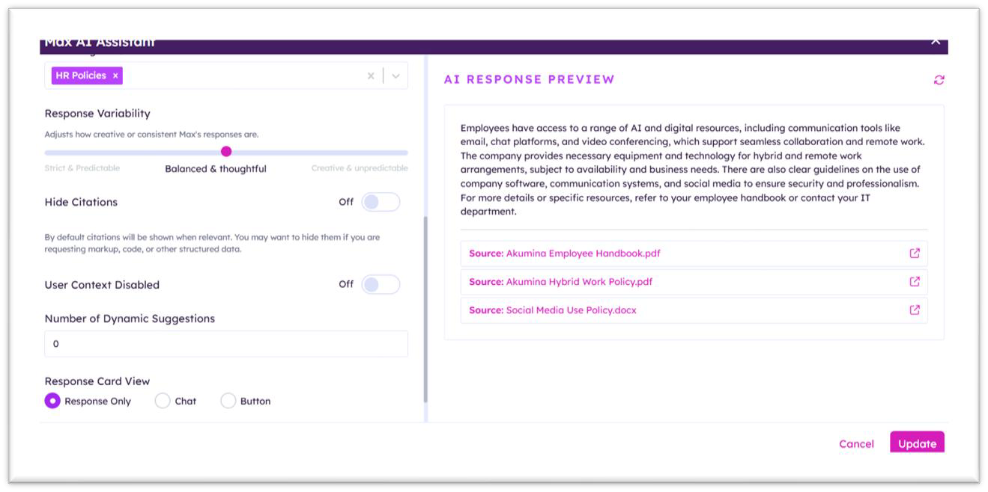
Authors define the response format, associate content from specific Knowledge Buckets, and choose how the card appears (full card, button, or within a chat experience). Authors can preview Response Cards before publishing.
Response Cards simplify interactions, reduce the time employees spend searching for information, and help them complete tasks more efficiently.
Response Card sample when editing content:
Response Card configuration model:
Response Card employee view:
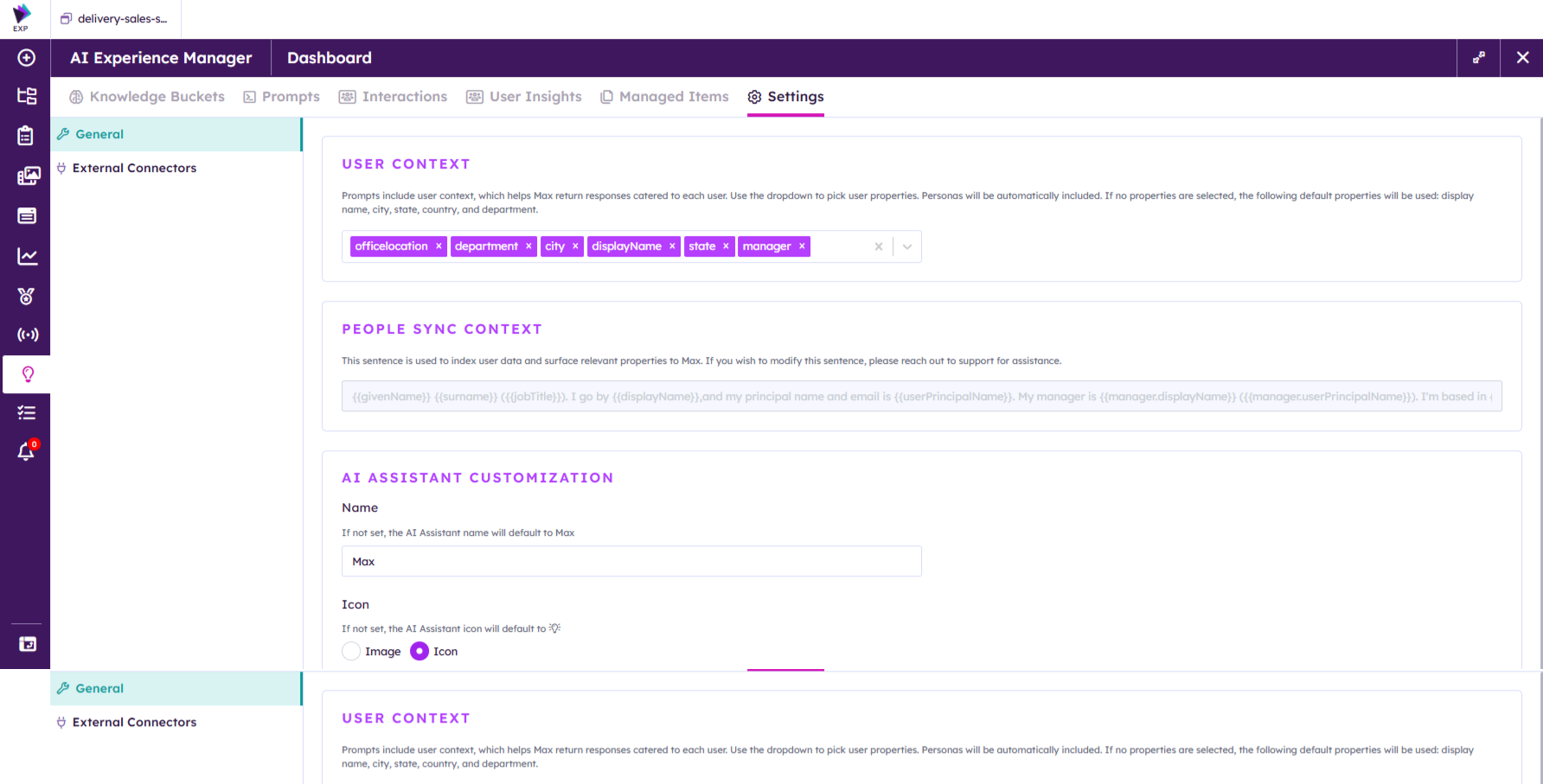
Prompts can include employee context, allowing AI to deliver responses tailored to each individual. Admins configure this personalization from the Settings tab in the AI Experience Manager. They may choose attributes such as role, location, or department, that the AI should consider when generating responses. Personas are automatically applied to ensure consistent targeting.
If no specific attributes are selected, the AI Assistant uses a standard set of employee details, including display name, city, state, country, and department. This enables AI responses to be personalized for each employee, improving relevance and delivering a more meaningful, role-aware experience.
Authors have multiple ways to monitor and understand how AI is being used by employees.
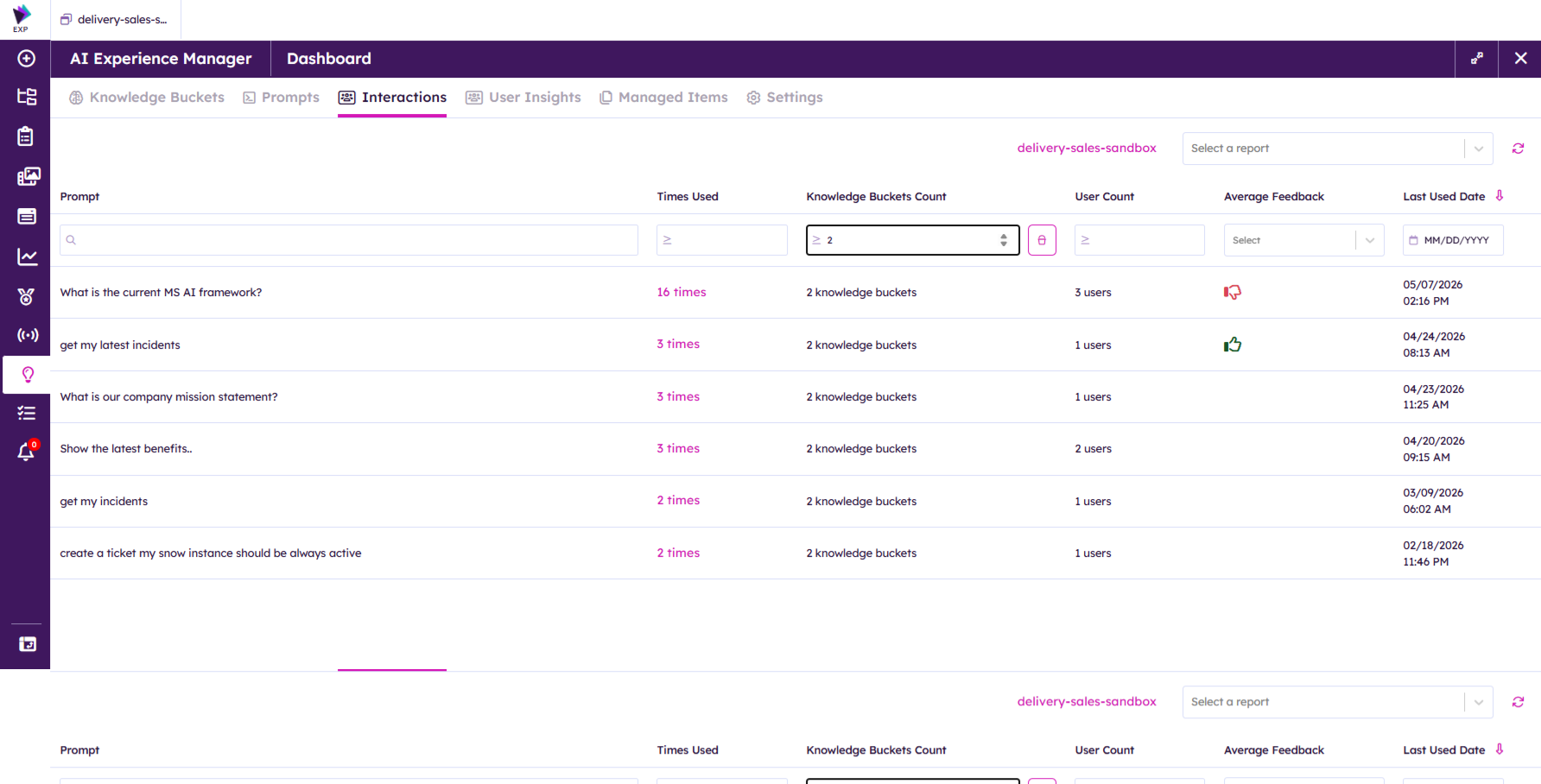
Within Voice experiences, the Interactions screen in AI Experience Manager provides visibility into how Managed Prompts are being used. Authors can identify the most frequently used prompts and review employee feedback to refine and improve them over time.
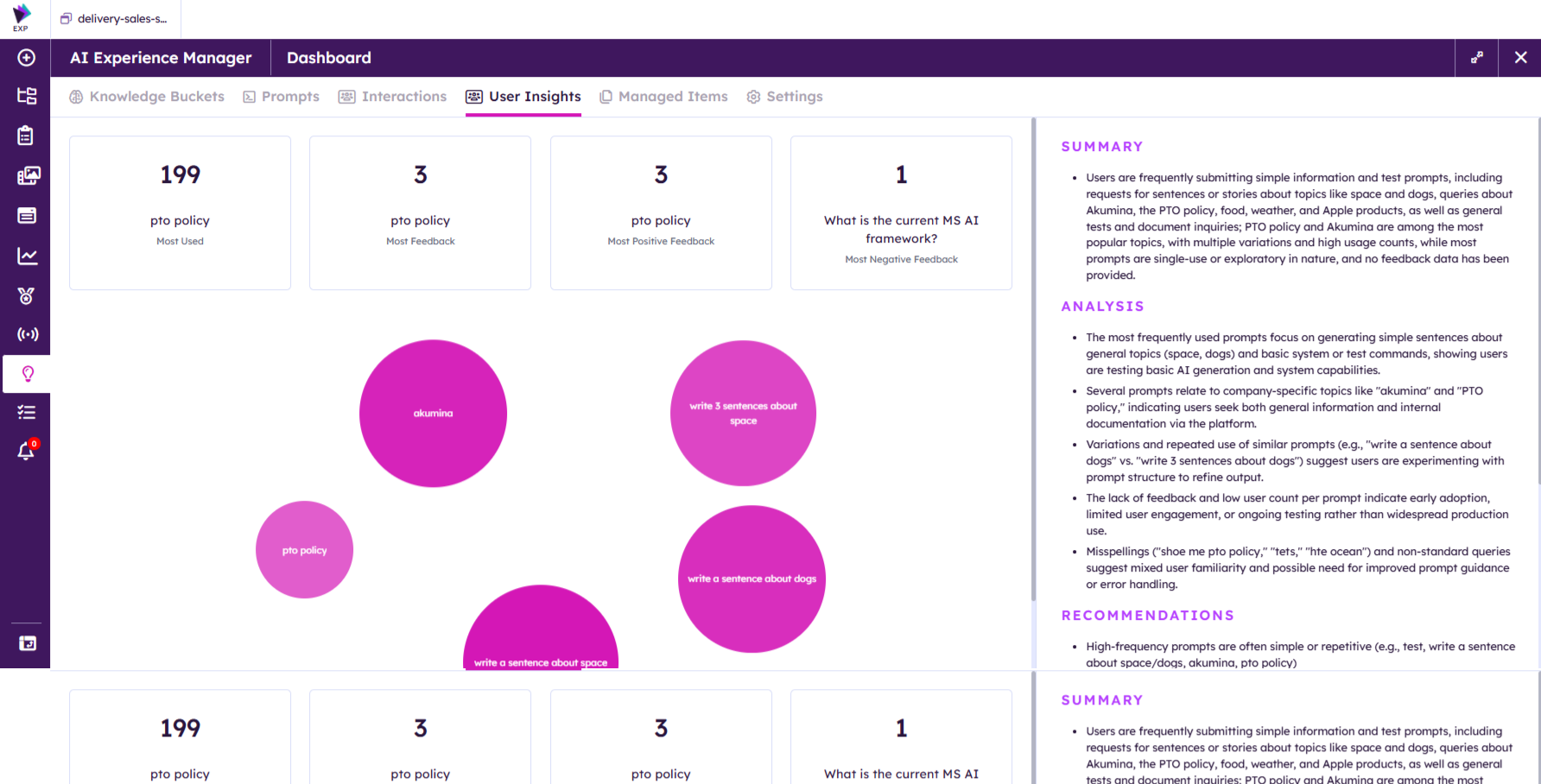
The User Insights tab in AI Experience Manager offers deeper analytics, including the most used prompts and value-based recommendations. This helps authors understand which prompts and knowledge articles deliver the most impact.
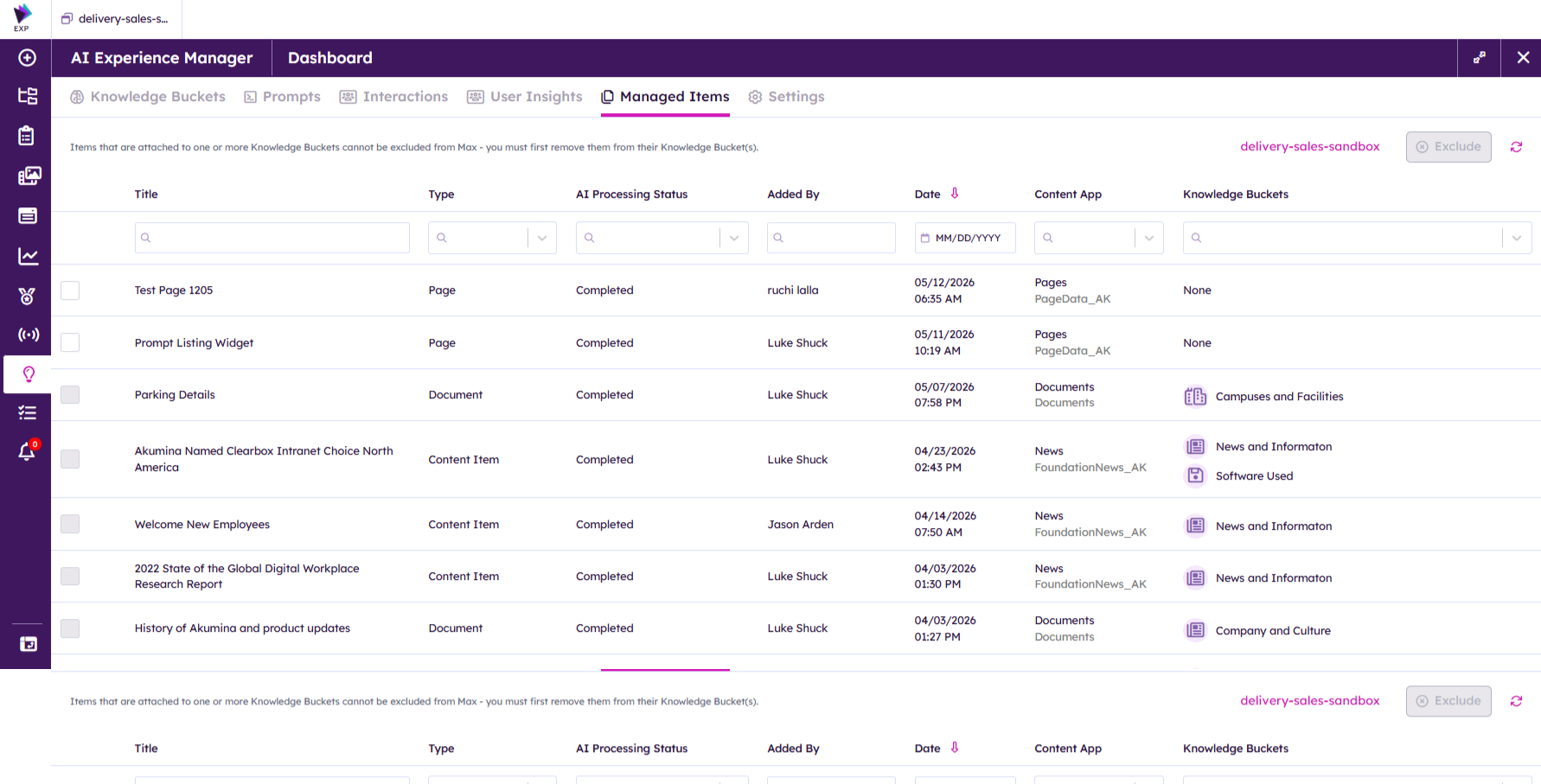
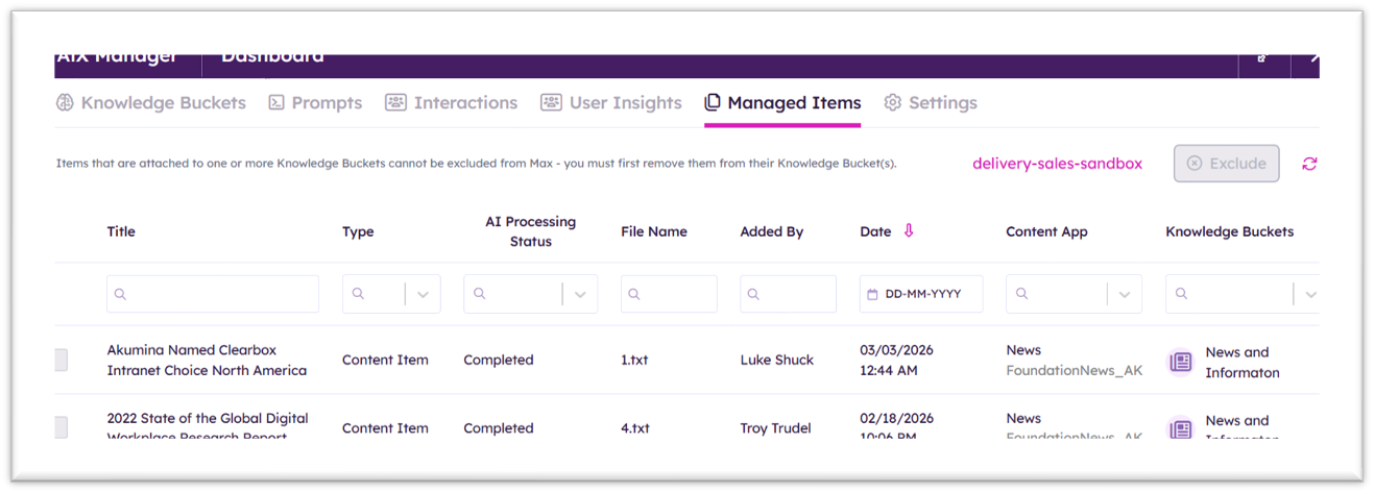
Authors also benefit from AI processing status indicators, which clearly show content readiness and usage. The Managed Items tab provides detailed information for each AI-enabled item, including processing status, associated Knowledge Buckets, and ownership details.
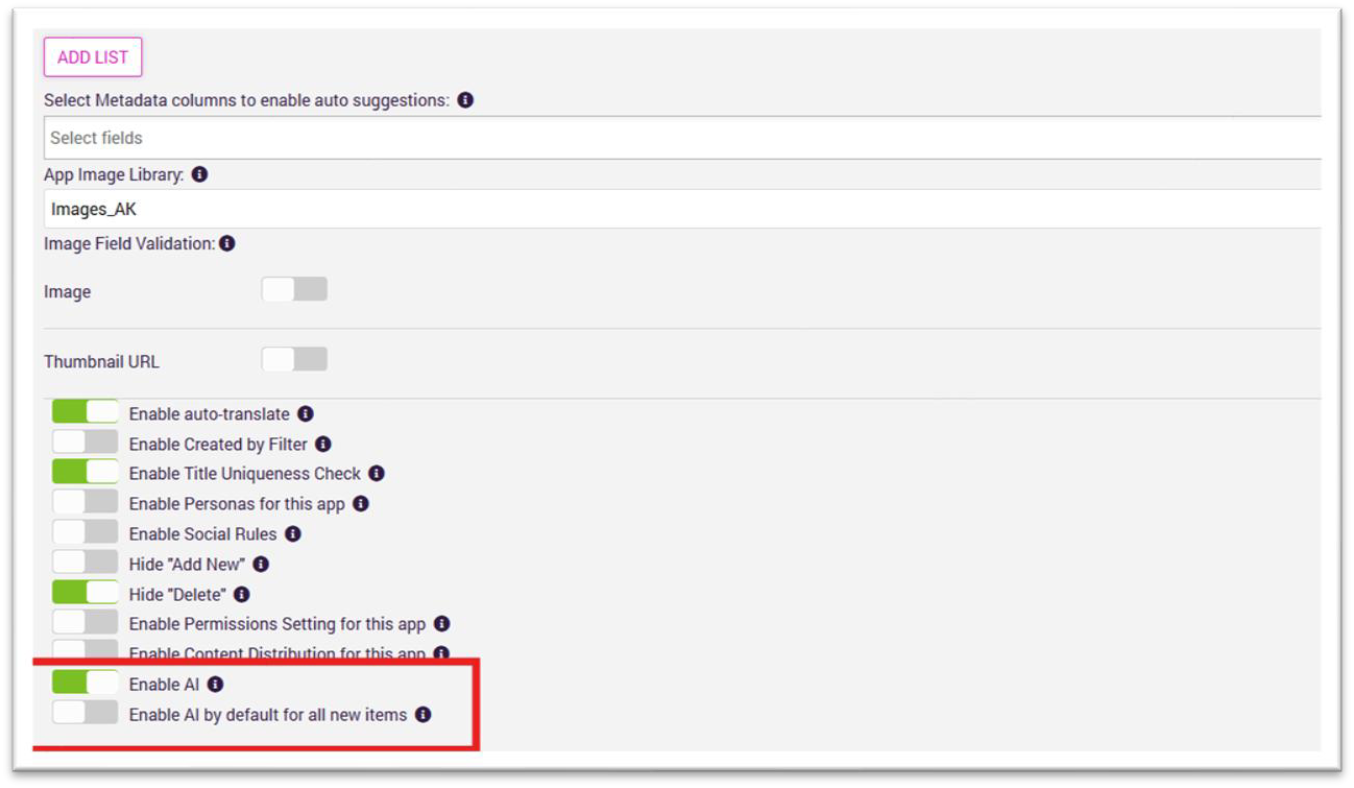
Authors control which content is enabled for AI. Content apps can be marked as AI-enabled, and authors can choose to automatically enable AI for all new content created within those apps.
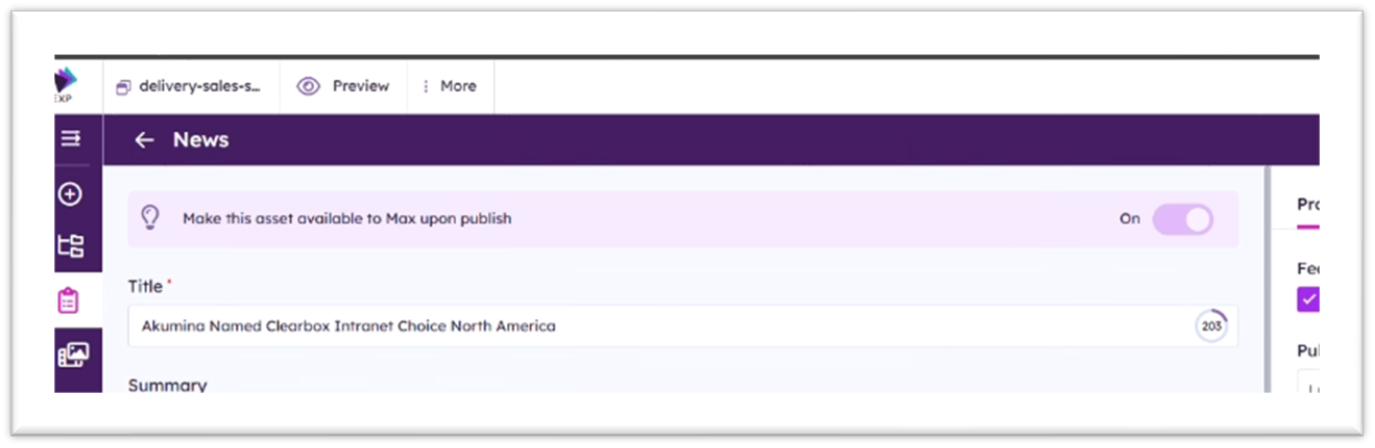
Once a content app is AI-enabled, authors can push individual content items to the AI Assistant directly from the Voice experiences. When enabled, content is automatically indexed for AI upon publishing. If workflow approvals are in place, content is only sent to AI after it has been approved by all required stakeholders.
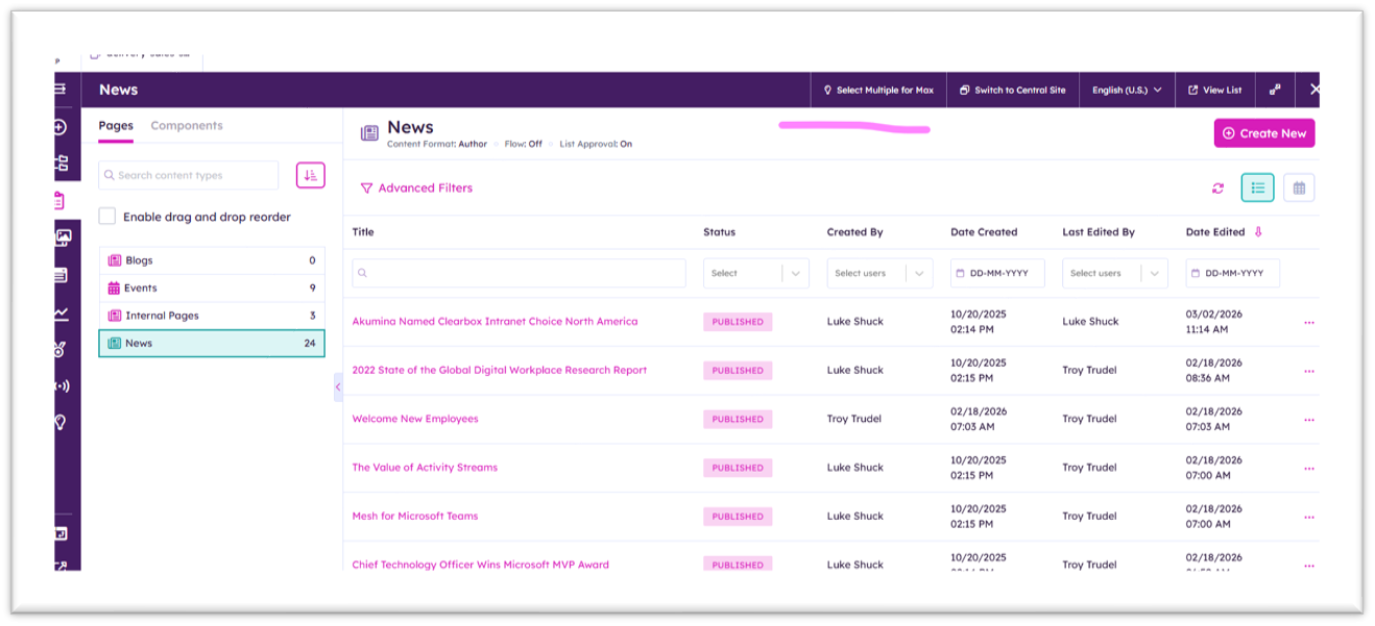
For upgrade scenarios, Akumina supports selecting multiple content items at once for AI indexing, making it easy to onboard existing content at scale.
Content app settings:
Voice – Enable a single item for AI:
Voice – Enable multiple items for AI:
AI responses in Akumina are permission-aware, ensuring employees only see information they are authorized to access. Through the Managed Items tab in AI Experience Manager, authors have visibility into which assets are available to their AI Assistant. This provides confidence that employees receive accurate, relevant responses and prevents outdated or unnecessary content from being surfaced.
Authors maintain full control over AI-enabled content, including the ability to decide what information is available to AI and to remove content from AI at any time.
The Akumina platform provides out-of-the-box integrations with multiple services to ground AI responses in trusted data. Organizations can bring their own instances of these services and configure them through the App Manager AI Settings.
Available integrations:
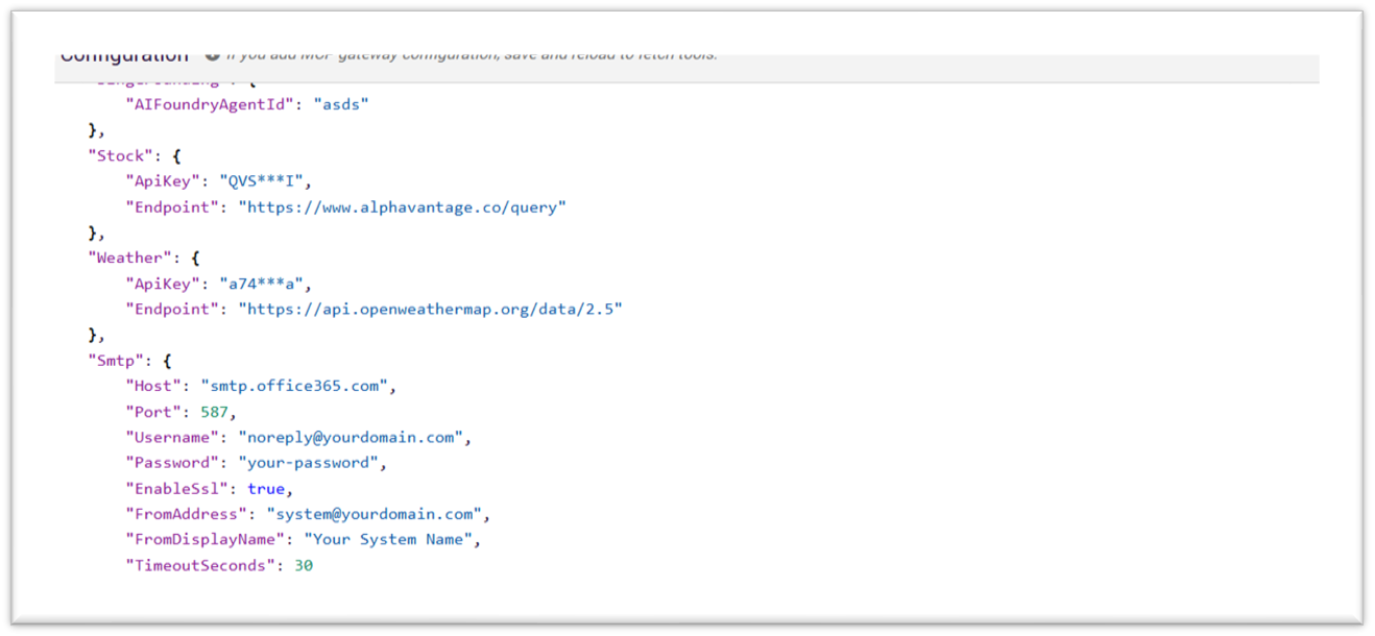
The Akumina platform makes it easy to integrate with external AI agents, allowing organizations to bring in agents from leading systems:
Using the AI Settings screen in the App Manager, administrators can connect to these agents before configuring Knowledge Buckets to control how information is organized. Once configured, these AI capabilities are made available to employees across the platform.
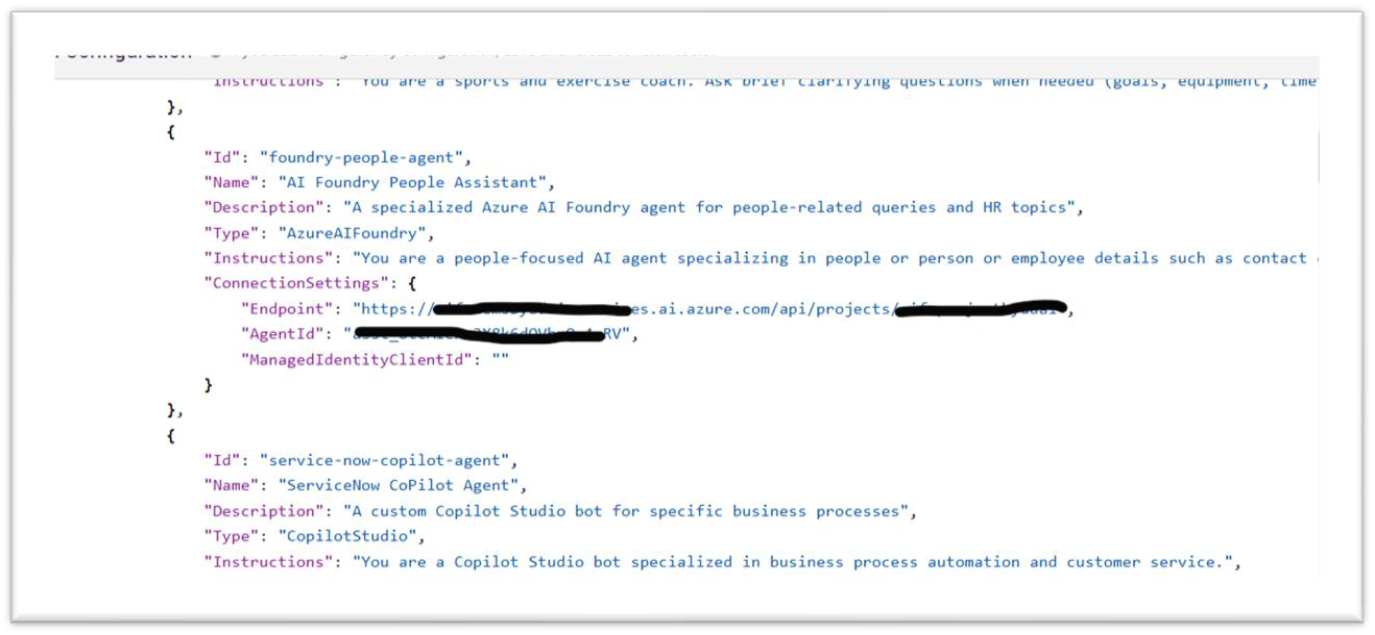
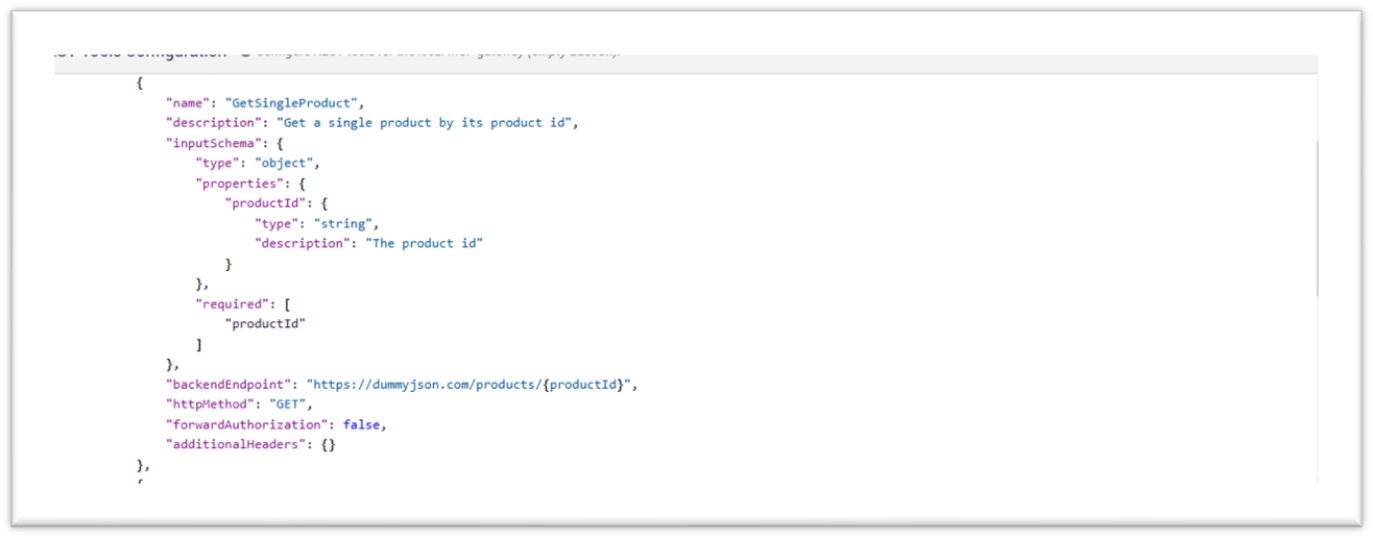
Model Context Protocol (MCP) is a standardized way for AI models to securely connect to external tools, data sources, and systems. MCP defines how an AI model requests information, calls external tools or APIs, receives structured responses, and maintains context during interactions.
MCP is a bridge between the AI model and external capabilities, such as databases, APIs, file systems, SaaS platforms, or enterprise systems.
Administrators configure third-party APIs in the App Manager AI Settings screen. Authors can then create a Knowledge Bucket for the service to make the external information available to employees.
Content Experience Updates & Additions
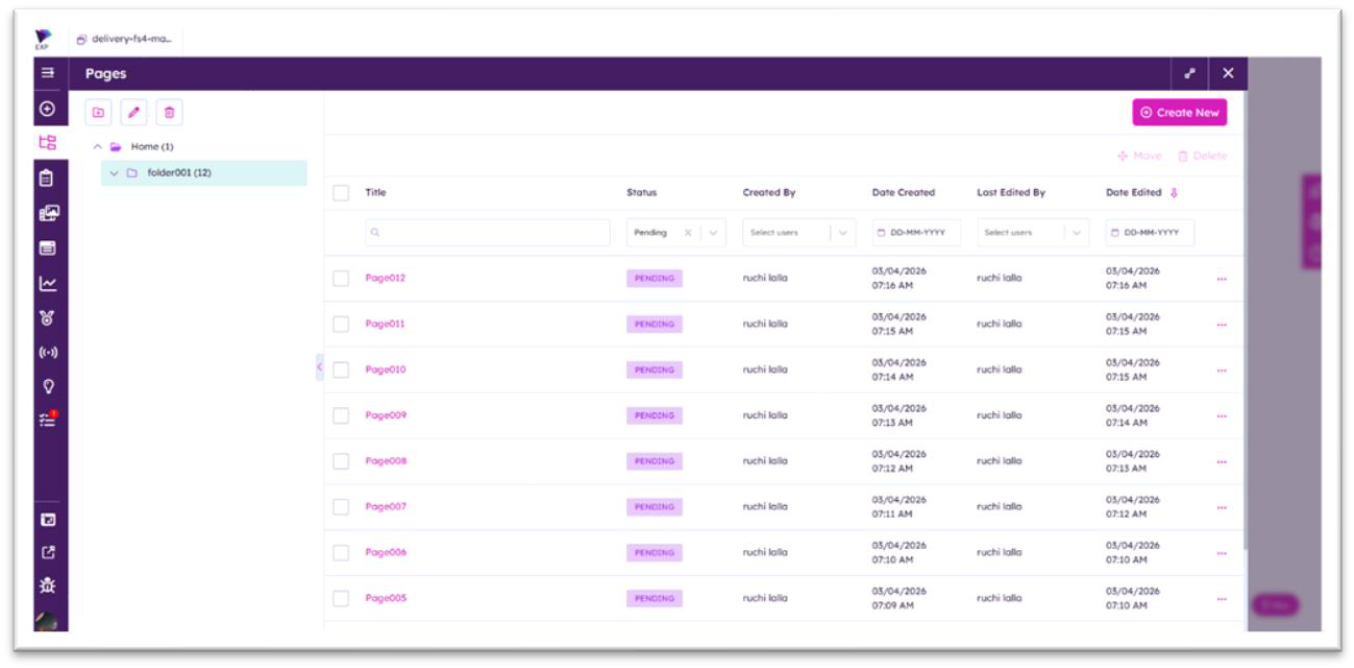
Authors now have full control over the page lifecycle. Create and save pages as drafts, track their status directly in the listing view, and publish only when ready.
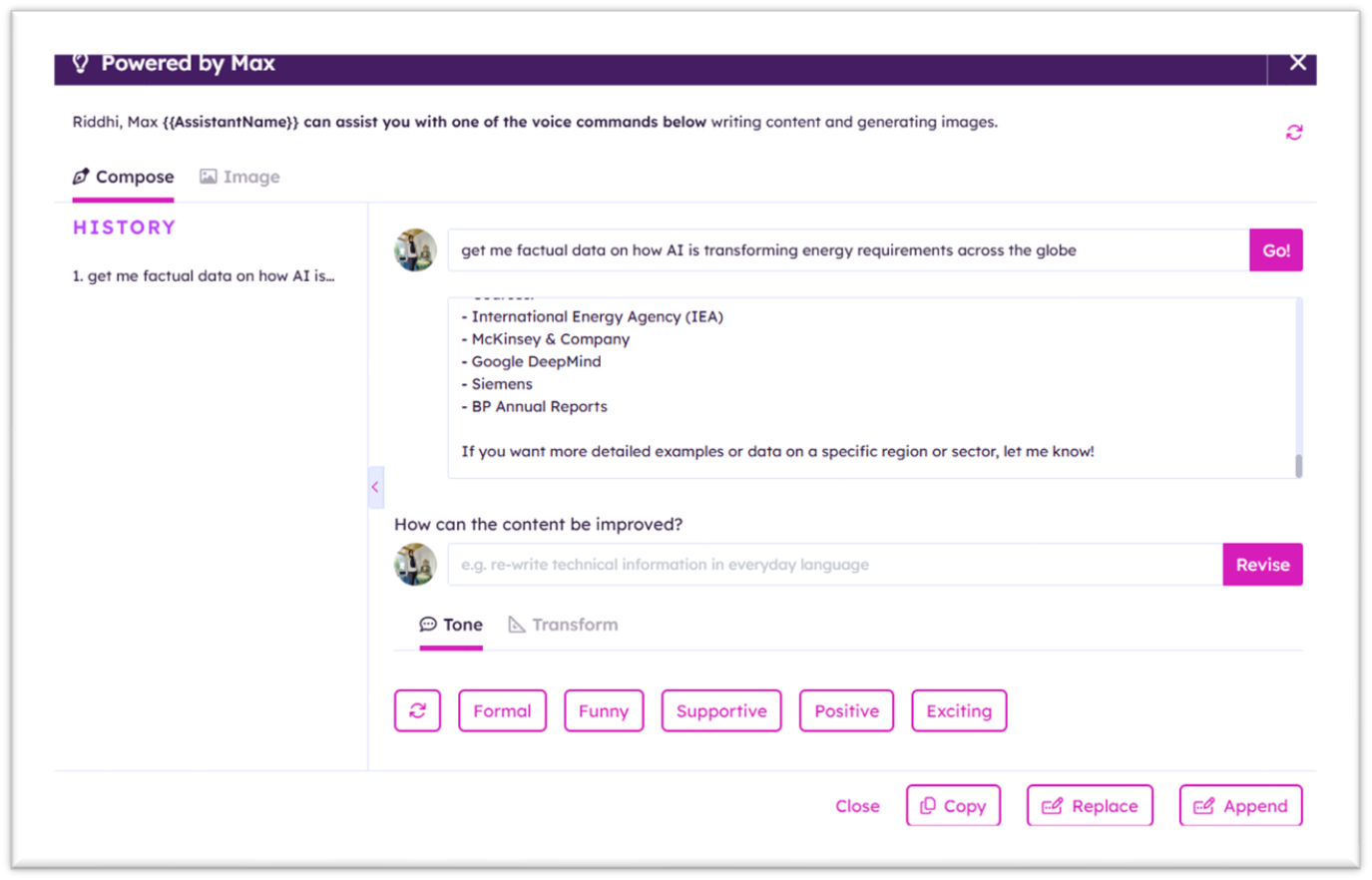
The Writing Assistant brings generative AI into the Voice editorial experience helping content authors create content, apply modifiers, and use editing tools to ensure everything meets organizational standards before publishing.
In 7.0, the Writing Assistant runs on the new AI framework, giving it access to agents and a broader range of AI capabilities.
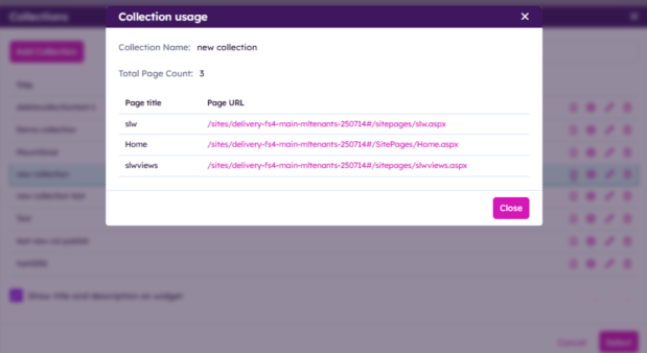
Authors can now validate that each Summary Links Widget Collection is correctly linked to its respective pages, identify orphaned Collections not used on any page, and see a UI indicator showing whether a Collection is used or unused.
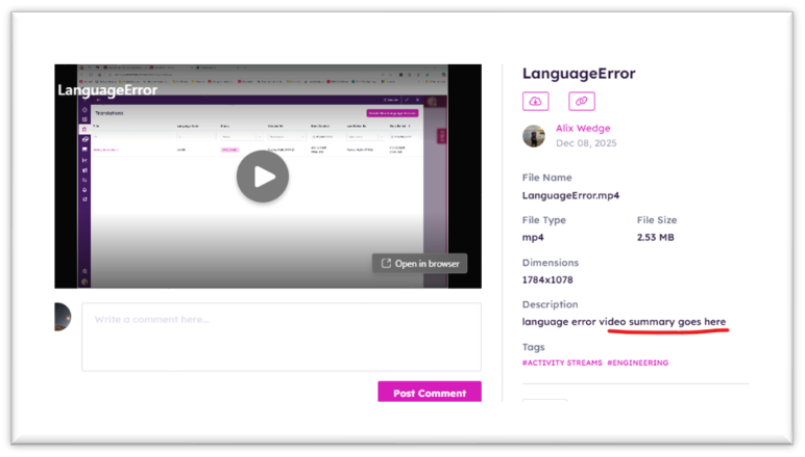
A new description field for videos allows content authors to populate and display video summaries on the Search Results page.
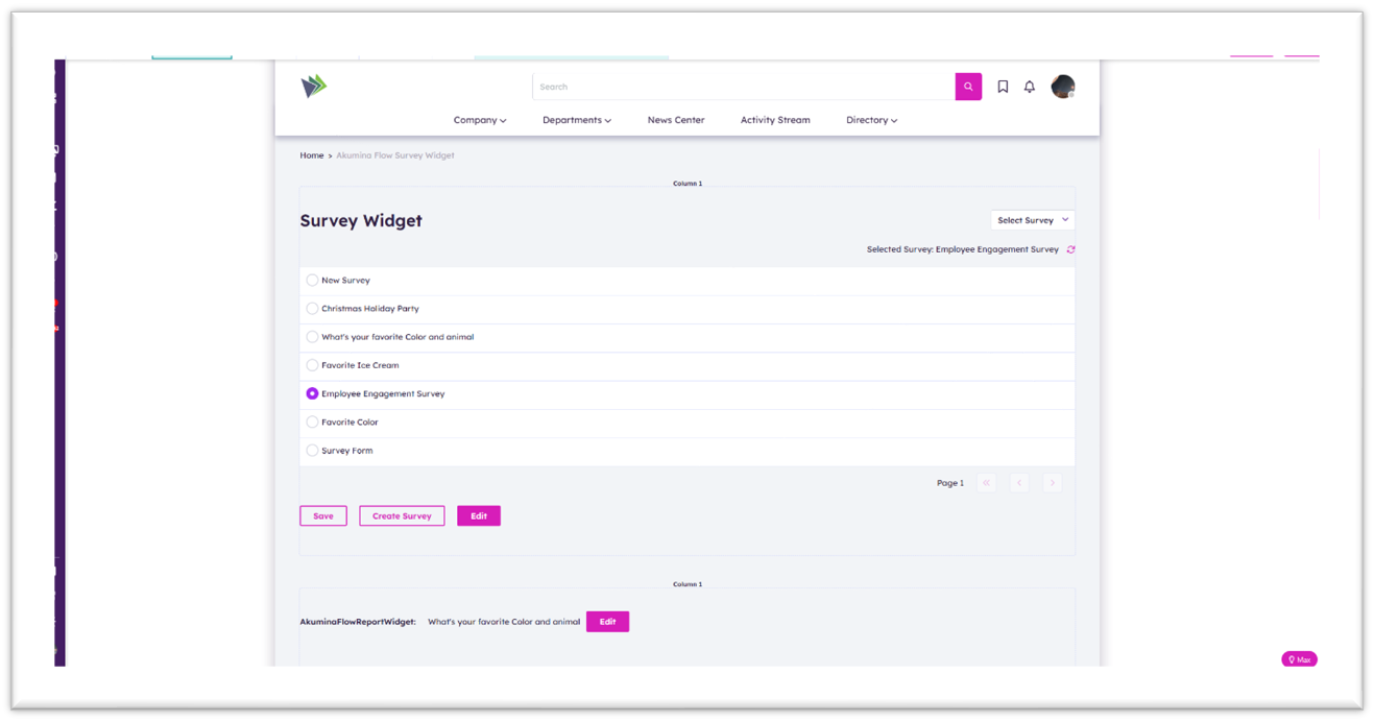
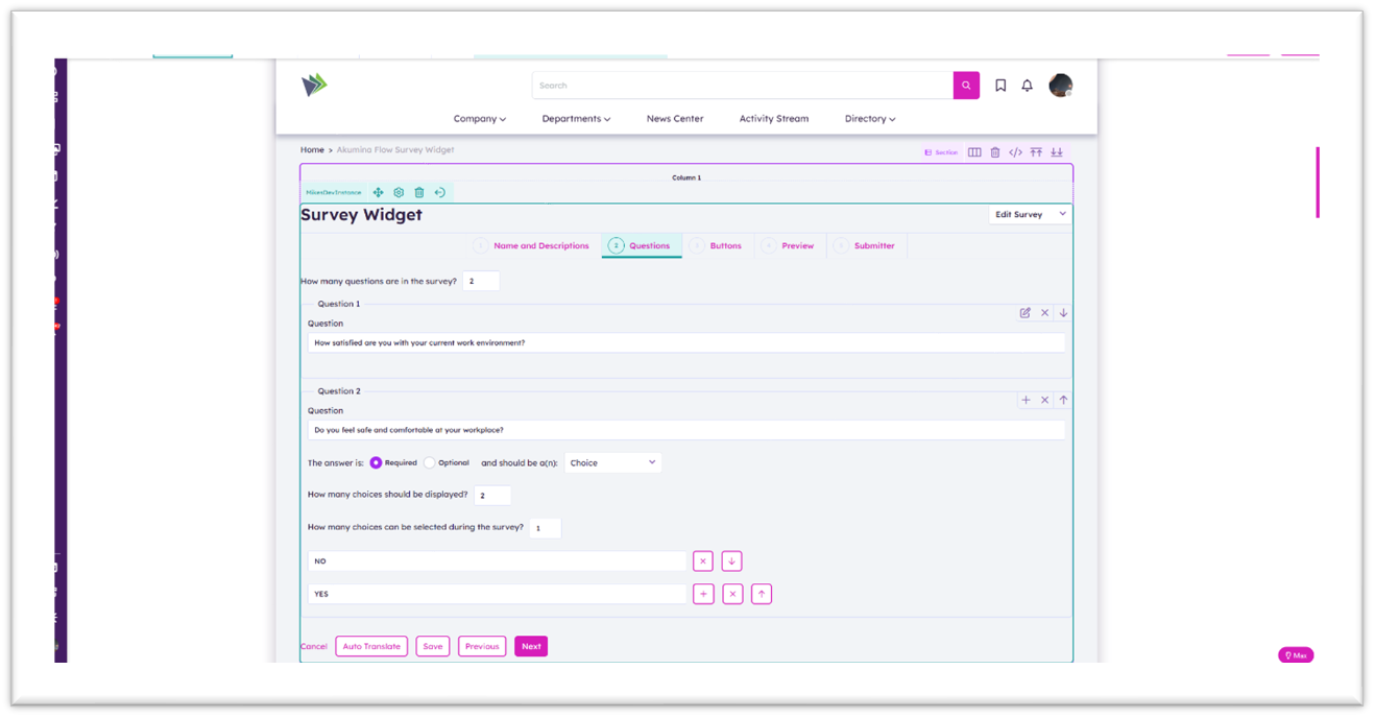
Leveraging the Akumina Flow backend engine, this new Flow Survey Widget enables authors to create a survey, post it and view the report.
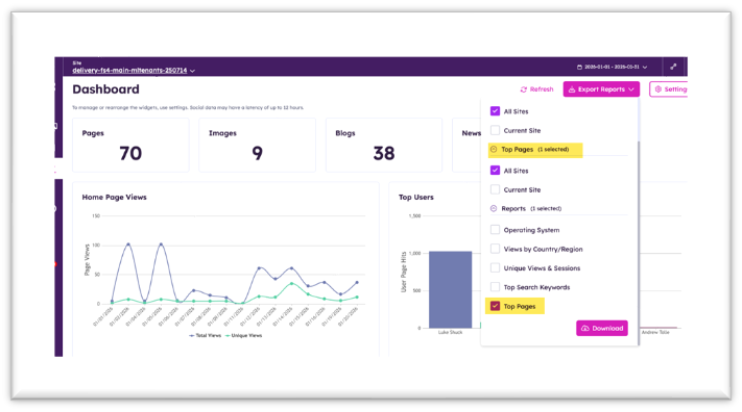
Authors can now download page insights and metrics as Excel reports instead of viewing them only on individual pages. This allows easier comparison and analysis across multiple pages and improves efficiency for teams reviewing data at scale. Reports can be downloaded across all sites.
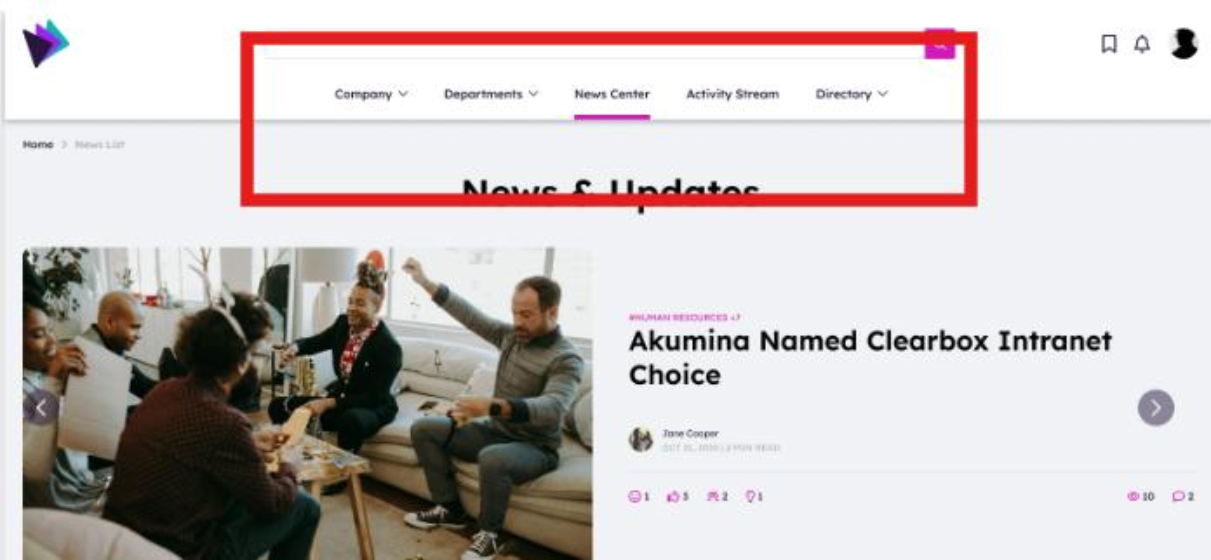
The Quick Links menu now indicates the currently selected page, providing employees with a clear visual cue of their location in the navigation.
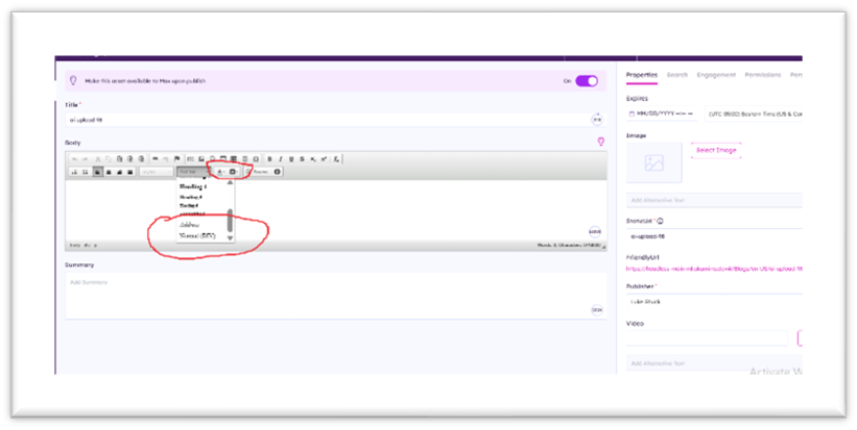
Adds additional text formatting and color options in CKEditor 4.
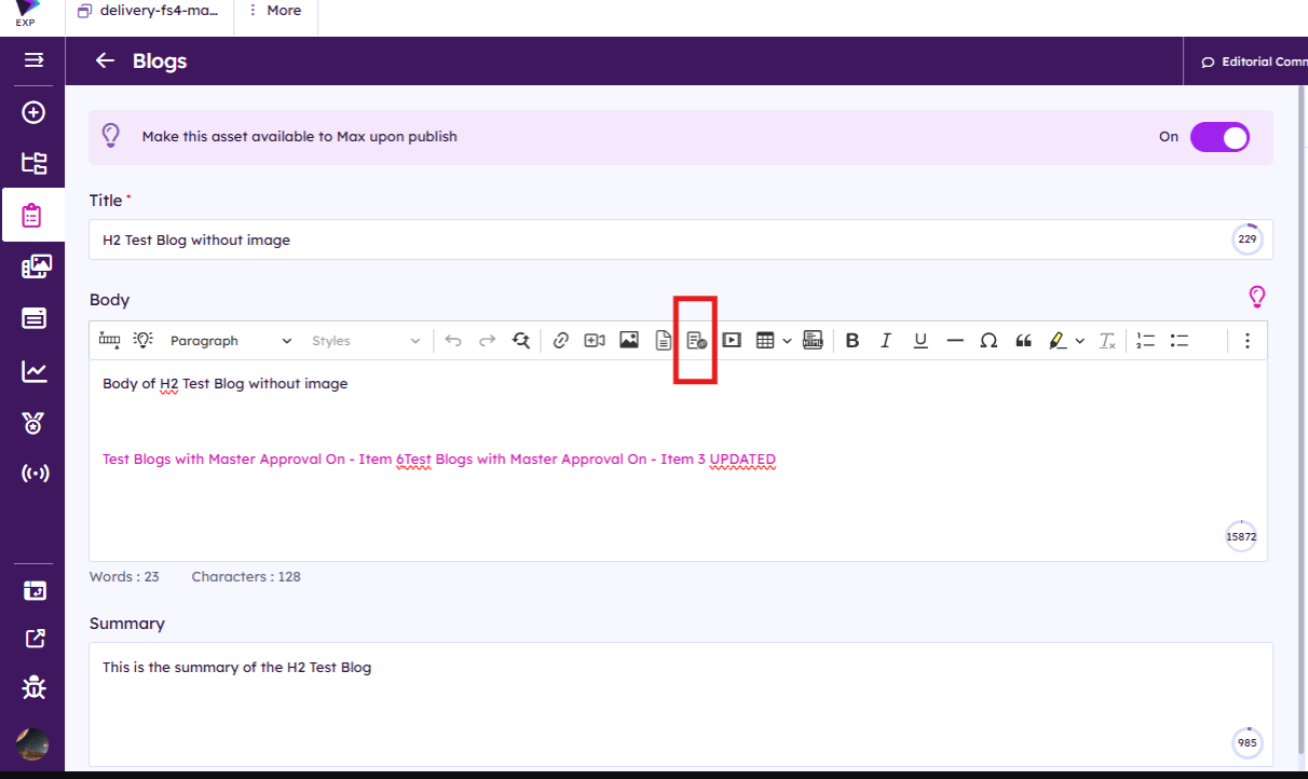
A Page Link Picker module has been added in CKEditor, enabling authors to easily link other content pages, including items from structured content apps such as blogs, news articles, and events. Friendly URLs can be inserted directly within CKEditor.
As part of penetration testing enhancements, authors can no longer insert script tags in CKEditor 5, preventing malicious code execution.