August 19, 2026
Document Intelligence for Akumina AI
Configuring Azure AI Document Intelligence, directly and through Azure API Management


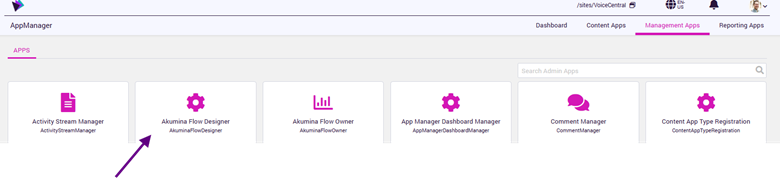
In your App Manager go to your Central Site, click on the Management Apps tab then click on the Akumina Flow Designer Management app
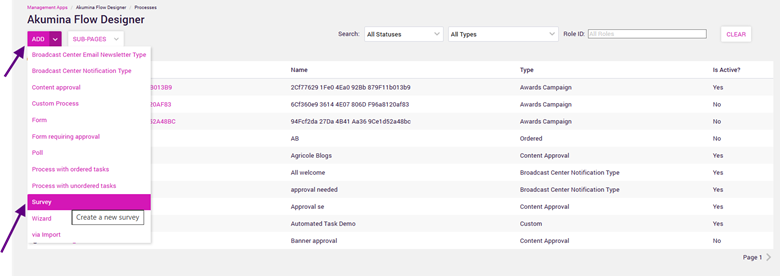
Click Add then Survey from the drop-down menu of options
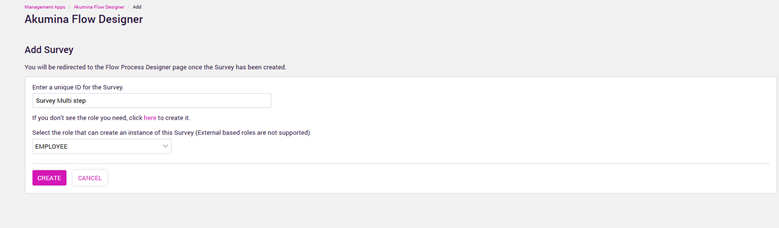
Enter a ID for the Survey
Select which role can submit the survey
Click CREATE
Add questions to the survey (including the optional questions)
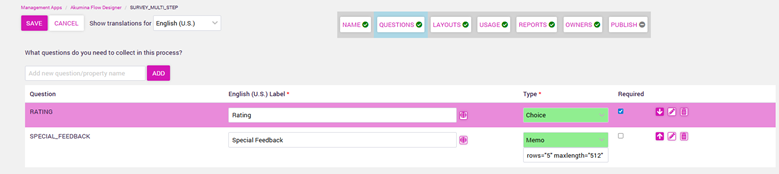
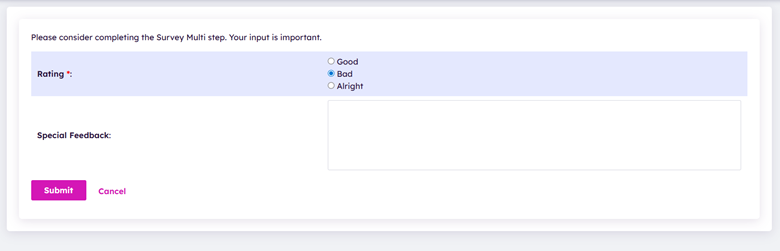
In this Example Special Feedback memo form will only be displayed if “BAD” is selected
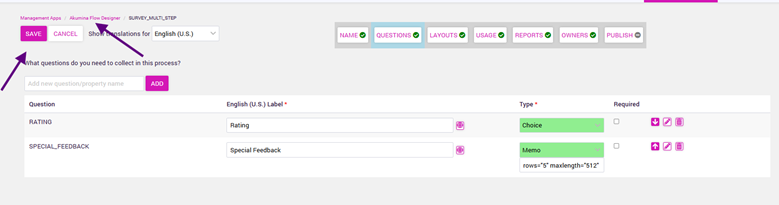
Save the Form then click on Akumina Flow Designer.
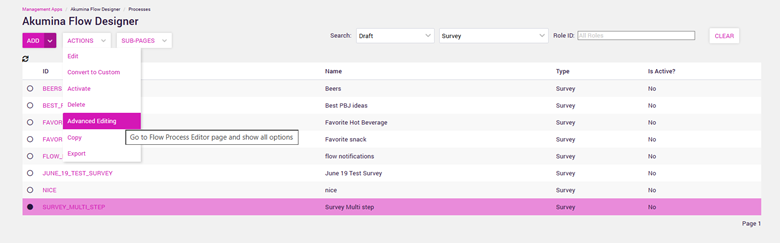
Open up advanced editing. Select your Survey. Then under the white ACTIONS drop down select Advanced Editing
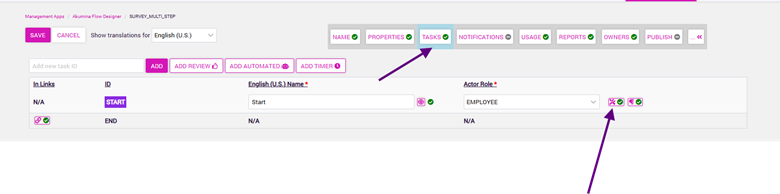
Click on the Tasks tab then click on the START task wrench and screwdriver icon to edit the task.
Add a condition for your optional field and add a condition by clicking the pencil then define the condition to display the field
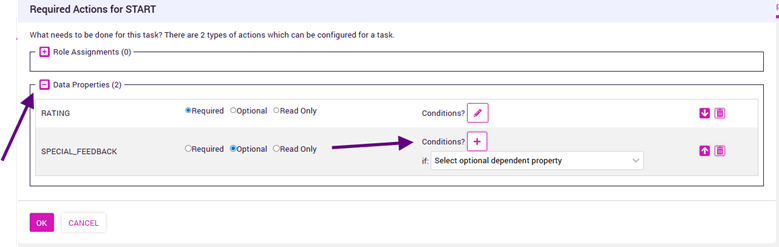
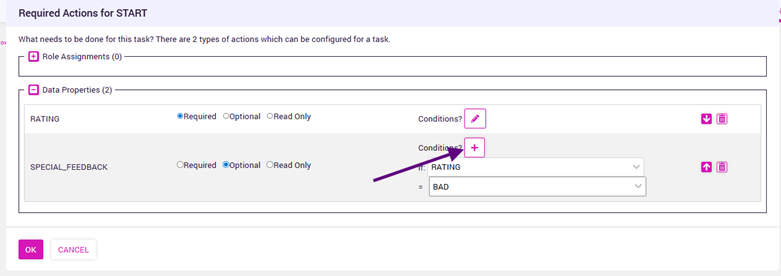
This example will display the optional field if RATING = BAD
If any other value is selected SPECIAL_FEEDBACK memo field will not be displayed.
You need to hit the Plus + icon to add this condition to the Data Property
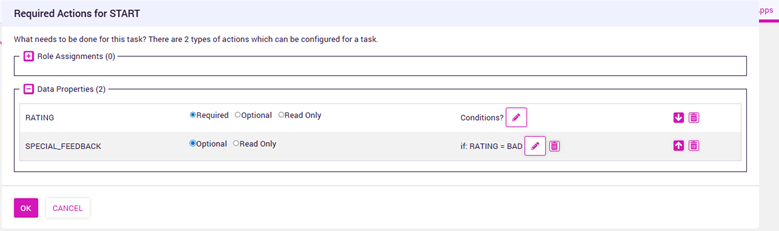
Click OK
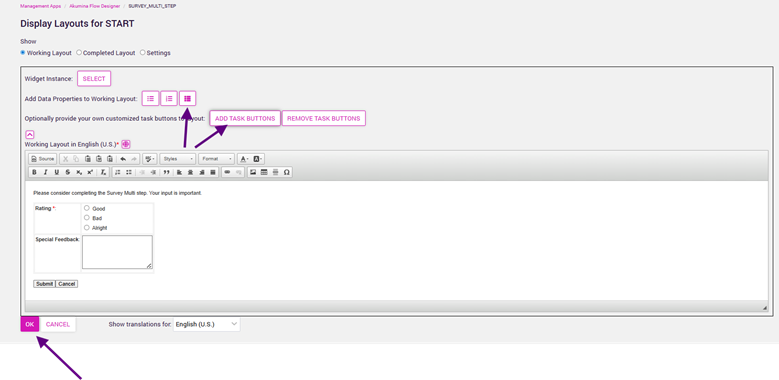
Now click on the START task’s Paragraph icon
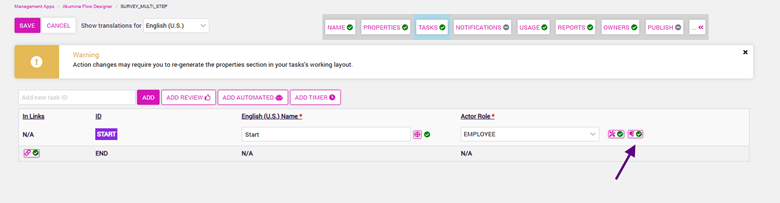
Add the Data Properties and then add the task buttons. Click OK
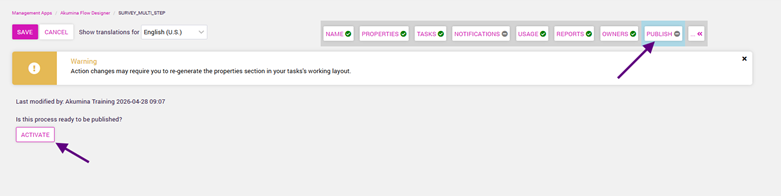
Click on the PUBLISH Tab then click ACTIVATE
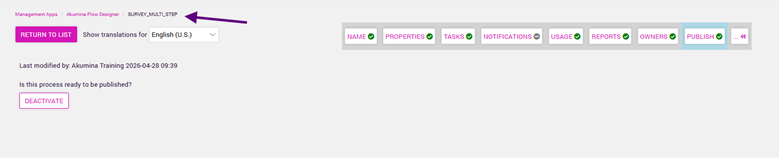
Copy the Process ID (you will need it to configure the Akumina Flow User widget
Let’s add the flow form to an intranet page using the Akumina Flow User widget
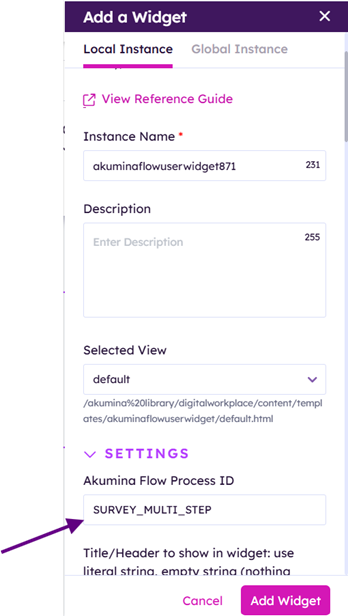
Enter the Process ID into the AKumina Flow Process ID in your widget instance’s settings. Then click Add Widget.
Publish the page.
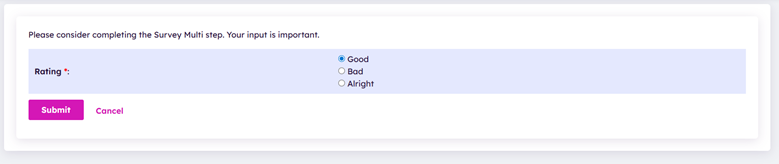
Special Feedback Property will only show up if Bad is selected