
August 14, 2026
Back
1. Add the widget instance to the page
2. Mouse over the widget instance and click on the pencil icon
3. Click Create Survey
4. Name and Descriptions
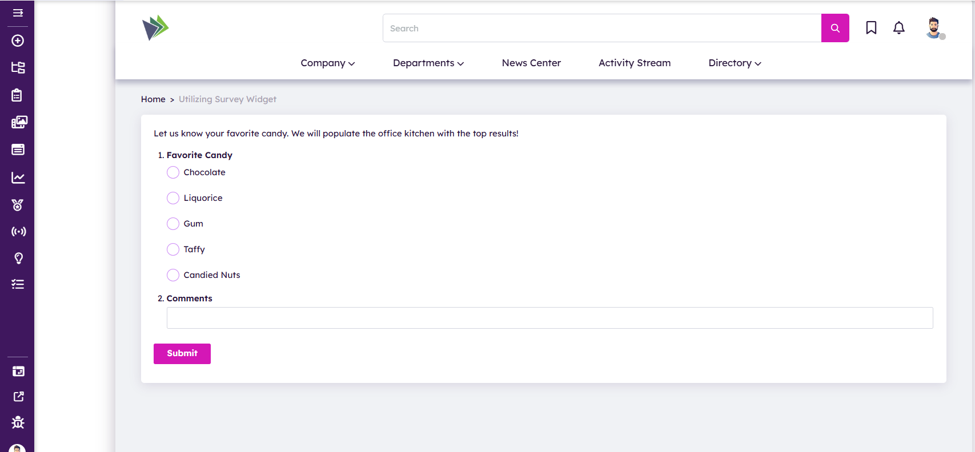
Preview the survey before finishing.
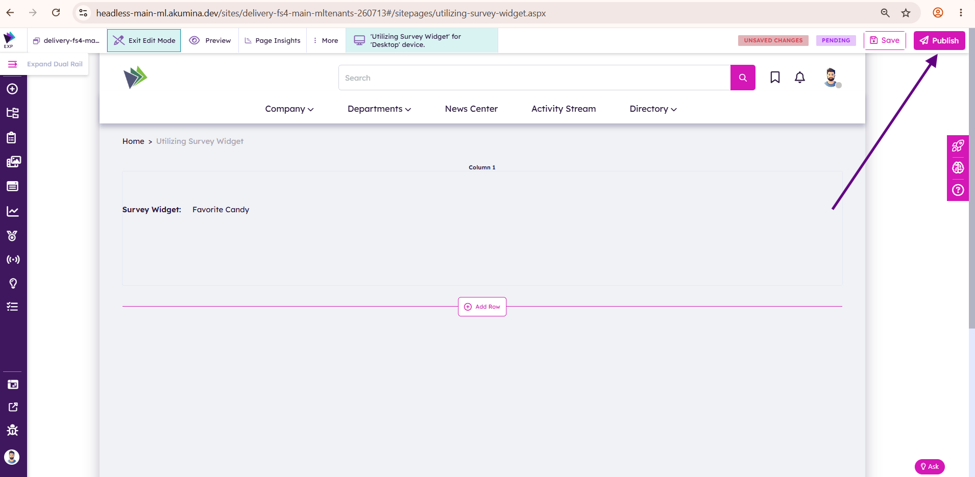
8. Publish your page
1. Add the widget instance to the page
2. Mouse over the widget instance and click on the pencil icon

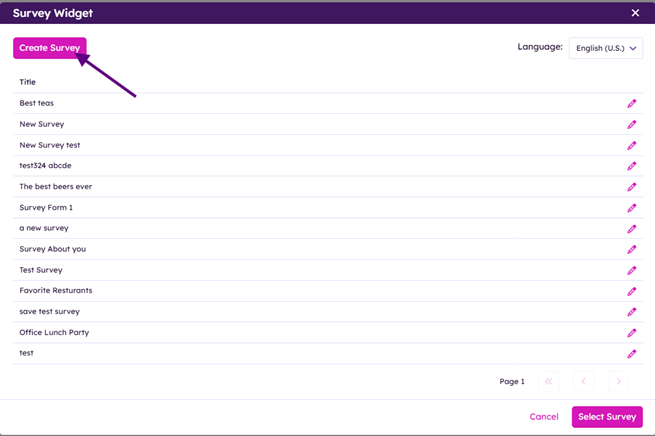
3. Click Create Survey
4. Name and Descriptions
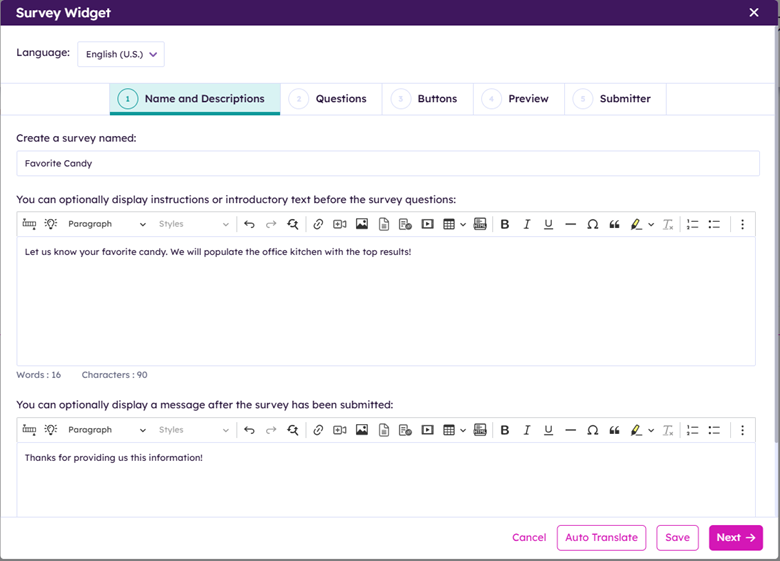
Fill in the survey name.
Provide an optional instructions or introductory text before the survey begins
Add an optional display message after the survey has been submitted
Click “Auto Translate” button if your form is multi-lingual
Click Next
5. Questions
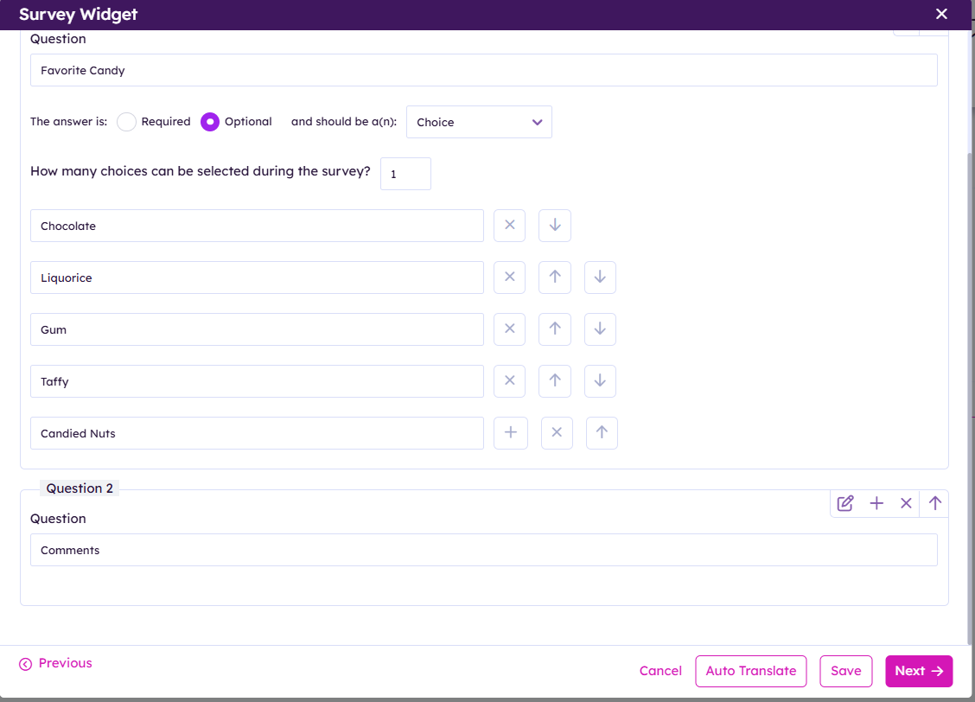
Add in question(s)


 Adds a Question
 Edits a Question
 Removes a Question

 Change Question order up or down
Questions supported:
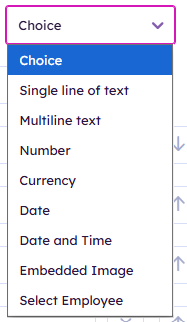
Choice
Single line of text
Multiline text
Number
Currency
Date
Date and Time
Embedded Image
Select Employee
Click “Auto Translate” if survey is multi-lingual
Click Next
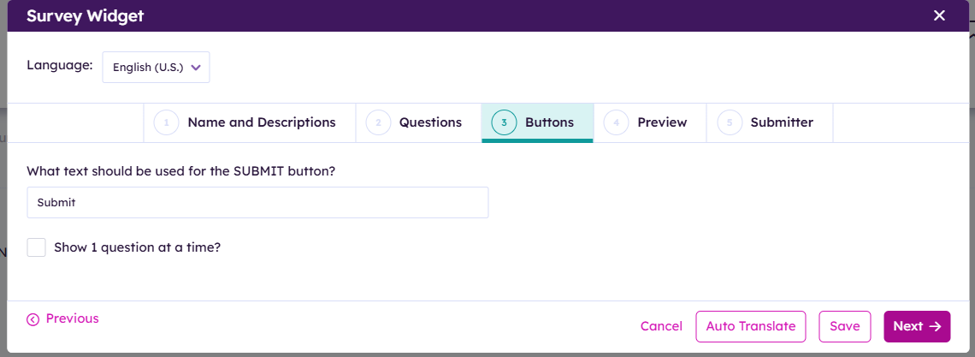
6. Buttons
Provide the submit button text
Decide if the survey should show 1 question at a time to user.
Click “Auto Translate” if survey is multi-lingual
Click “Next”
Preview the survey before finishing.
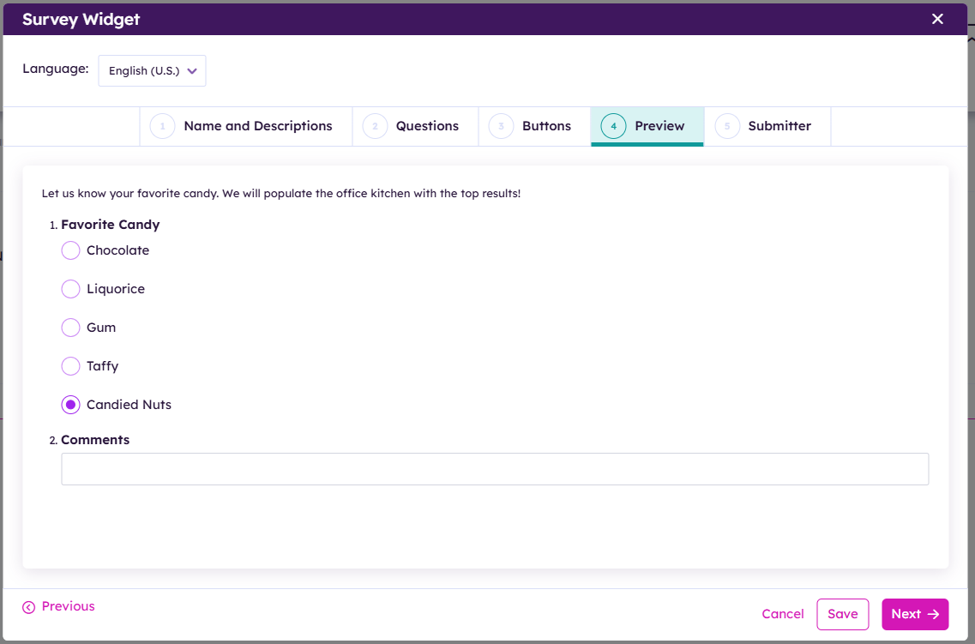
7. Submitter
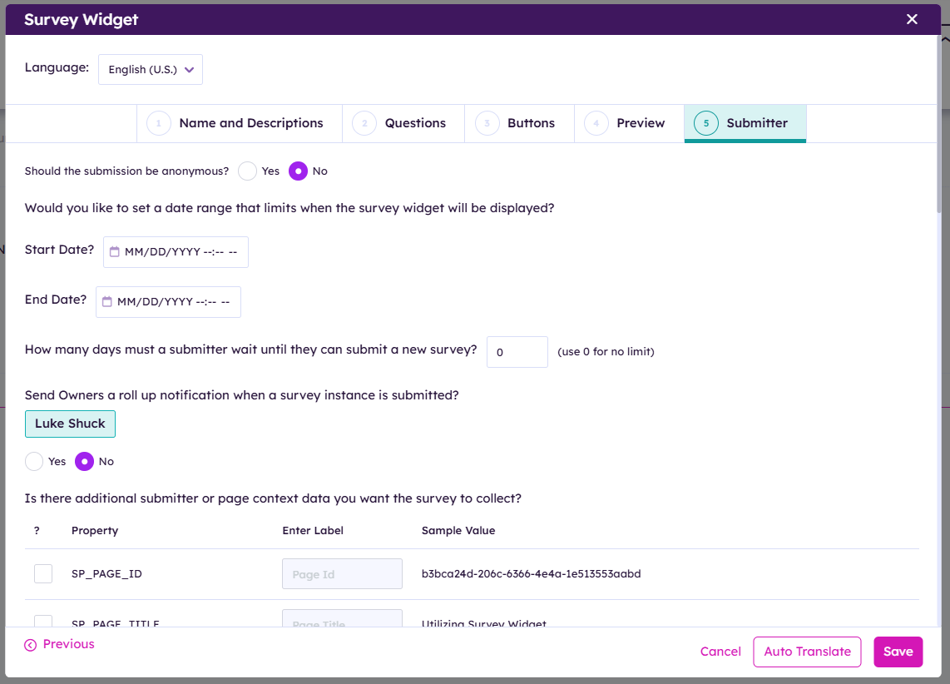
Decide if the submissions will be anonymous or not. ** This affects what submitter context data is available to collect.
Decide if the survey should send the the owner a roll up notification when a survey is submitted.
Select any submitter or page context data you want to collect.
Click “Auto Translate” if survey is multi-lingual
Click “Save” to finish
8. Publish your page
See the survey