
July 17, 2026
Back
Overview
Available Versions - 7.0 +
Page Drafts provide content authors with greater control over when page changes are made available to end users.
With this functionality, content authors can save changes to a page without immediately publishing them. Authors can return to the page later, continue making changes, and publish the updated page only when the content is ready.
This introduces two distinct actions in Page Builder:
Save — Saves the current changes as a draft.
Publish — Publishes the latest changes and makes them available to end users.
Also Note: Page and Widget Publishing Are Independent
Widget content is saved and published independently of the page-level Draft/Publish workflow.
This means the status of a page does not determine the status of the widget content placed on that page. For widgets such as HTMLContentWidget, SLW, and similar content-based widgets:
- A page can be Published while the widget content is still in Draft state.
- Widget content can be Published while the page itself remains in Draft state.
- Saving or publishing the page does not automatically save or publish the underlying widget content, and vice versa.
Page Draft/Publish status and Widget Draft/Publish status are maintained independently
Page Draft Workflow
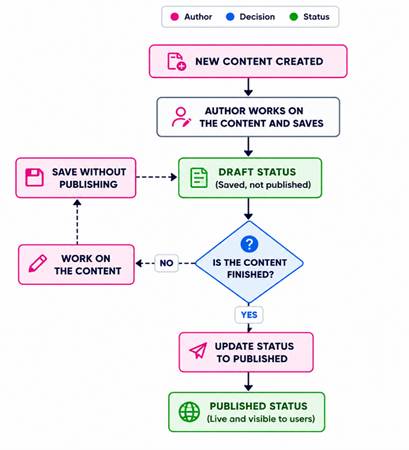
The Page Draft functionality allows content authors to work on page changes independently from the currently published page.
The typical page workflow is:
Edit Page → Make Changes → Save as Draft → Continue Editing → Publish → Changes Available to End Users
Note: Saving a page does not make the changes available to end users. The changes become available only after the page is published.
Multilingual Support for Page Drafts
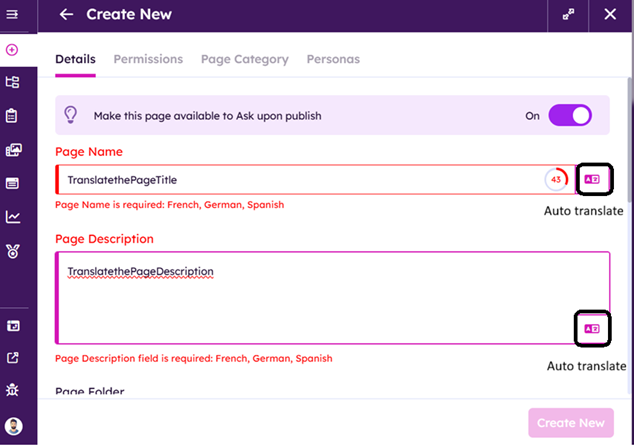
o When creating a new page, enter the Page Name and Page Description. For sites configured with multiple languages, the page name/description can be translated into the supported languages using the Auto-Translate option
o Below screenshot shows the auto translate icon on create new page modal
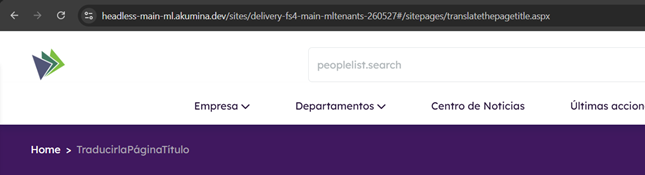
o After translation, the translated page name is reflected in the page breadcrumb – Screenshot below:
· Ability to save and publish a page - disable draft when directly published
o Save Page – Save functionality is now introduced to support scenarios like preparing a page over multiple editing sessions, reviewing content before release, or making larger changes without affecting the currently published page
o Below screenshot shows the SAVE button enabled when editing the page:
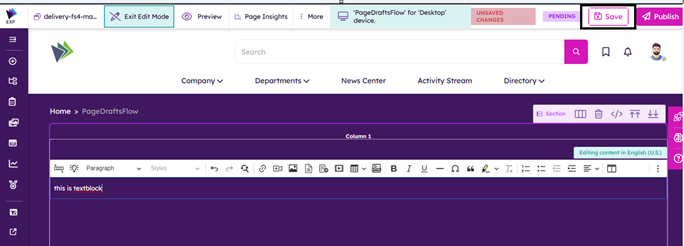
o After saving, the page will be in Pending state and not available to end user.
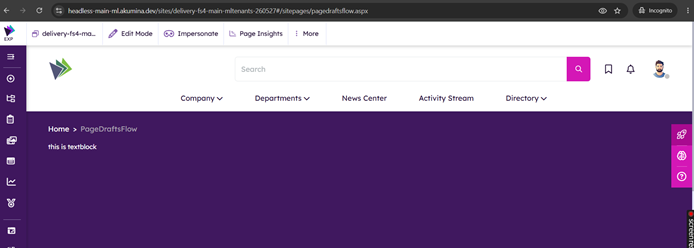
o Publish Page – This is an existing functionality; it saves the current changes and makes the version of the page available to end users.
o Below screenshot shows the Page Published.
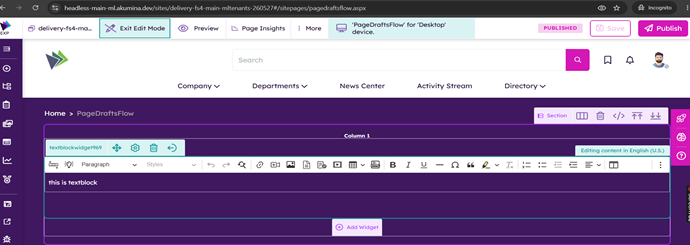
Note - After the page has been published, the Save option is disabled because there are no unpublished changes. Content authors can continue editing the page, at which point Save becomes available again.
Device Layouts with Page Drafts
o Existing functionality – Different page layouts/variations can be created and associated with Persona
o New Functionality – Pages can now be configured with multiple device layouts. Content authors can create and manage device-specific page layouts and save their changes as drafts before publishing them.
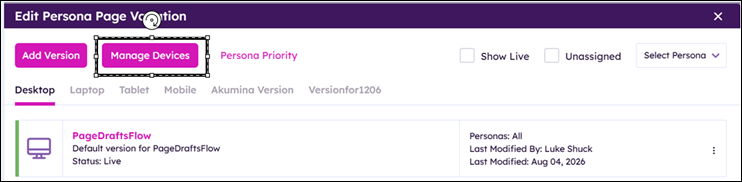
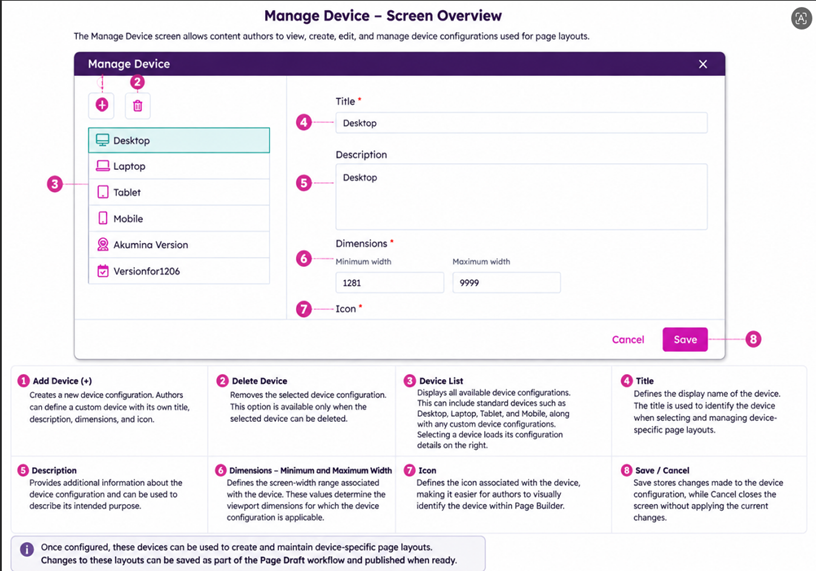
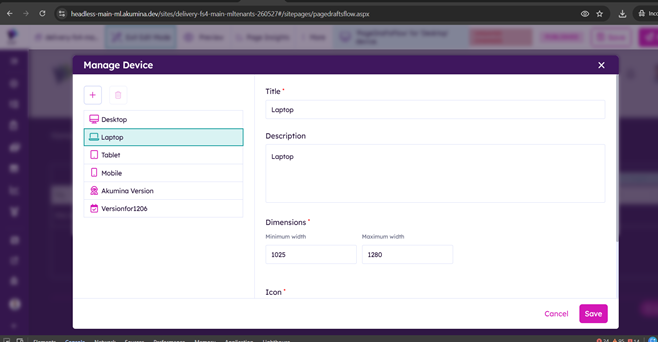
o Manage Device Modal:
o End to End Flow –
§ Create a page version
§ Add it for any target device (Desktop, Laptop, Mobile etc)
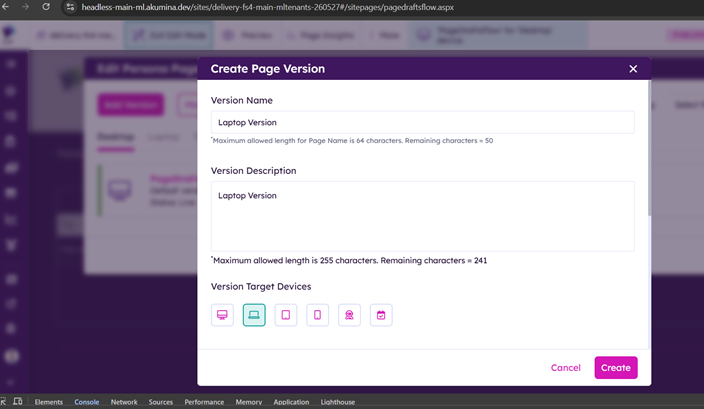
§ Create the version, check the target device tab
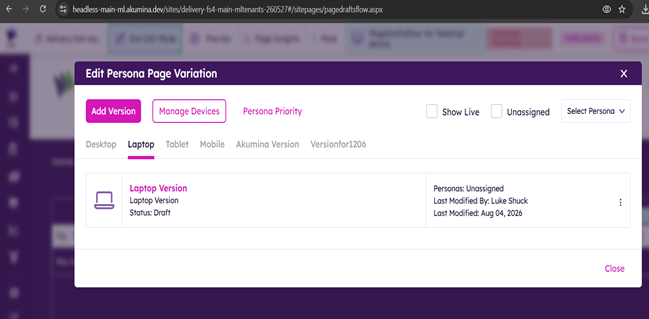
§ Edit the page version, assign persona and set it live.
§ The page will accordingly be available to the assigned persona – and the version will be rendered based on dimensions.
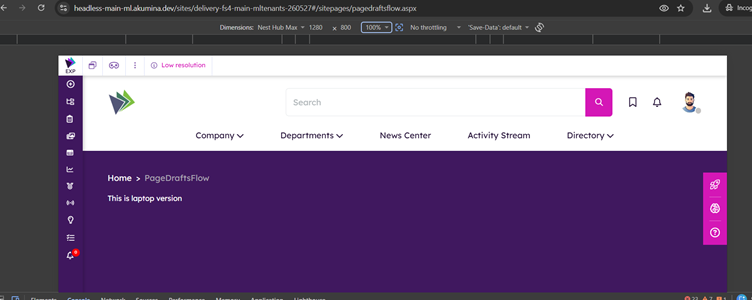
§ E.g. here – The laptop version has dimensions 1025-1280, so the page version is available based on Persona AND Device Dimensions.
Note – For other devices (not in target device range), default desktop version will be available
Laptop Version: Shown if the persona and device dimensions are respected
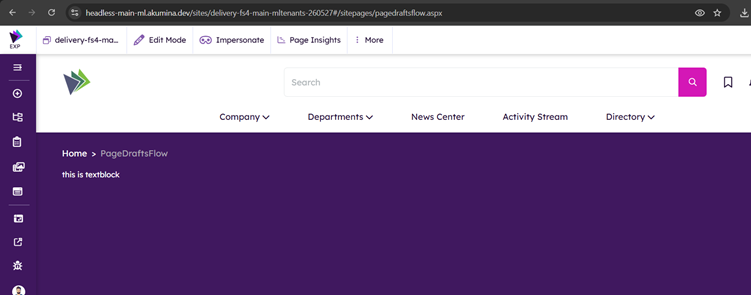
Default Version: Shown if either of them is not respected
Version history of page
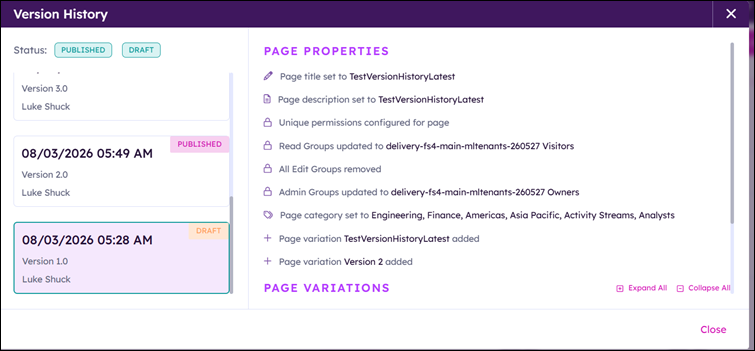
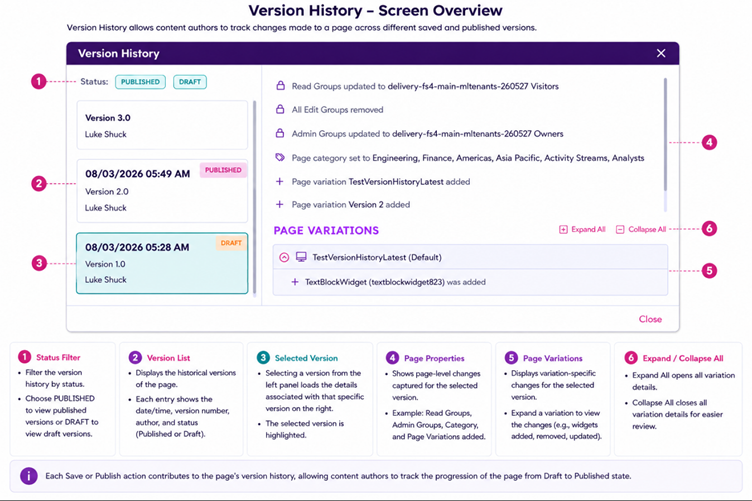
o Page Version History allows content authors to view and manage previously saved versions of a page. Each time relevant page changes are saved, the version history provides a record of those changes, allowing authors to track how the page has evolved over time.
o It works alongside the Page Draft functionality, allowing authors to continue editing and saving a page while maintaining its previous versions.
o Below is the screenshot of Version history screen