August 19, 2026
Document Intelligence for Akumina AI
Configuring Azure AI Document Intelligence, directly and through Azure API Management


CDN Version: 6.2.2405.1319
Improvements
Bug Fixes
CDN Version: 6.2.2405.1318
Bug Fixes
CDN Version: 6.2.2405.1318
Improvements
CDN Version: 6.2.2405.1317
Improvements
Bug Fixes
Improvements
Bug Fixes
CDN Version: 6.2.2405.1316
Bug Fixes
Bug Fixes
CDN Version: 6.2.2405.1315
Bug Fixes
Bug Fixes
CDN Version: 6.2.2405.1313, 6.2.2405.1314
Bug Fixes
CDN Version: 6.2.2405.1314
Improvements
Bug Fixes
Improvements
Bug Fixes
CDN Version: 6.2.2405.1313
Improvements
CDN Version: 6.2.2405.1313
Improvements
Bug Fixes
CDN Version: 6.2.2405.1313
Improvements
Bug Fixes
Improvements
Bug Fixes
Bug Fixes:
CDN Version: 6.2.2405.1313
New Features:
Improvements:
Bug Fixes:
Improvements:
CDN Version: 6.2.2405.1312
Improvements:
Bug Fixes:
Improvements:
Bug Fixes:
CDN Version: 6.2.2405.1312
Improvements:
Bug Fixes:
Improvements:
Bug Fixes:
Bug Fixes:
CDN Version: 6.2.2405.1311
Improvements:
Bug Fixes:
Bug Fixes:
Bug Fixes:
AppManager Version: 6.2.2405.1339
Improvements:
Bug Fixes:
CDN Version: 6.2.2405.1310
Bug Fixes:
AppManager Version: 6.2.2405.1338
Improvements:
Bug Fixes:
CDN Version: 6.2.2405.1309
Bug Fixes:
Improvements:
CDN Version: 6.2.2405.1308
Improvements:
Bug Fixes:
Bug Fixes:
CDN Version: 6.2.2405.1308
Bug Fixes:
CDN Version: 6.2.2405.1308
Bug Fixes:
AppManager Version: 6.2.2405.1336
Improvements:
Bug Fixes:
CDN Version: 6.2.2405.1308
Bug Fixes:
Improvements:
AppManager Version: 6.2.2405.1332
Improvements:
CDN Version: 6.2.2405.1308
New Features:
Improvements:
Bug Fixes:
Improvements:
Bug Fixes:
Bug Fixes:
AppManager Version: 6.2.2405.1330
Improvements:
AppManager Version: 6.2.2405.1328
Improvements:
AppManager Version: 6.2.2405.1327
Improvements:
Bug Fixes:
CDN Version: 6.2.2405.1307
Improvements:
Bug Fixes:
CDN Version: 6.2.2405.1307
Improvements:
Bug Fixes:
Bug Fixes:
AppManager Version: 6.2.2405.1326
Improvements:
Bug Fixes:
CDN Version: 6.2.2405.1306
New Features:
Improvements:
Bug Fixes:
Improvements:
Bug Fixes:
AppManager Version: 6.2.2405.1325
Bug Fixes:
CDN Version: 6.2.2405.1305
Bug Fixes:
Improvements:
Bug Fixes:
Improvements:
Bug Fixes:
AppManager Version: 6.2.2405.1323
Bug Fixes:
AppManager Version: 6.2.2405.1322
Improvements:
Bug Fixes:
AppManager Version: 6.2.2405.1321
Improvements:
Bug Fixes:
CDN Version: 6.2.2405.1305
Improvements:
Bug Fixes:
Improvements:
CDN Version: 6.2.2405.1305
Improvements:
Bug Fixes:
Improvements:
AppManager Version: 6.2.2405.1319
Improvements:
Bug Fixes:
CDN Version: 6.2.2405.1304
Bug Fixes:
Improvements:
CDN Version: 6.2.2405.1304
Improvements:
Bug Fixes:
CDN Version: 6.2.2405.1304
Improvements:
Bug Fixes:
Bug Fixes:
CDN Version: 6.2.2405.1304
New Features:
Improvements:
Bug Fixes:
Improvements:
Bug Fixes:
CDN Version: 6.2.2405.1303
Improvements:
Bug Fixes:
Improvements:
Bug Fixes:
AppManager Version: 6.2.2405.1316
Improvements:
Bug Fixes:
Fixed an issue where dark themes were sometimes causing white text in dropdowns.
CDN Version: 6.2.2405.1302
Improvements:
Bug Fixes:
Improvements:
Bug Fixes:
Improvements:
Bug Fixes:
AppManager Version: 6.2.2405.1311
Bug Fixes:
AppManager Version: 6.2.2405.1310
Improvements:
Bug Fixes:
The Content Calendar is an exciting new view in our Author-type apps within Structured Content. This view provides an at-a-glance overview of your content's workflow status, as well as its publish and archive dates. Now, you can easily ensure your content goes live as scheduled.
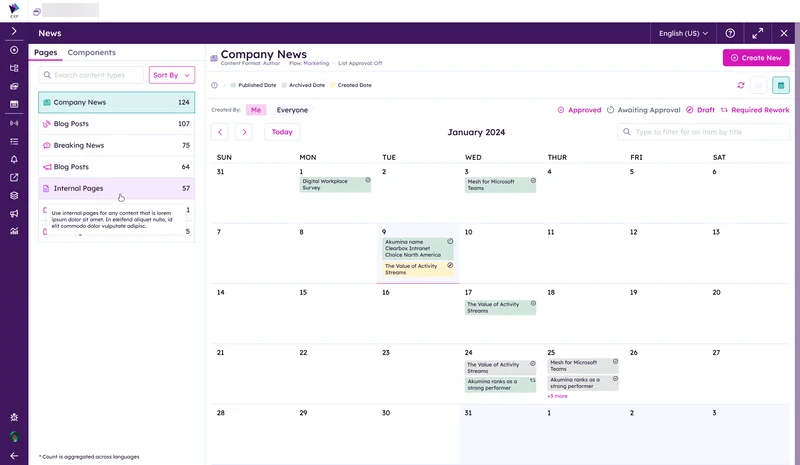
Version 6.2 adds additional information to the top of the listing screen for each content type in Structured Content.

You can now see at-a-glance whether there is an Akumina Flow enabled for the list, as well as whether the list has approvals on or off.
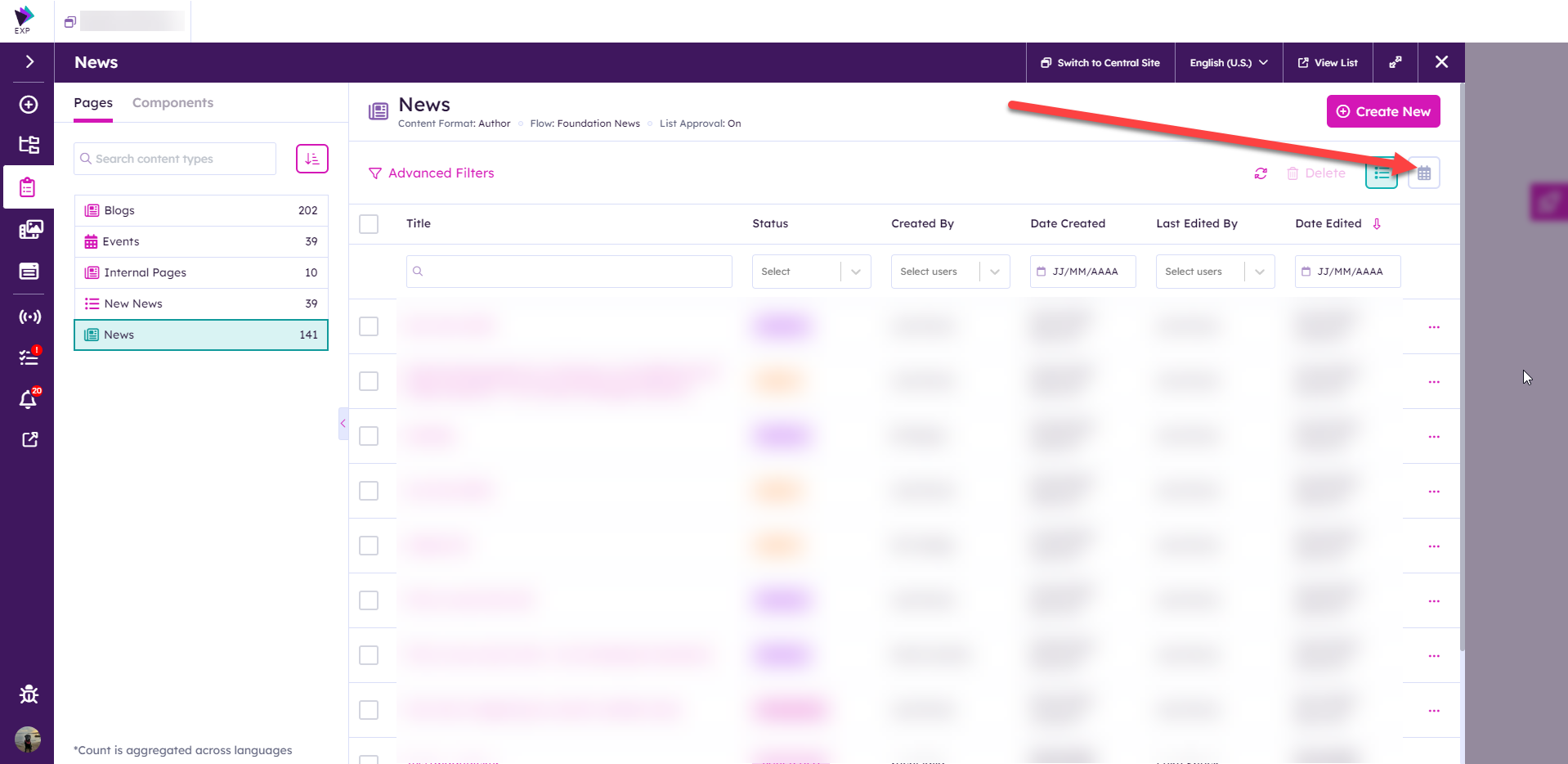
To turn on Calendar View, click on the Calendar View button. Your preference will be saved when switching apps or re-opening the voice rail. To return to the List View, click the button to the left of the Calendar View button.
The items on the calendar can be filtered based on their status. The available buttons change depending on whether list approvals are on and whether the list is using Akumina Flows for content approval.

The calendar can be filtered to show only the items created by the current user, or to show items created by everyone.

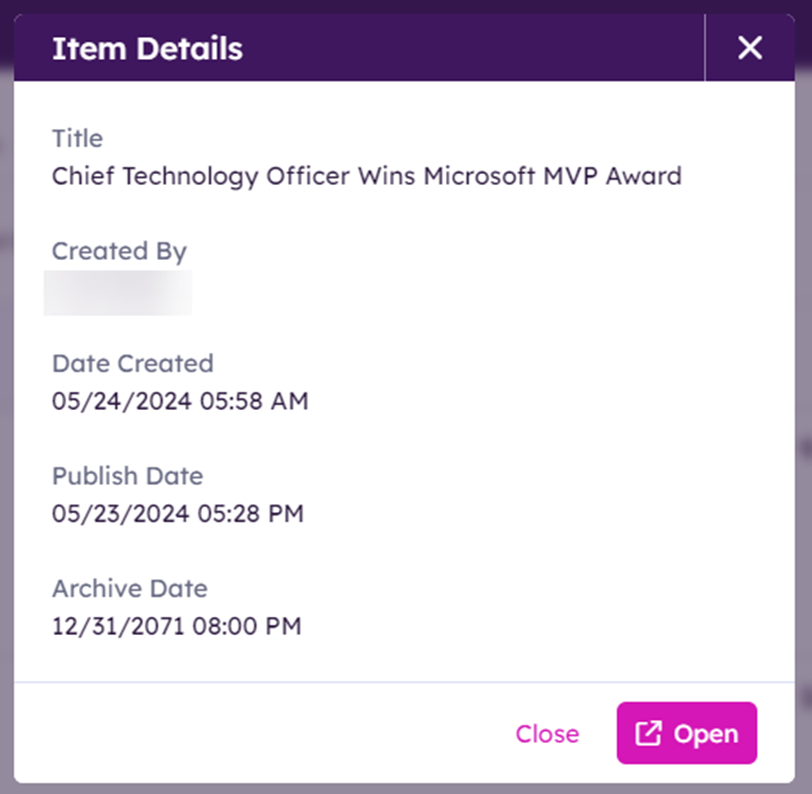
Clicking on an item in the calendar allows you to view its details, such as the creator, date created, publish date, and archive date. From here, you can click the ‘Open’ button to edit the content.
Content Lanes is a new view in the Workflows module that allows approvers to visualize the approval status of content and move it between approval states. Content Lanes also allows the approvers to visualize whether unapproved content is past its publish date.
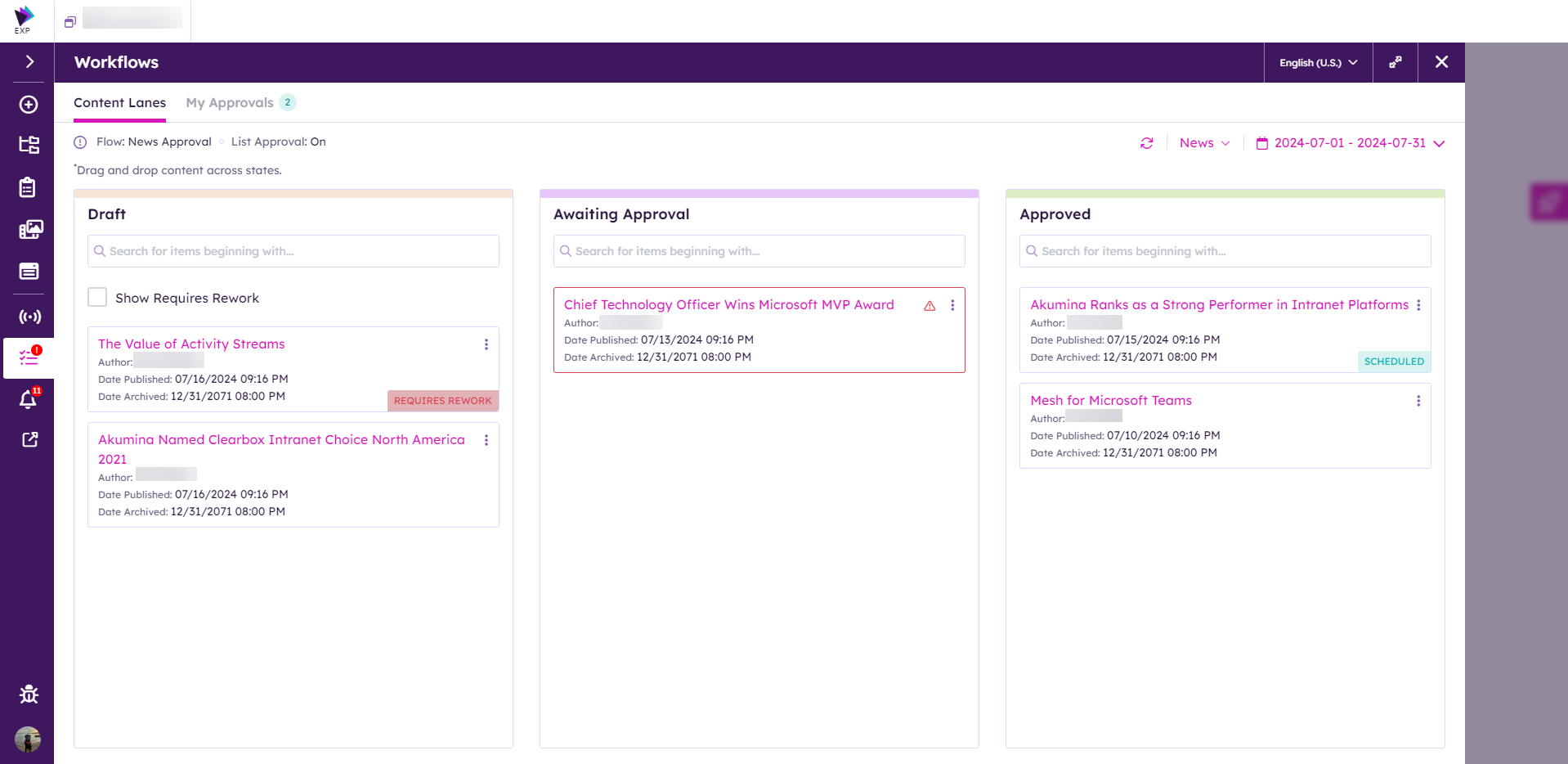
Content Lanes displays articles from one content type at a time. To select the content type, choose it in the content type dropdown.

By default, Content Lanes displays articles from the current month. The date range can be customized using the date range filter.

To view an article, click the 3 dots on the top right of the card and select View Item. This will bring you to the item in Structured Content.
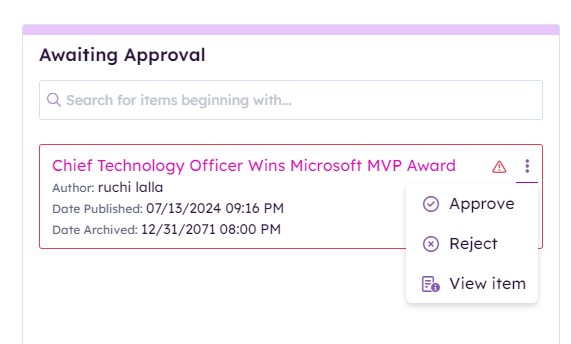
Articles can be approved or rejected either by dragging the card from the Awaiting Approval column to the Draft or Approved column or by selecting Approve or Reject after clicking the 3 dots on the top right of the card.
Articles can be submitted either by dragging them from the Draft to the Awaiting Approval column or by selecting Submit after clicking the 3 dots on the top right of the card.
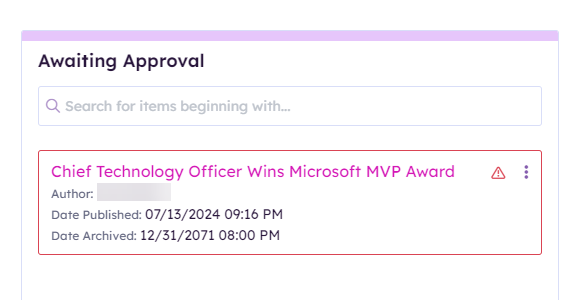
If an item is not approved and its publish date has passed, there will be a red border and warning icon applied to the card to alert the approver.
A new Teams delivery option has been added to the Broadcast Messages. Configuration is required to use this feature. Please contact Support for configuration details.
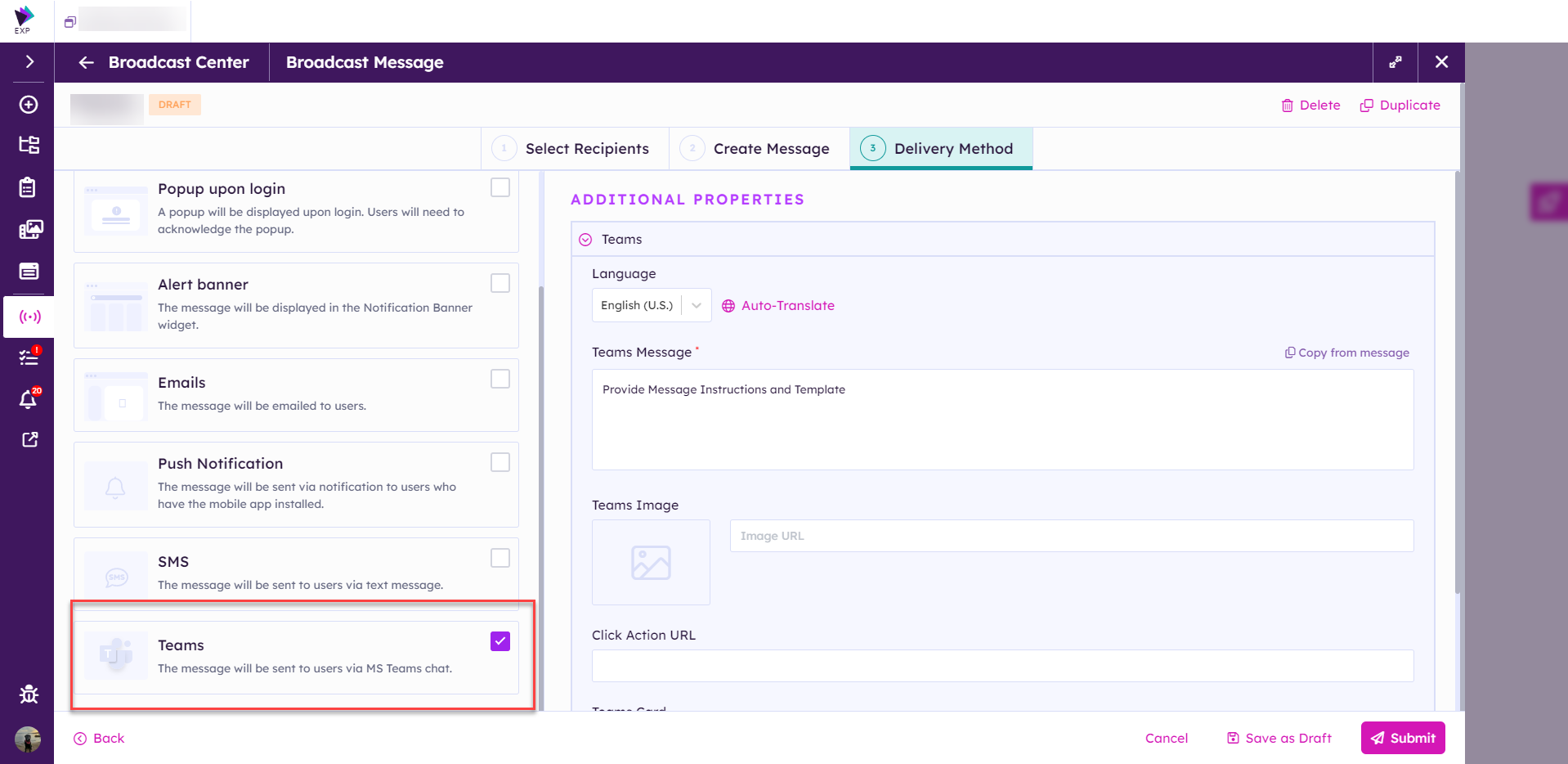
Teams messages have three fields:
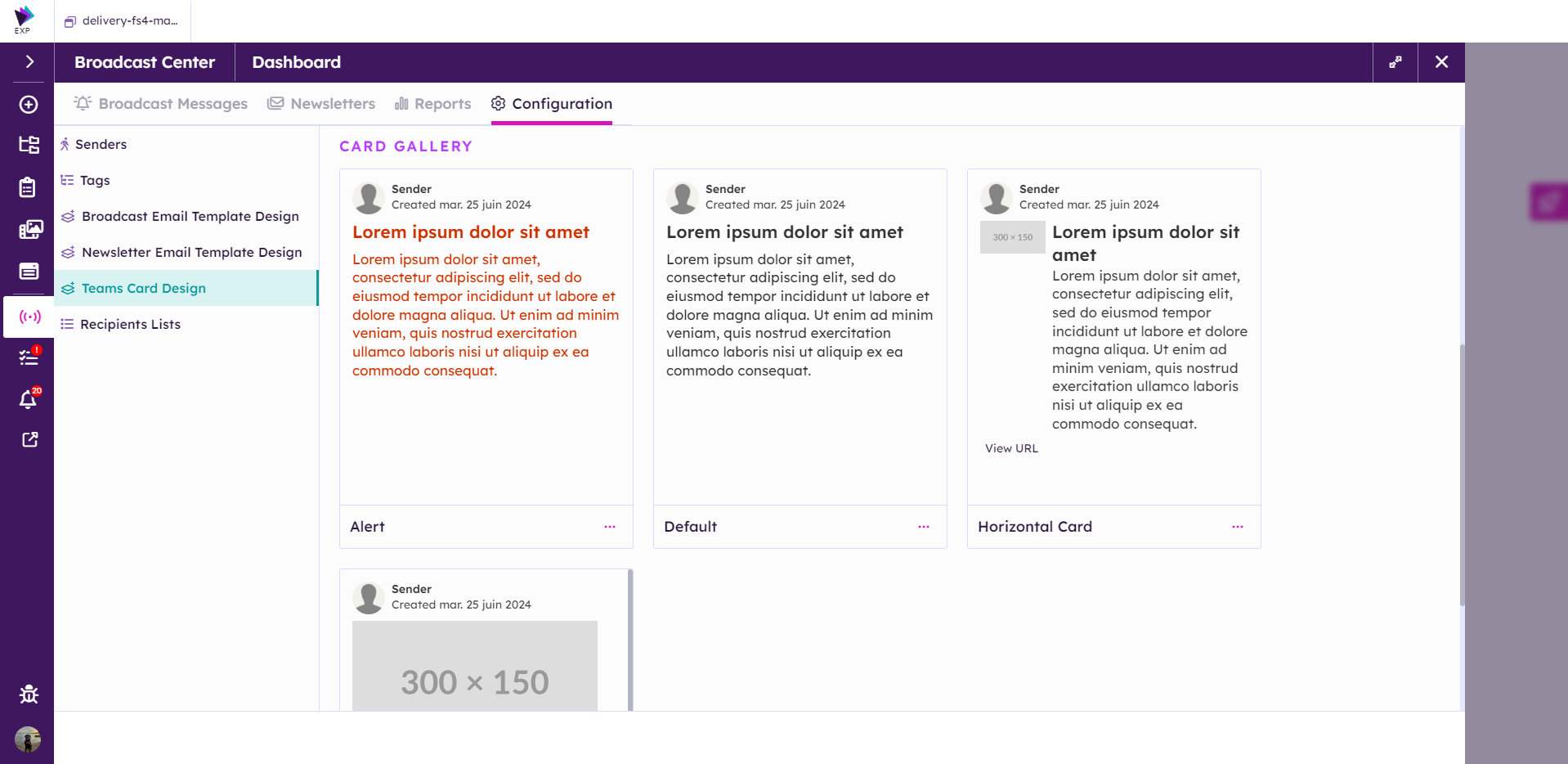
Similar to Broadcast and Newsletter emails, Teams messages have cards that can be configured in the Broadcast Center settings.
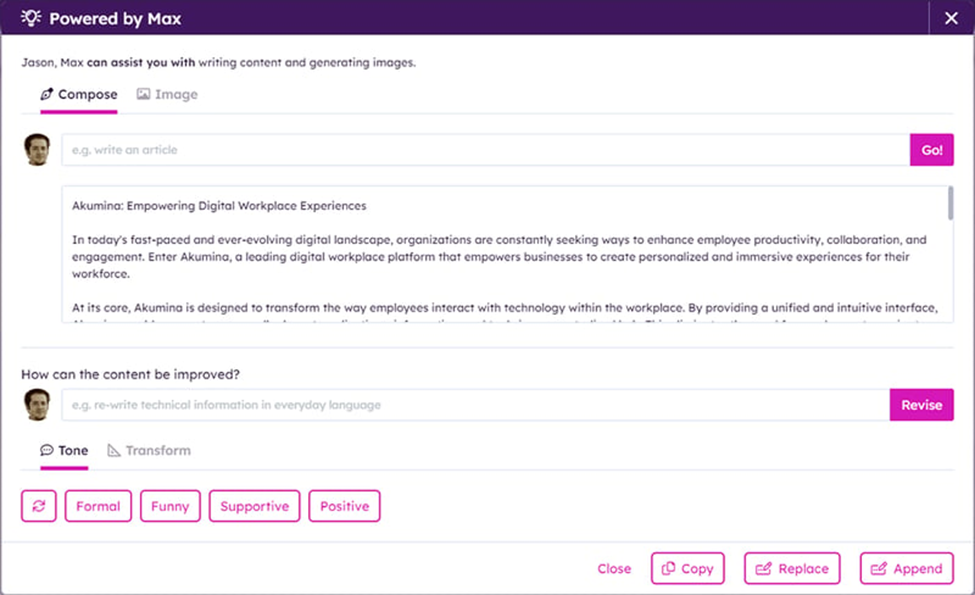
The new Writing Assistant brings generative AI into the Voice editorial experience. Using your organization's Azure AI license, the Max Assistant will help content authors create content, apply modifiers, and use editing tools to make sure all content meets your organizational standards.
Max can be used for multiline rich text columns and can be accessed by clicking on the lightbulb icon at the top right of the field.
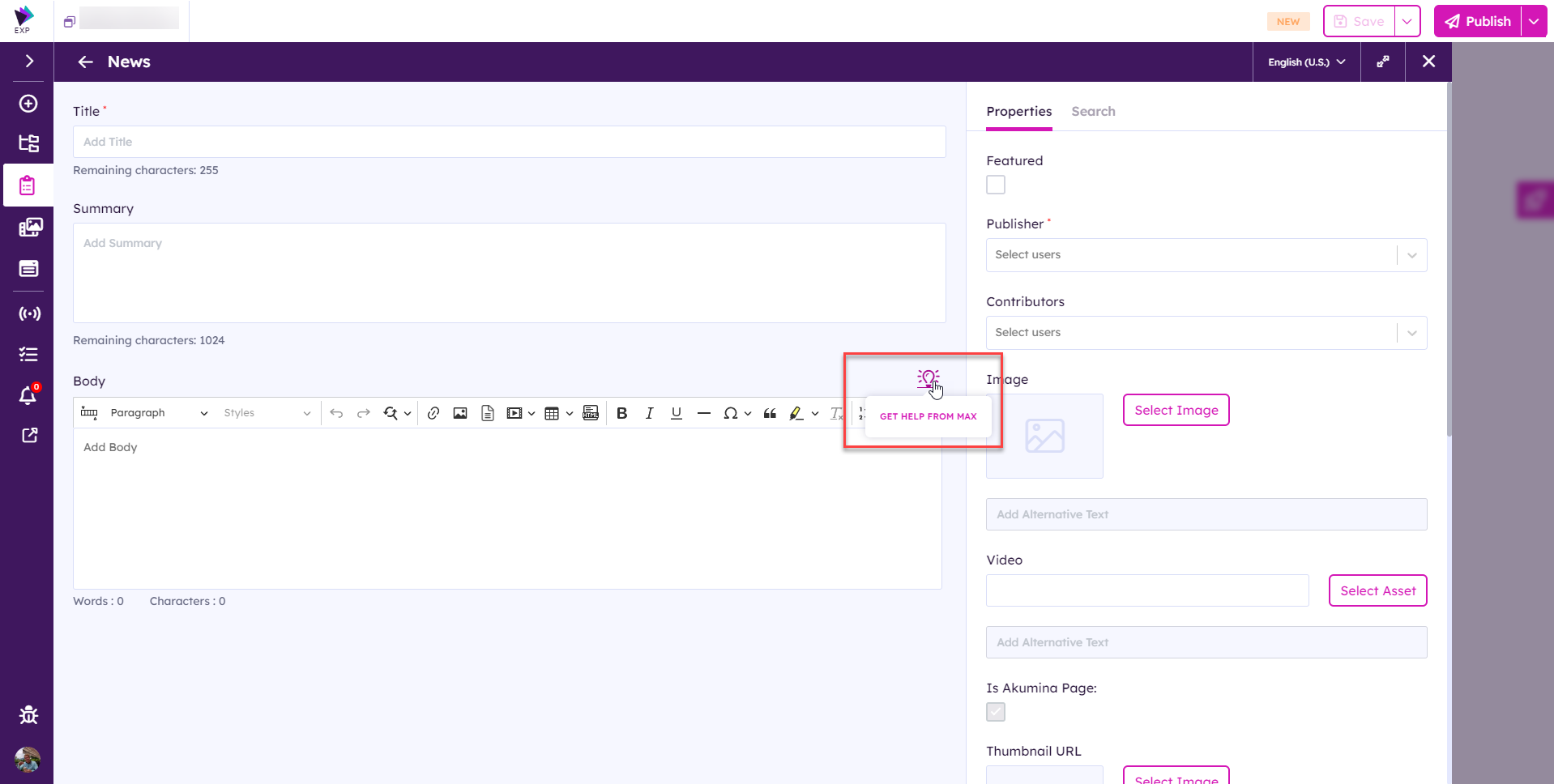
Using Max, you can generate or improve text content, or you can generate images.
The default image can now be configured in Theme Manager for the RelatedNewsWidget, RelatedBlogsWidget, and CuratedNewsWidget.

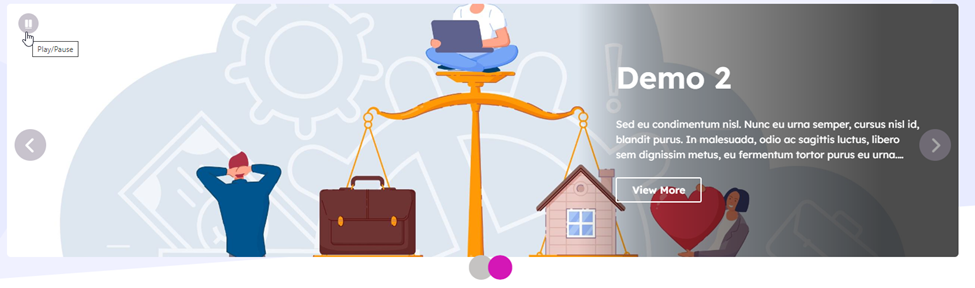
A new carousel view was added to the SummaryLinksWidget. 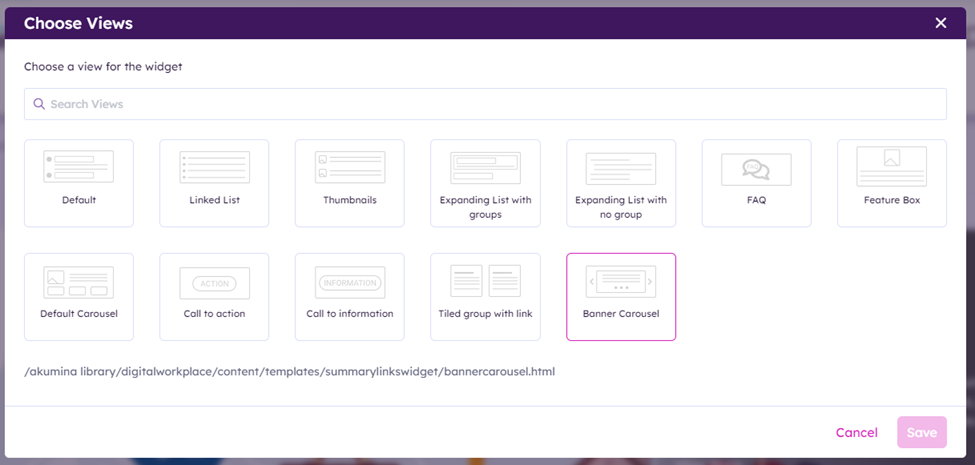
This view displays links as a rotating carousel. The animation can be paused by mousing over the widget or clicking the pause button in the top left.
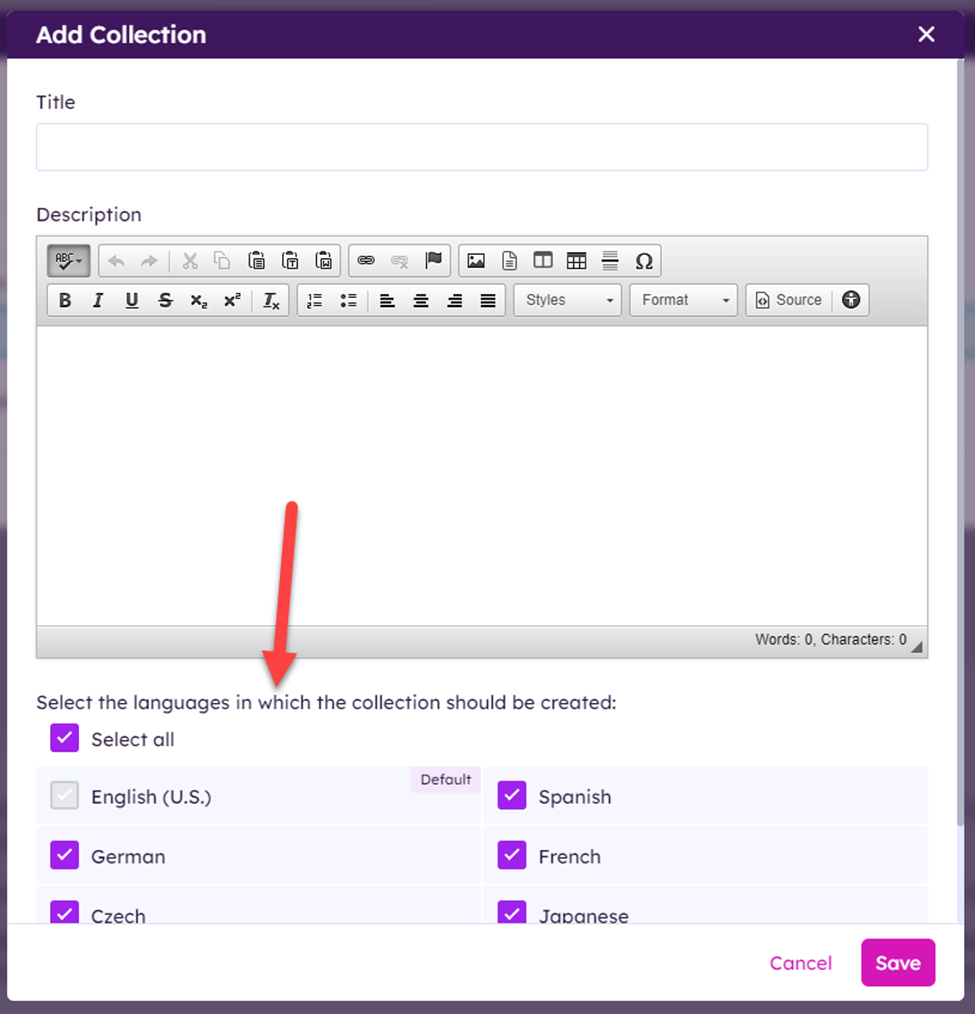
The SummaryLinksWidget no longer automatically creates a language version of a collection in all active languages when a collection is created. Instead, you can select which languages will have a version. If a language does not have a version of the collection, users in that language will see the content from the default language.
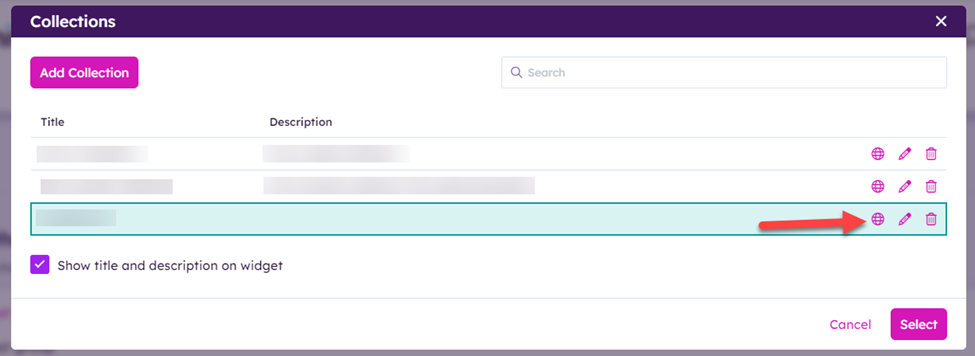
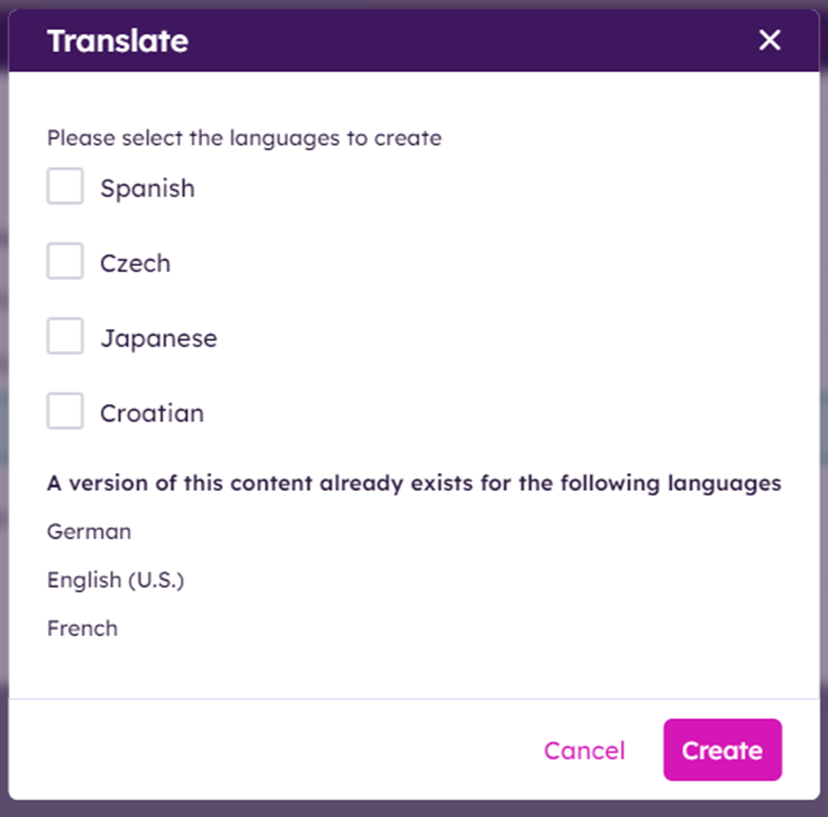
Language versions can be added after creating the collection by clicking the globe icon next to the collection.
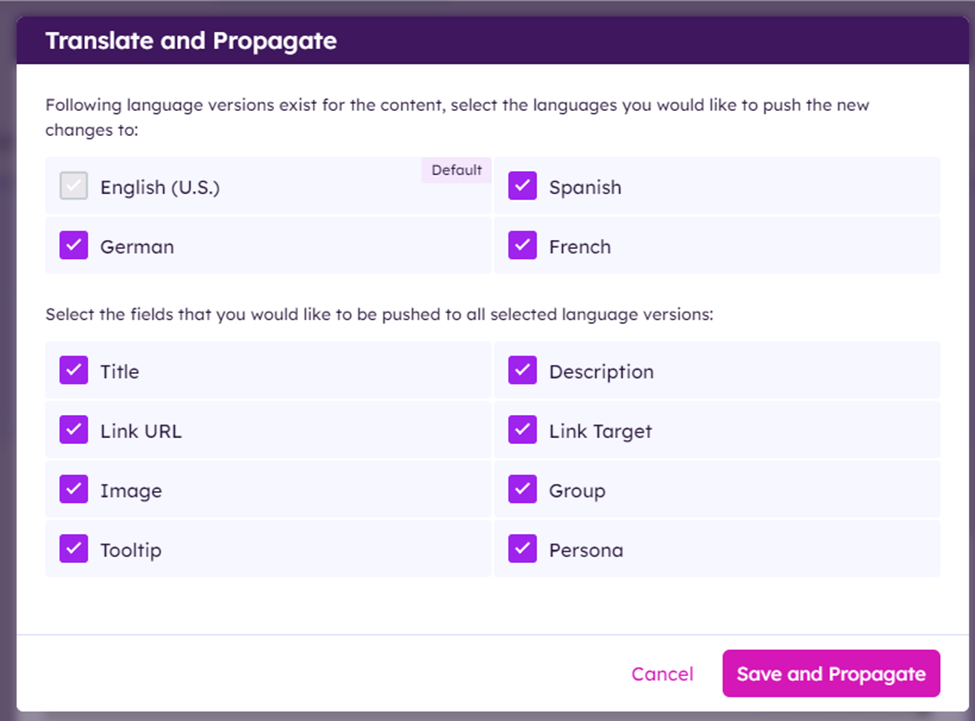
You are now able to propagate (and optionally, to translate if autotranslate is enabled) changes from the default language to other languages.
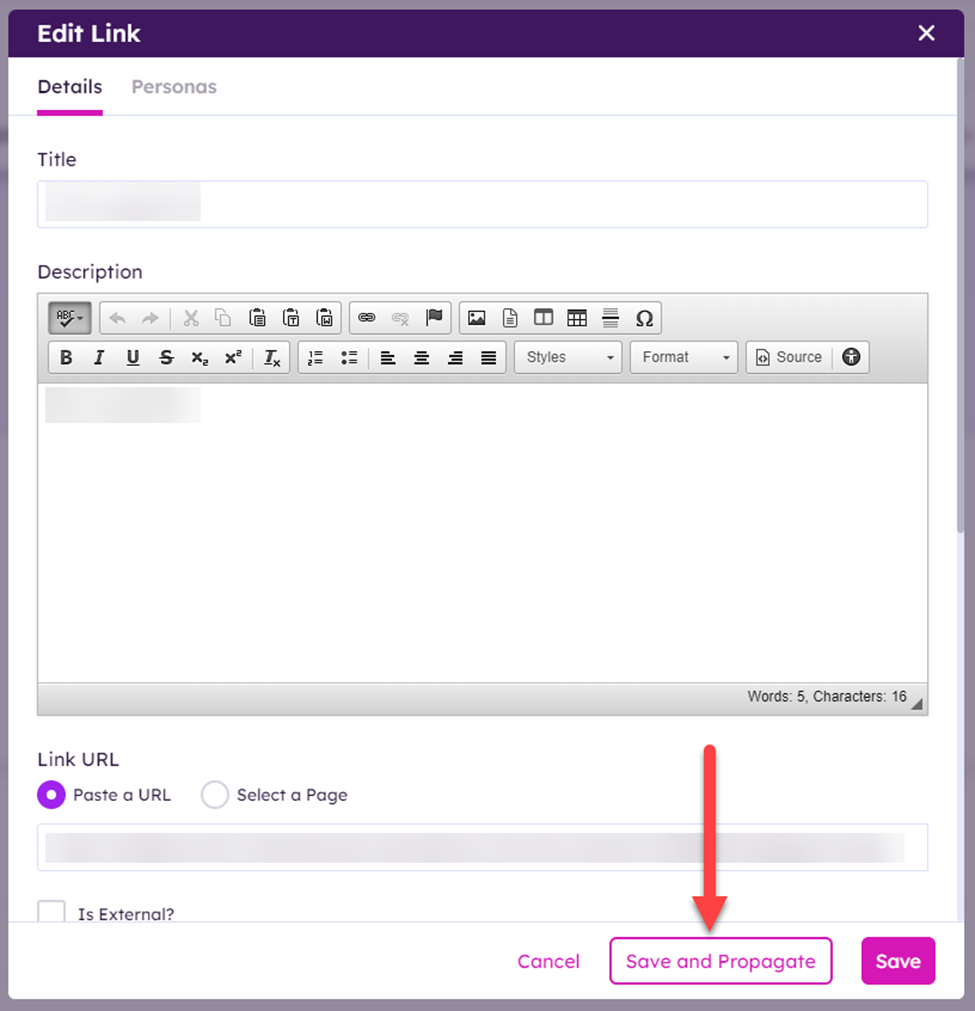
You can choose to propagate and/or translate to all languages and fields, or just to a selection of languages and fields.
You are now able to customize the favicon on Headless sites. A custom favicon can be uploaded to /staticfiles/favicon.ico. This location is specified by the TemplateURLPrefix setting.