August 19, 2026
Document Intelligence for Akumina AI
Configuring Azure AI Document Intelligence, directly and through Azure API Management


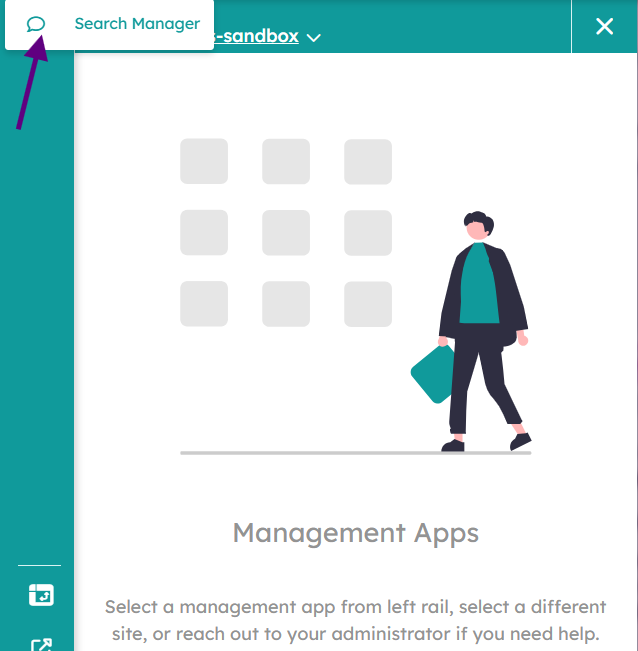
In Akumina Rail in Management Apps section. There is a new Management Rail module


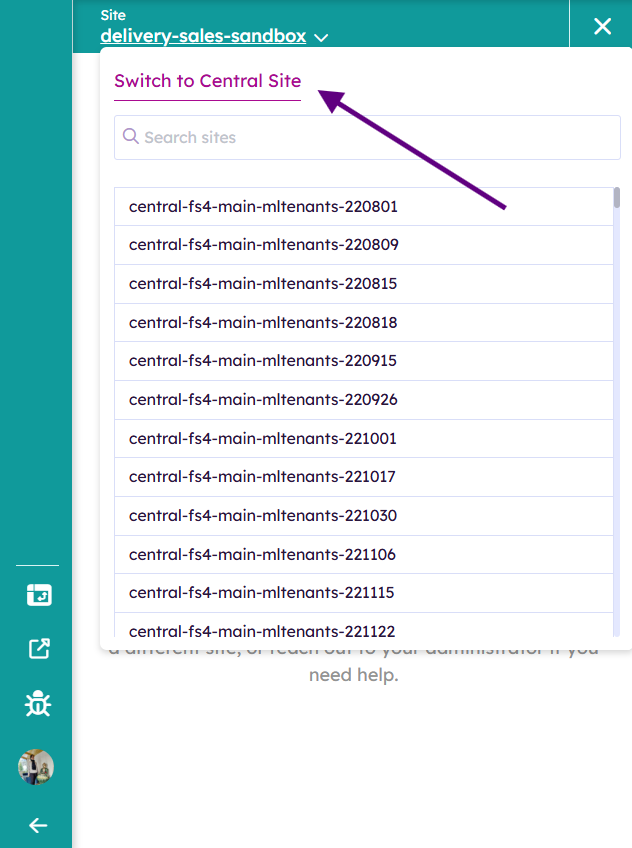
Switch your site context to the Central Site
Select Search Manager from Management app Rail
Purpose
Key Configurations
In search properties you can configure Intranet’s Hive Foundation site and Hive Department site search.
Global Properties determine the properties when searching on a Hive foundation site
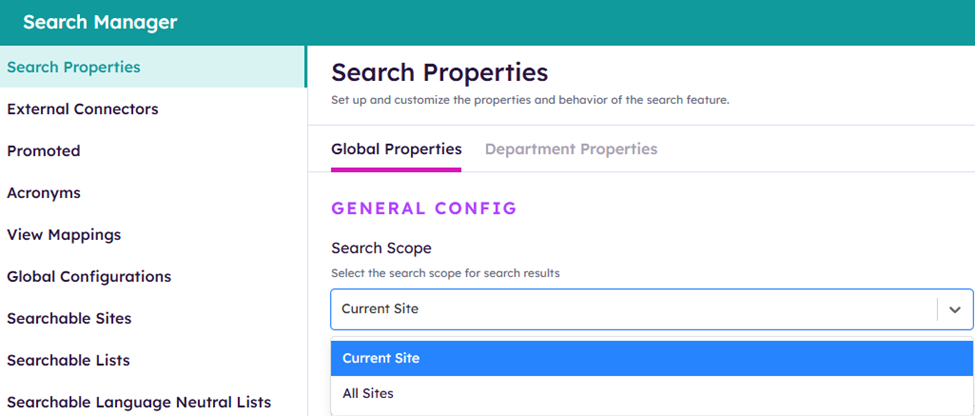
Search Scope. Allows you to search across only current site or all sites that have been enabled in Searchable Sites within Search Manager.
Selected Fields:
Select the fields to be returned in search results (comma separated)

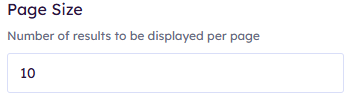
Page Size:
Trim Duplicates

Supported Document Extensions:

Search Tabs:
Tab and Query Customization
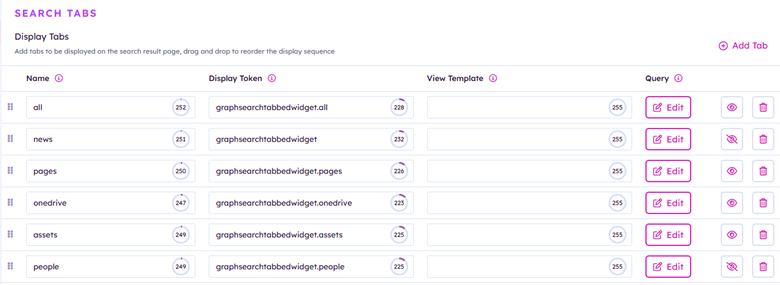
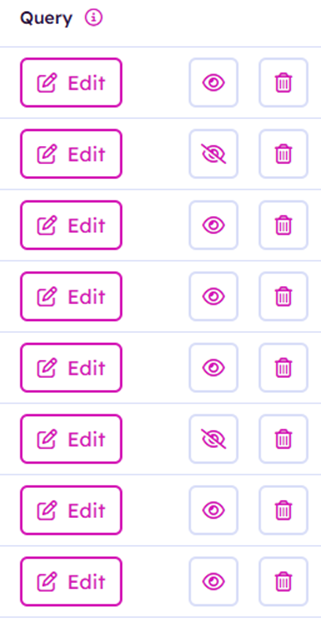
Manage your available search tabs
You can add additional search tabs here. You can hide tabs by hitting the eye and also delete them by clicking the trashcan.
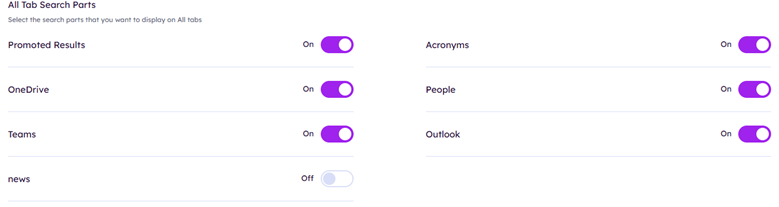
Determine which search parts will show up in the All search tab
.
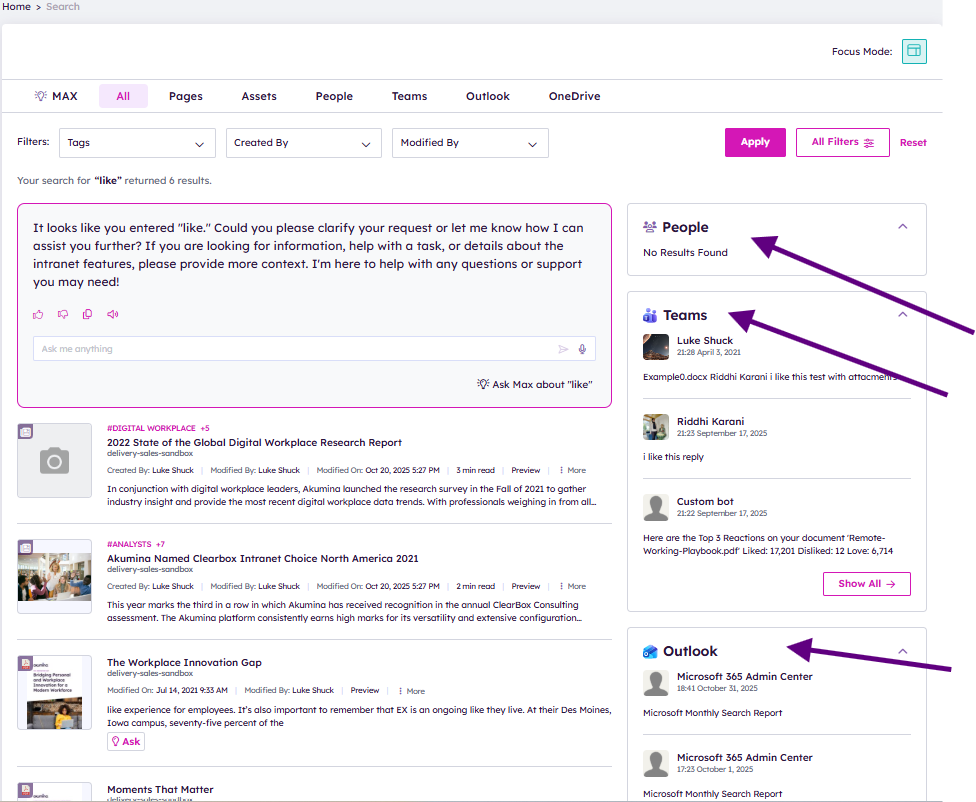
See example of search parts showing up in the All search tab.
Manage Search Refiners
Set your refiners up here.
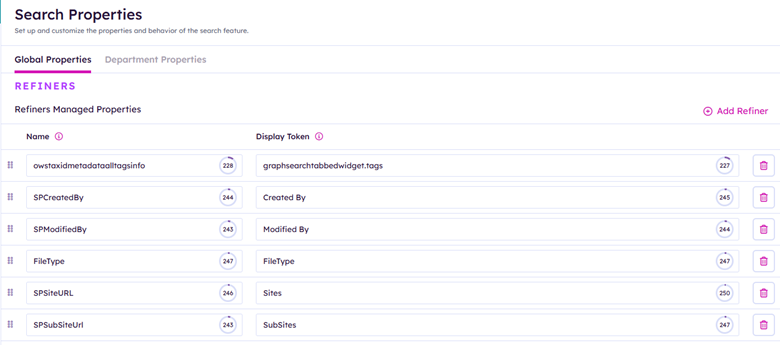
People Refiners

Add additional people refiners.
Sort options
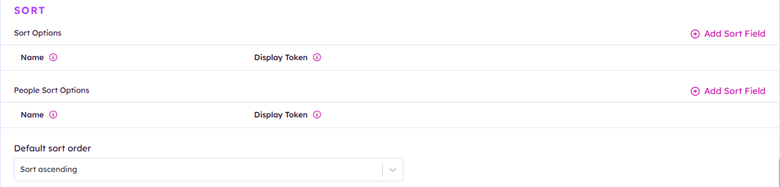
Set Sort order by default. Ascending/Descending
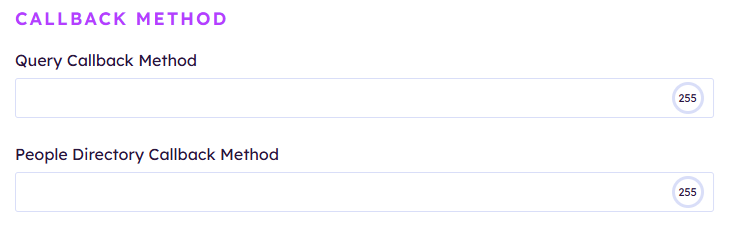
Add callback methods.
Department Properties determine the properties when searching on a Hive department site
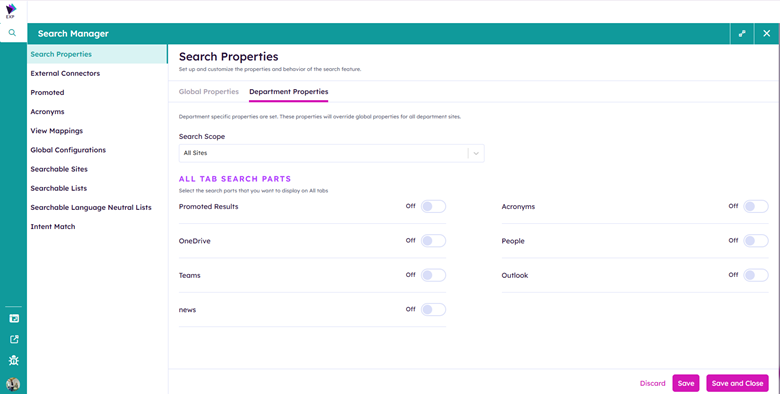
Department Properties.
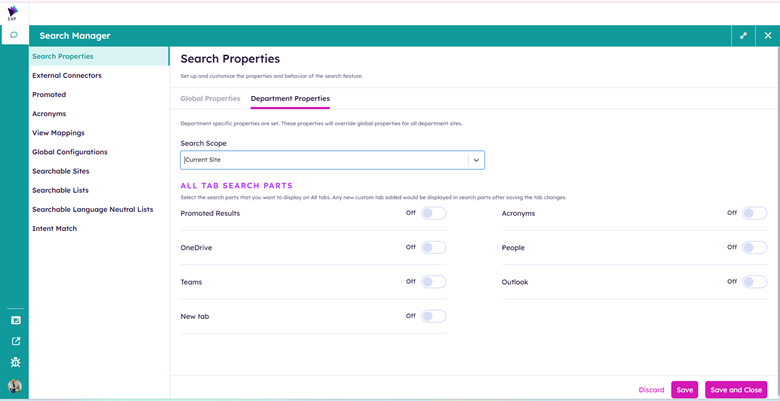
Search Scope determine whether you will search current site
Control your department's Search Tab properties.
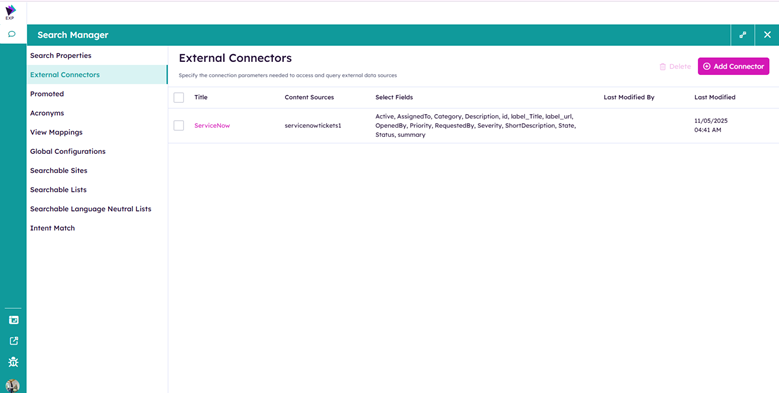
Akumina supports external connectors for search. Manage external connectors in Search manager.
To Add a connector click Add connector
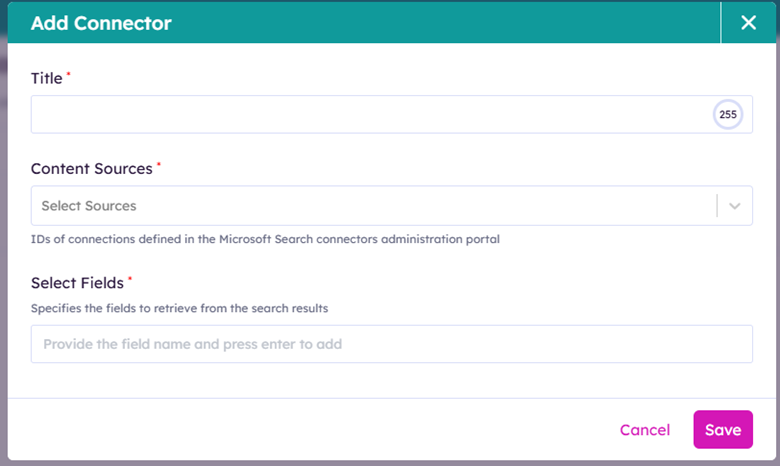
Fill in the Connector’s Title, Content Sources and Select Fields and click Save
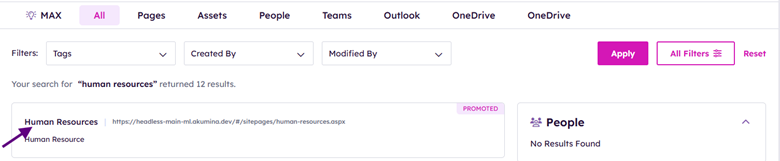
Manage promoted results. For example if a user searches HR you can generated a promoted results to point them to the most relevant information for Human resources
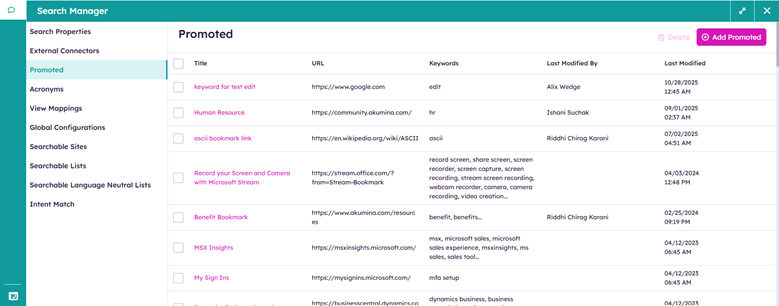
Setting up a promoted result by clicking Add promoted
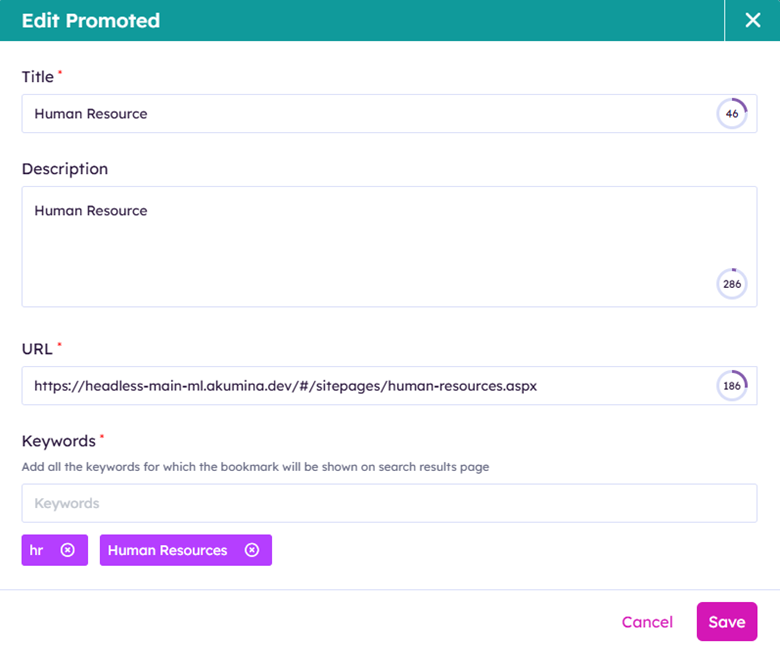
In this example searching hr or human resources would return the promoted result Human Resources promoted URL
Title: Promotion name used in search manager and shown in search results
Description: used to describe the promotion use case
Keywords: The Keywords if searched will trigger the promoted results to show up on search results page.
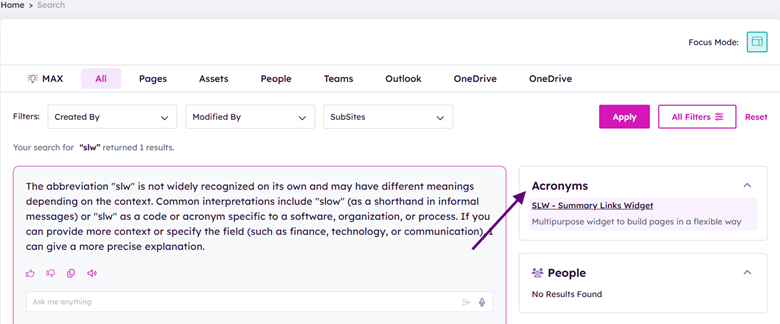
Acronyms will show up in search and explain organizational acronyms that have been added in Search Manager

To add an Acronym click Add Acronym
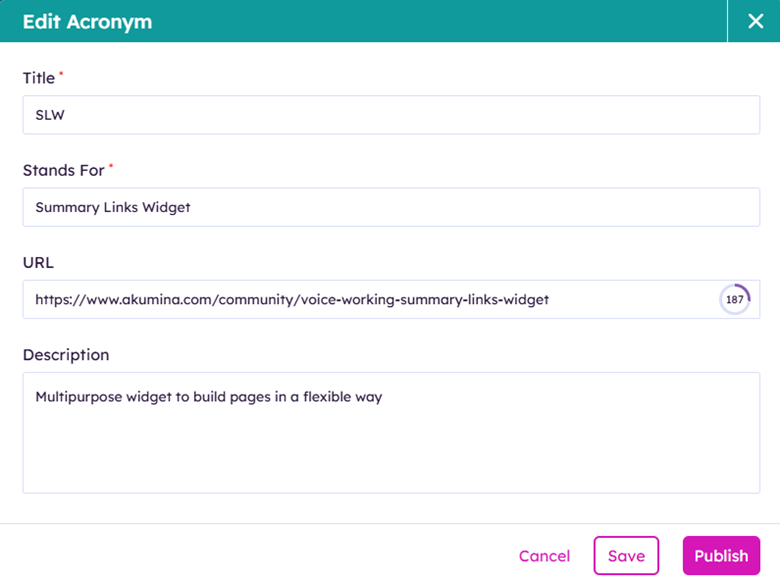
Title: Acronym
Stands For: is an explanation of Acronym
URL: you can provide a link to further information of the acronym
Description: allows for further information to be displayed on the search results page.
Content Type View Mappings: Assign specific views for SharePoint content types which are used to display each search result (e.g., news, blogs, events, media).
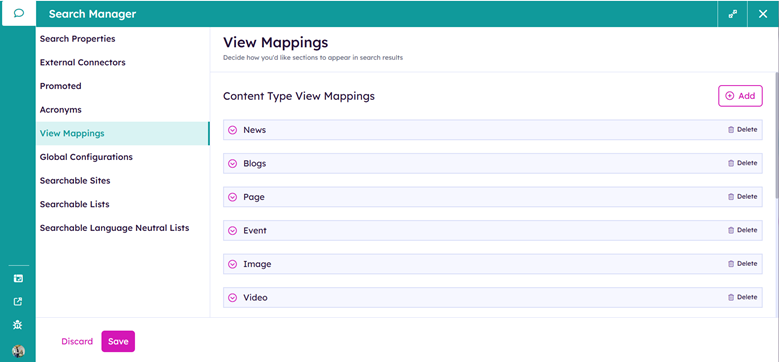
Creating a View Mapping requires:
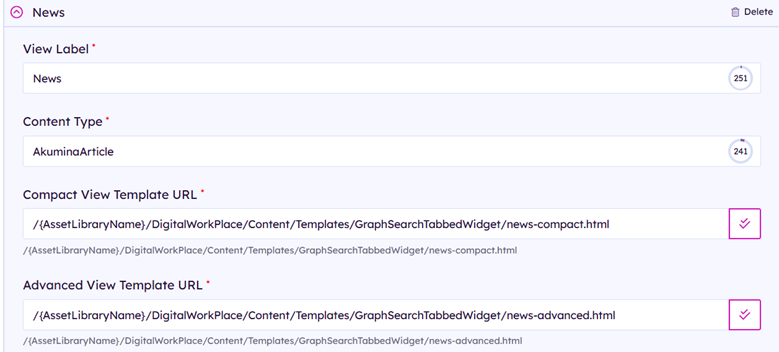
View Label: Name of the mapping view
Content Type: SharePoint Content Type name that you are creating the view mapping for
Compact View Template URL: url to the html view file used when search results uses the compact view. Allows file path validation.
Advanced View Template URL: url to the html view file used when search results uses the advanced view. Allows file path validation.
File path validation:
Green indicates valid url
 Red indicates invalid url

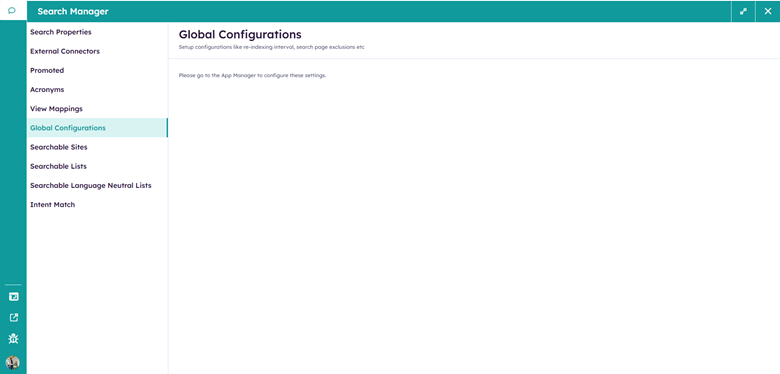
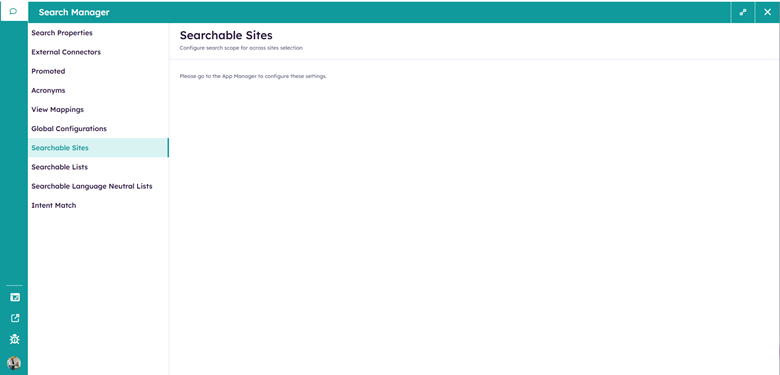 Currently managed in Search Manager in App manager Central Site Management Apps
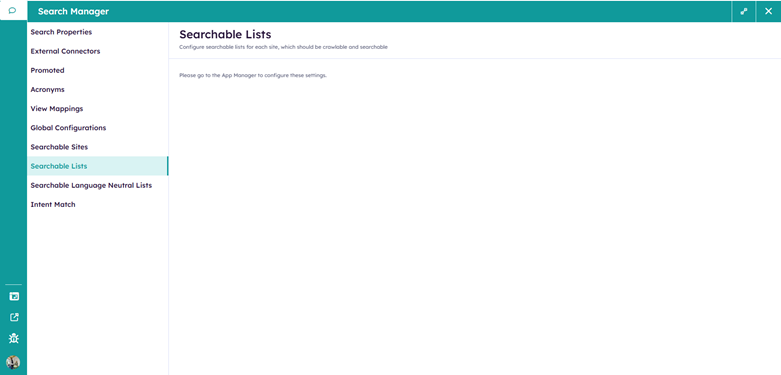 Currently managed in Search Manager in App manager Central Site Management Apps
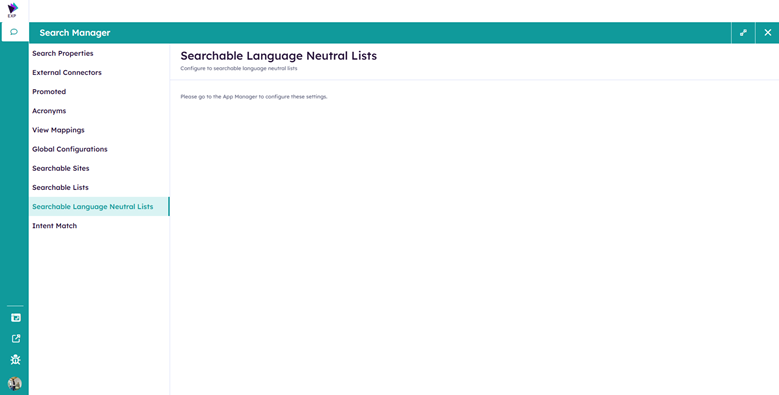
Currently managed in Search Manager in App manager Central Site Management Apps