Akumina Announces Leadership Appointments - Peter Shields Named CEO, Ed Rogers Appointed President & Chief Product Officer Learn More
Back

Voice: Working with Summary Links Widget

The Summary Links Widget (SLW) provides front-end content management and design without the need for the advanced concept of content apps or the need to manage multiple lists. The SLW is a powerful and versatile widget that allows you to easily create and edit content links, change content groupings, add a presentation layer, and order the display from the front-end.



Getting Started with a new collection for your SLW instance

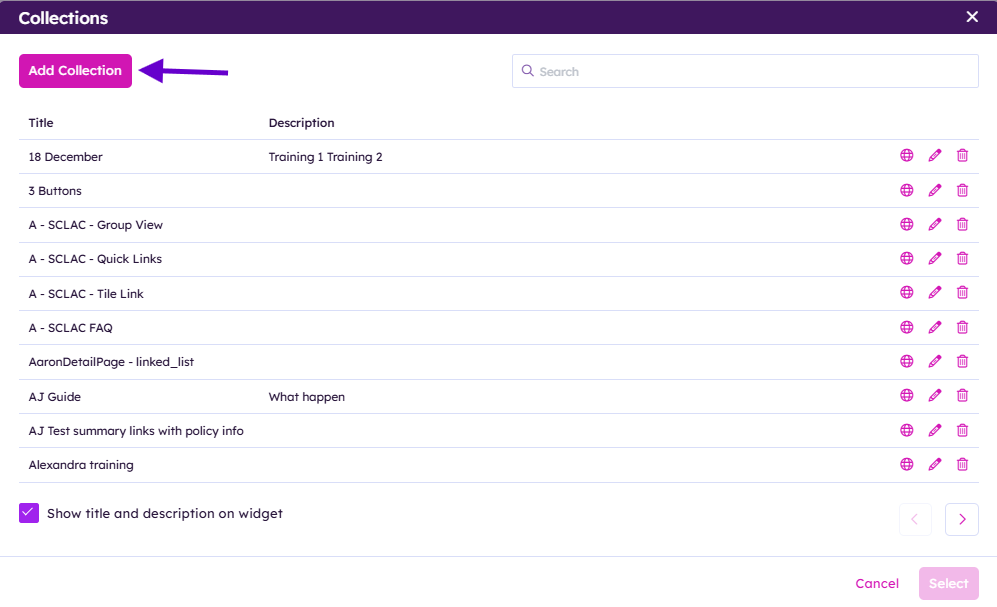
  • Hover over your newly added widget instance and click on the Gear "Manage Collections"
  • Now click Add Collection

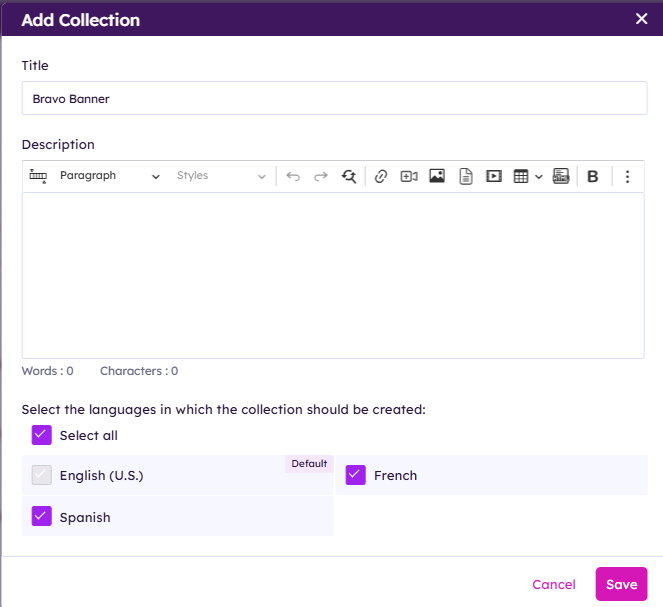
  • Enter in a Title for your Collection
  • Add in an optional Description 
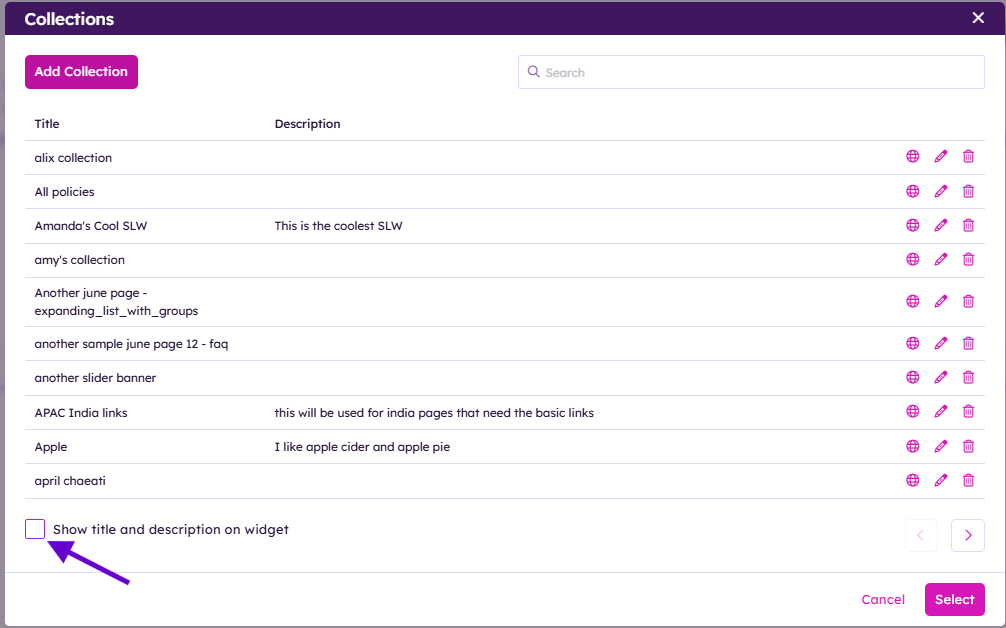
  • (Title and Description optionally can be displayed on your page)

  • If your site has multiple languages please select what languages this collection should exist in
  • Hit Save


  • Hit the Select button at bottom right hand corner of the Collections window
  • (At the bottom left hand corner you can optionally display the collection's title and description.)


Congrats! Your Collection is now created. Let's choose your desired View for SLW. Based on the view choice your collection will have a different presentation.


  • Click on the Views icon 
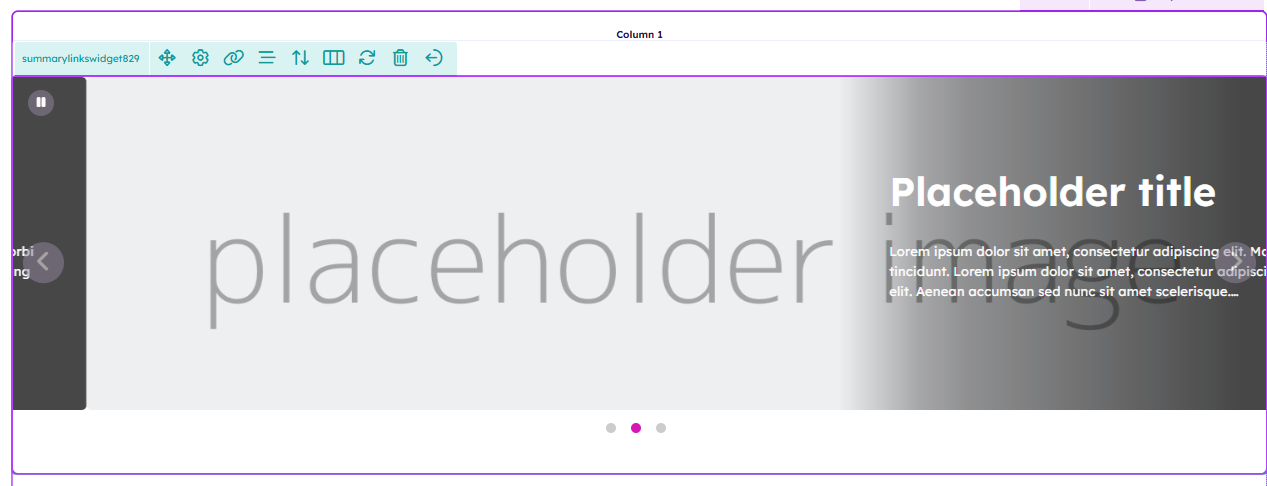
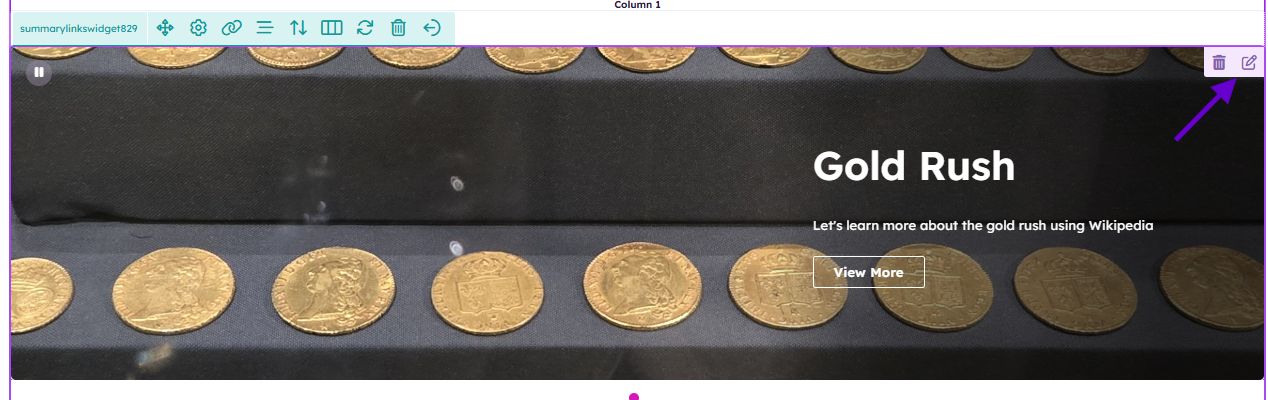
  • Click on the desired view. In this example we can choose Banner Carousel
  • Then click Save


With our view selected let's now add an item.

  • In SLW every item is a link. Let's create a link!

  • Click on the link icon

  • Banner Carousel uses the link's Title, Description, URL and Image
  • In the example link to Wikipedia I marked the link "Is External" this informs Akumina not to load the framework when the link is clicked on.

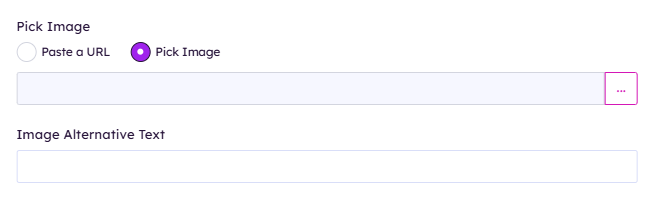
  • Scroll down to pick an image

Click on the ellipsis ...

  • Pick the library you want to find your image from
  • Select the image you want to use
  • Insert the image

  • Now that these are all filled in select Save


  • If you need to edit your link after adding it Hit the pencil Icon
  • If you need to delete your link hit the trashcan Icon


  • Adding another item this time instead of pasting in an oustide link you can select an Akumina page by selecting the ellipsis ...

  • You can search the page and select the desired Akumina page. Once your page is selected click Select

  • You can click on the Personas tab to assign it to a specific Persona so it is visible to your selected audience.
  • Click Save

  •  Reorder links

  • You can Reorder links by clicking the up and down arrows

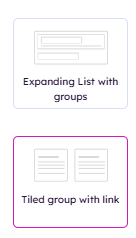
Some SLW views require groups

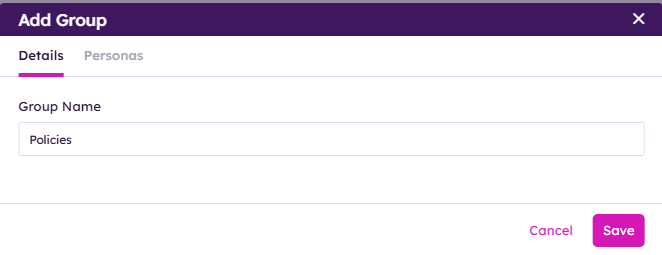
  • Create a group by clicking on the groups button 

Policies can also have Personas applied to them
These two views use groups
When editing a link you can assign a group to a link
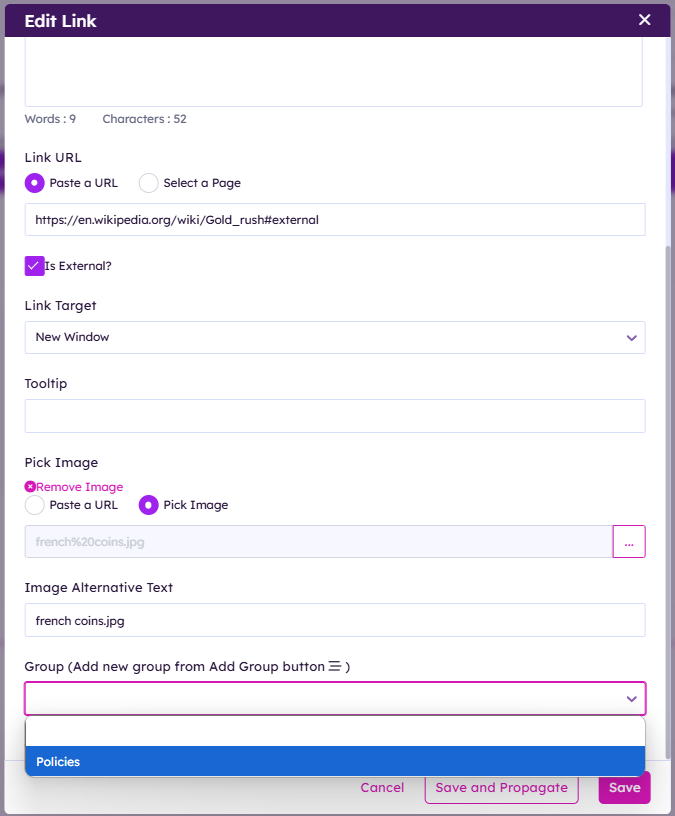
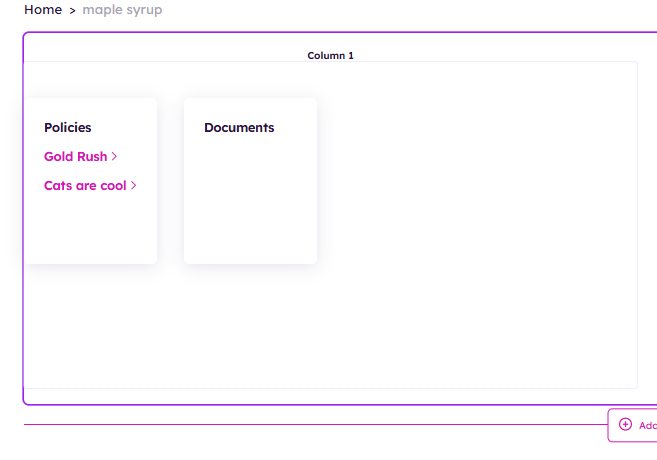
  • After selecting the group click Save

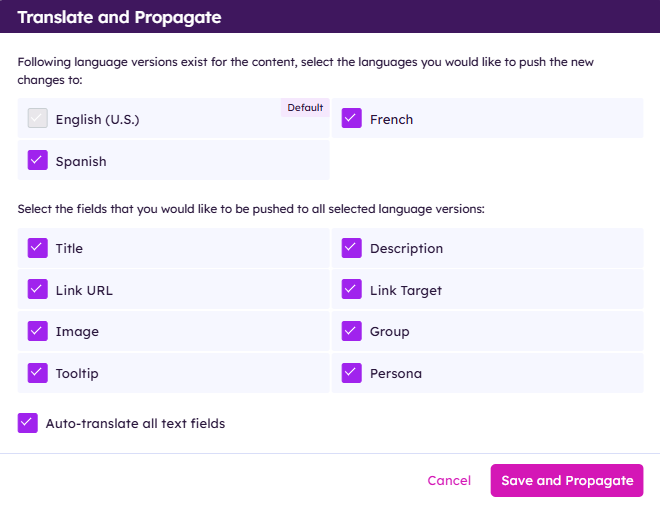
Save and Propagate

  • Multilingual customers can use Save and Propagate. Replicating the Link item in other languages. If you update your default language link Save and Propagate will apply that change with the option to auto translate into your other languages.


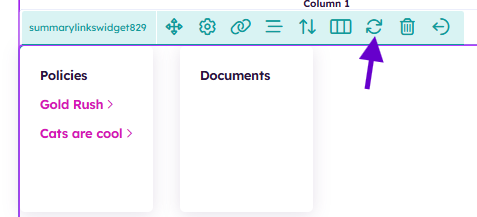
To refresh you SLW content click the refresh button


^ Top