August 19, 2026
Document Intelligence for Akumina AI
Configuring Azure AI Document Intelligence, directly and through Azure API Management


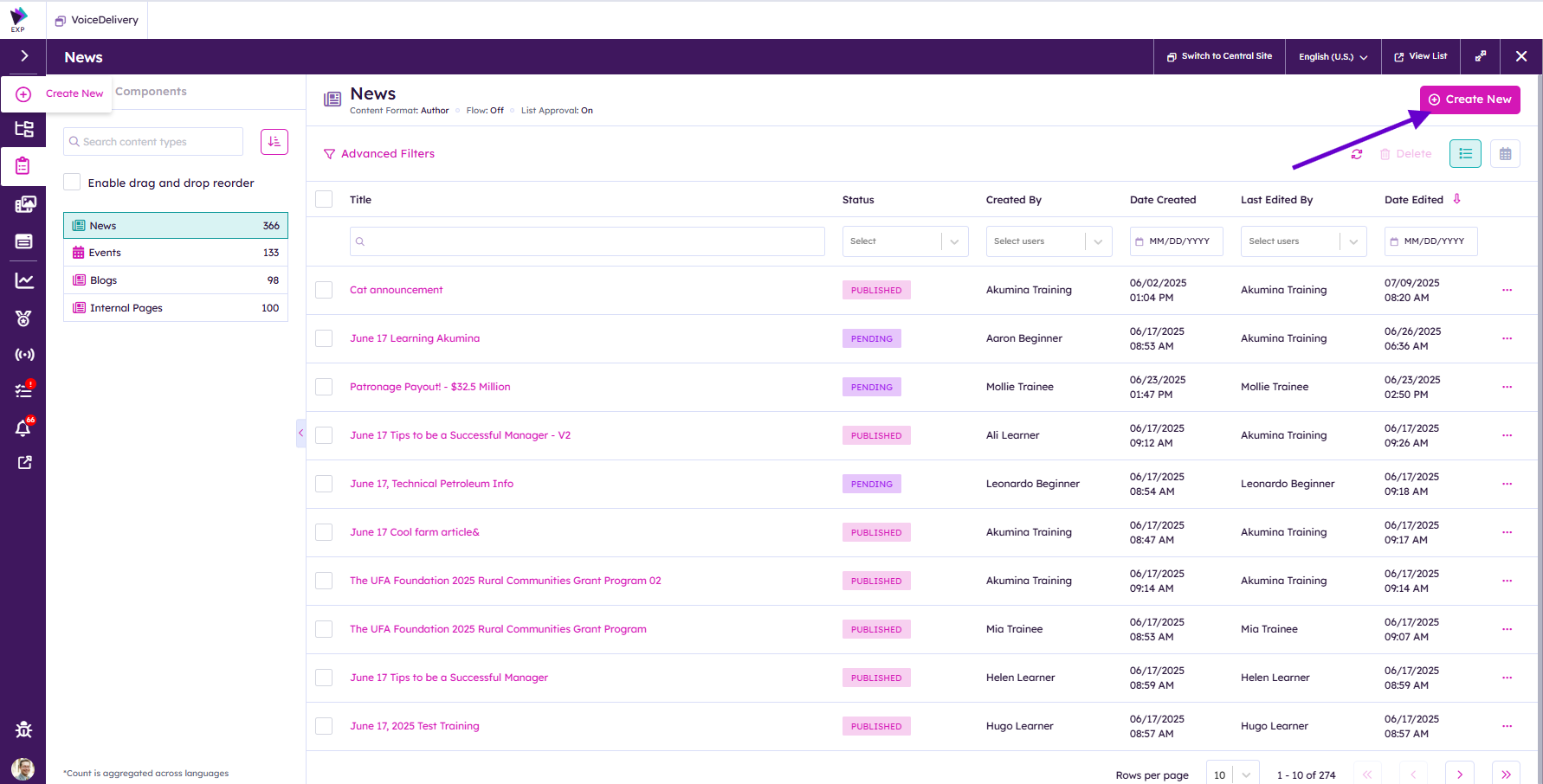
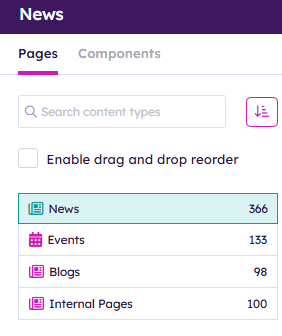
With the Voice interface open click on Structured Content 
Next Click on News
 Click on Create New at the top right corner of the screen

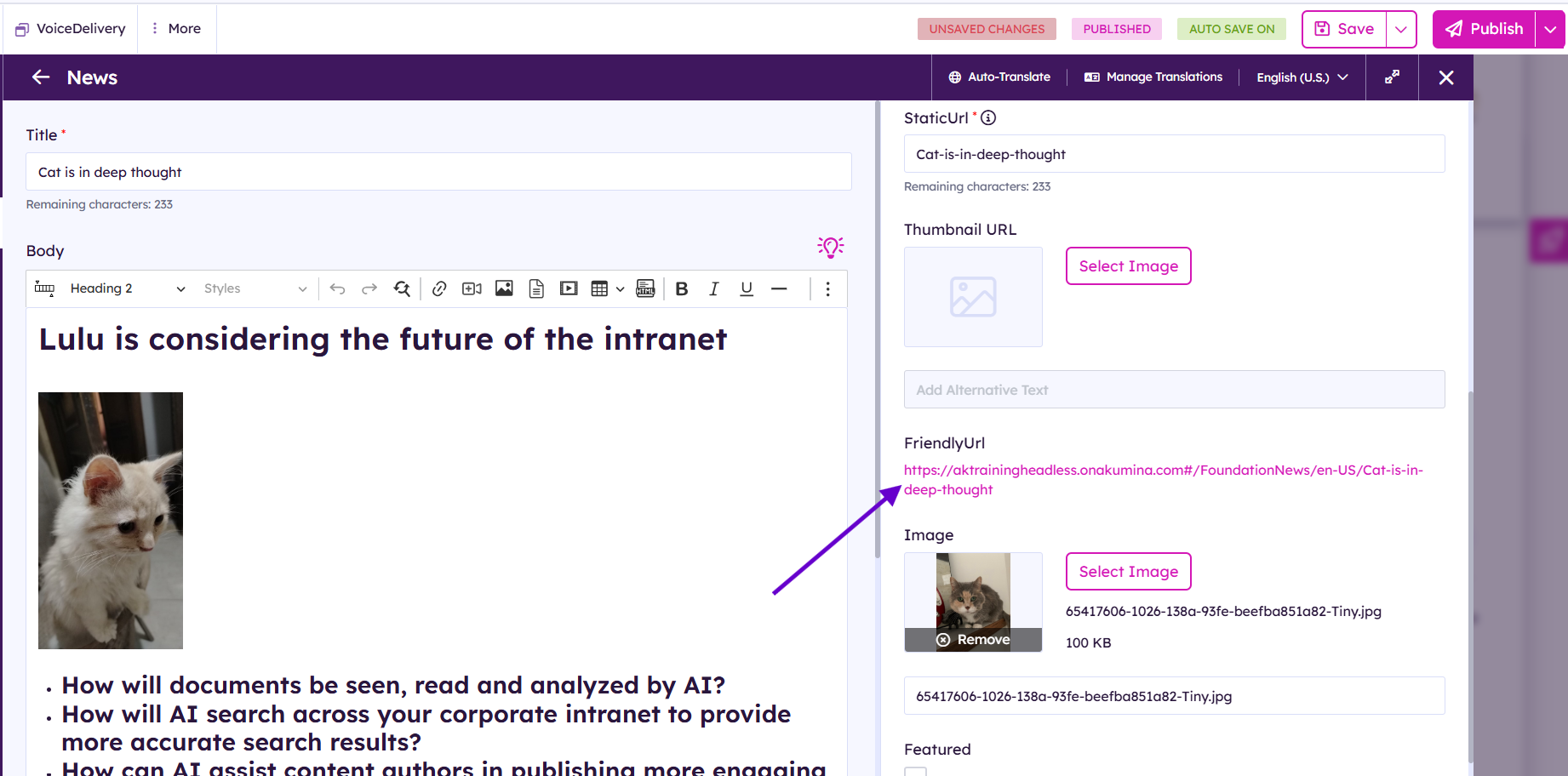
In the editorial interface add in the Title, Body and Summary
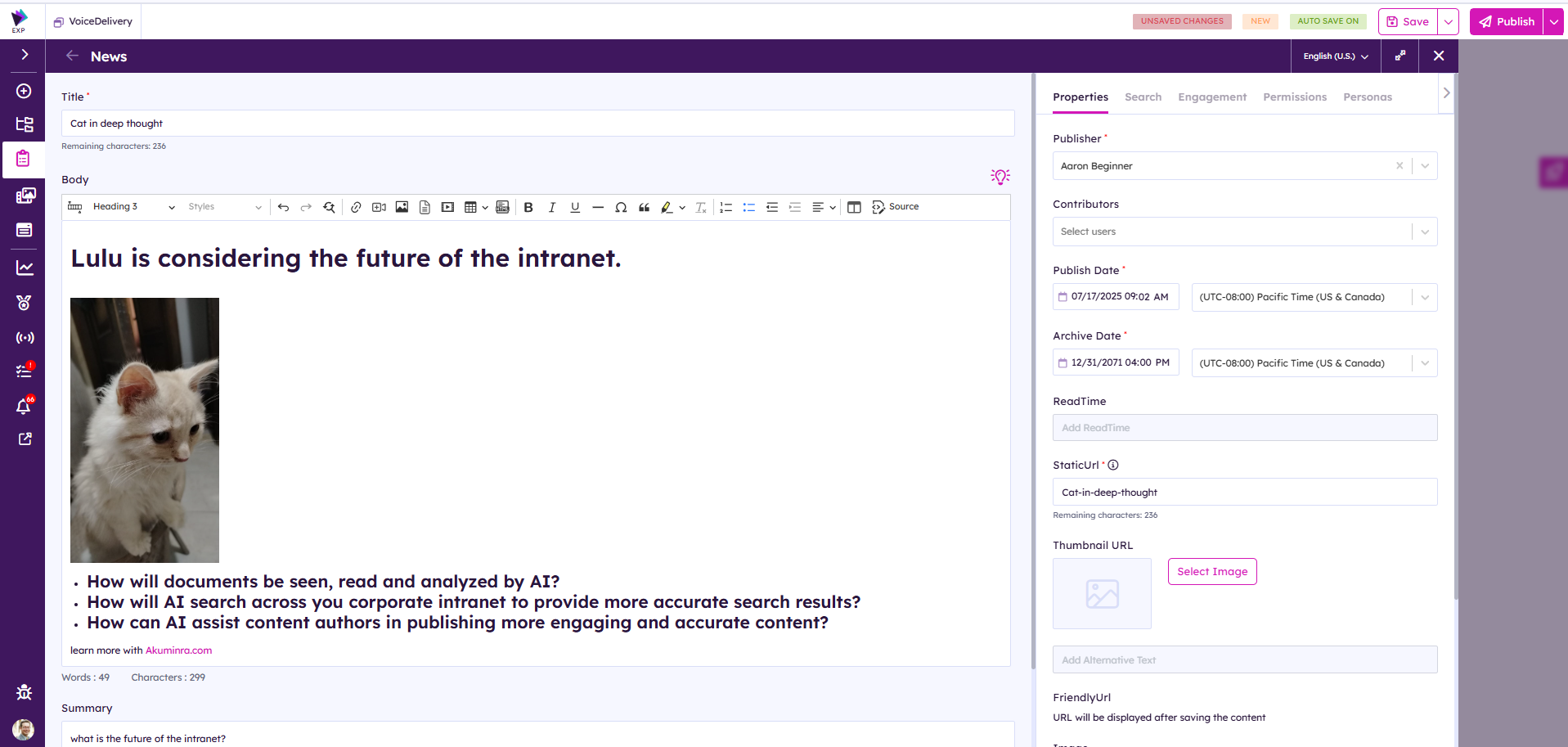
Title is a required field * All required fields need to be filled in before save or publish is hit.
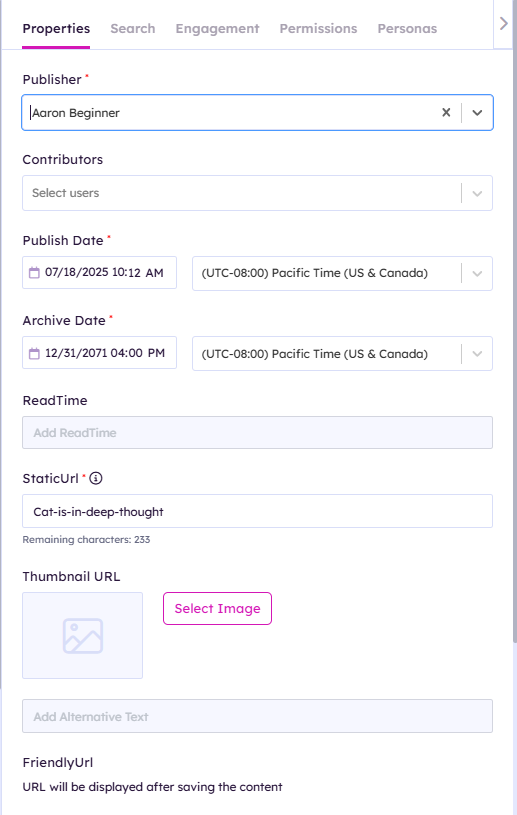
| Field | Details |
| publisher | people look up field. Enter a name of your article publisher |
| Contributors | people look up field. Enter a name of your article publisher |
| Publish Date | Date and Time picker. This will be the day and time your item is released to the intranet. |
| Archive date | Date and Time picker. This is the date that your item will be archived by the system. |
| ReadTime | automatically generated to tell readers how long article should take to read. |
| StaticURL | Automatically is generated from title, can be modified. Will be used by FriendlyUrl. |
| Thumbnail URL | Image used for thumbnail url in views. |
| FriendlyURL | gets generated after first save or publish. Is URL of news article on the intranet. |
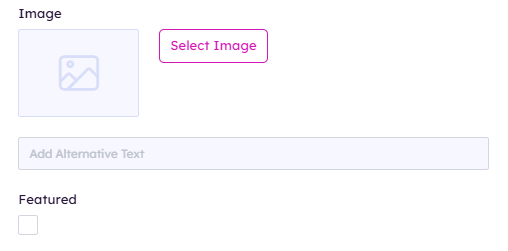
| Image | Image field used for main News article news |
| Featured | Checkbox field. Determines if the news article is flagged as Featured |
Use the search tab to setup your news article for search and promotion to people's expressed interests.
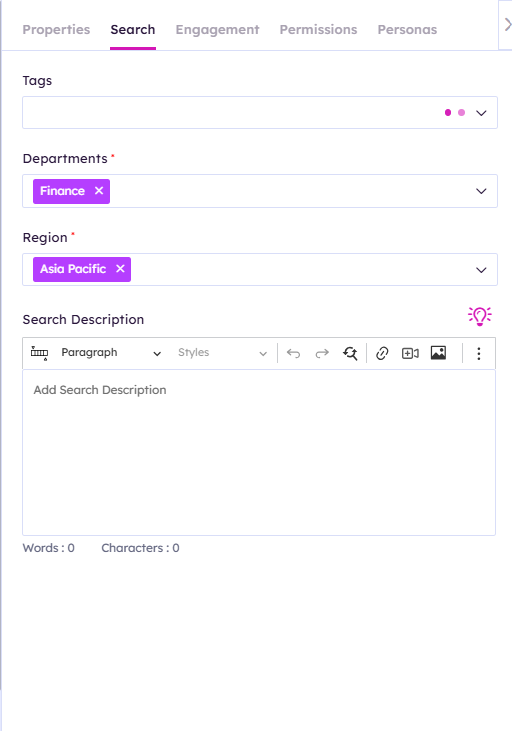
| Field | Description |
| Tags |
Managed Metadata field. Pulls from termstore set Tags |
| Departments | Managed Metadata field. Pulls from termstore set Departments |
| Region | Managed Metadata field. Pulls from termstore set Region |
| Search Description | Search Description |
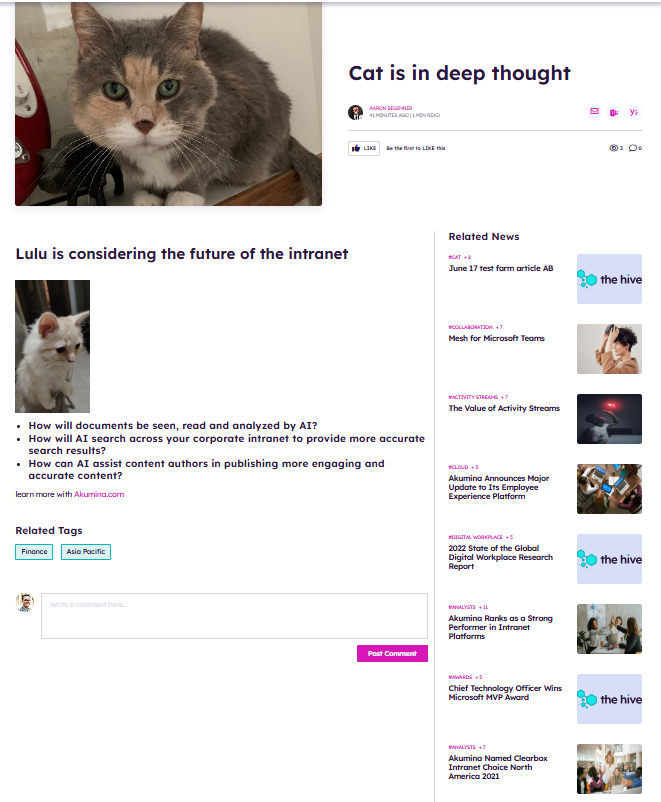
After your article is saved or published a Friendly url is generated. Click on the friendly url to see your news article.