June 05, 2026
Release 7.0
Release Notes


To see the Content Calendar go into your Content app of choice like News and click on the Calendar icon.
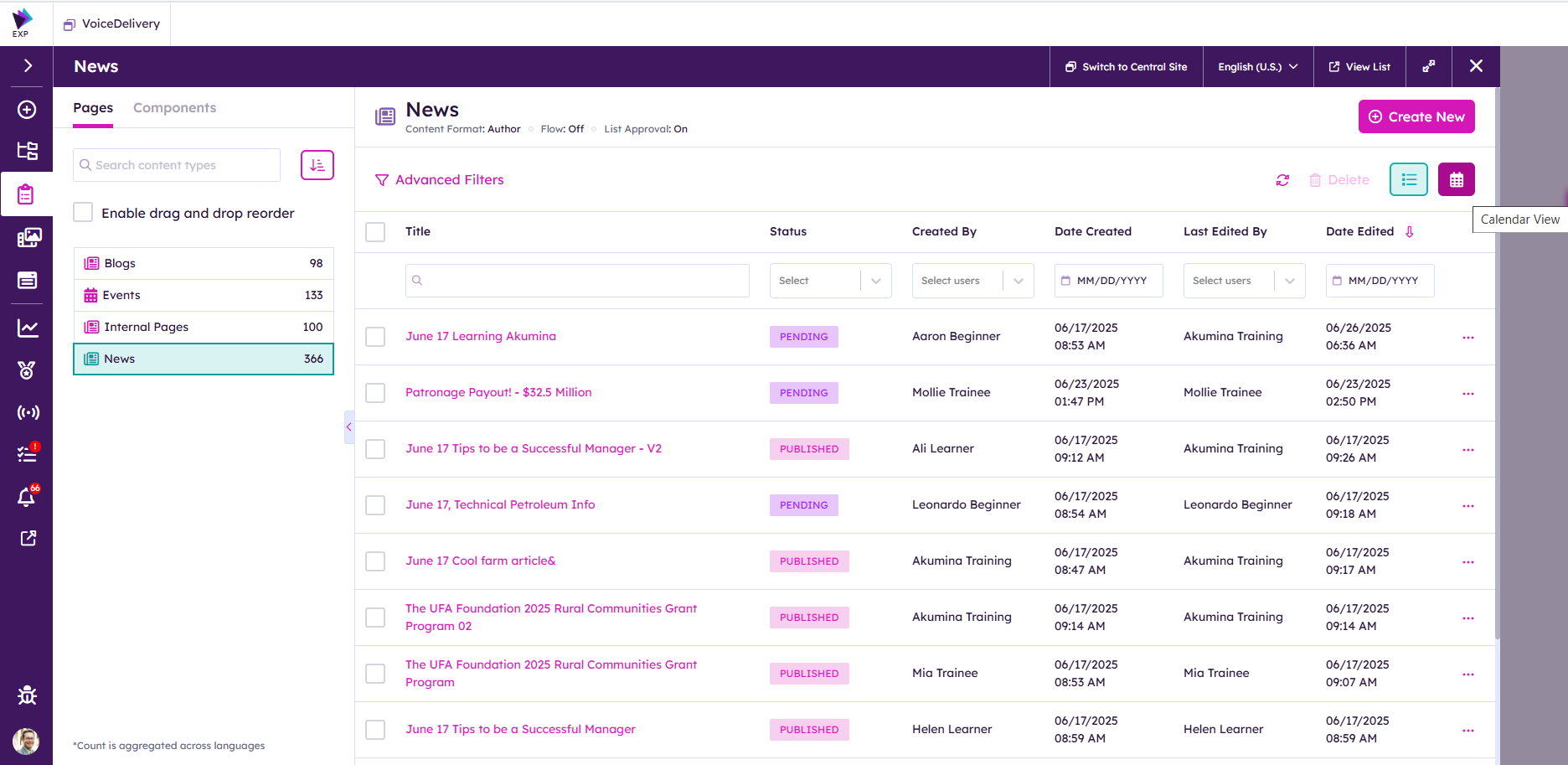
See Content Calendar.
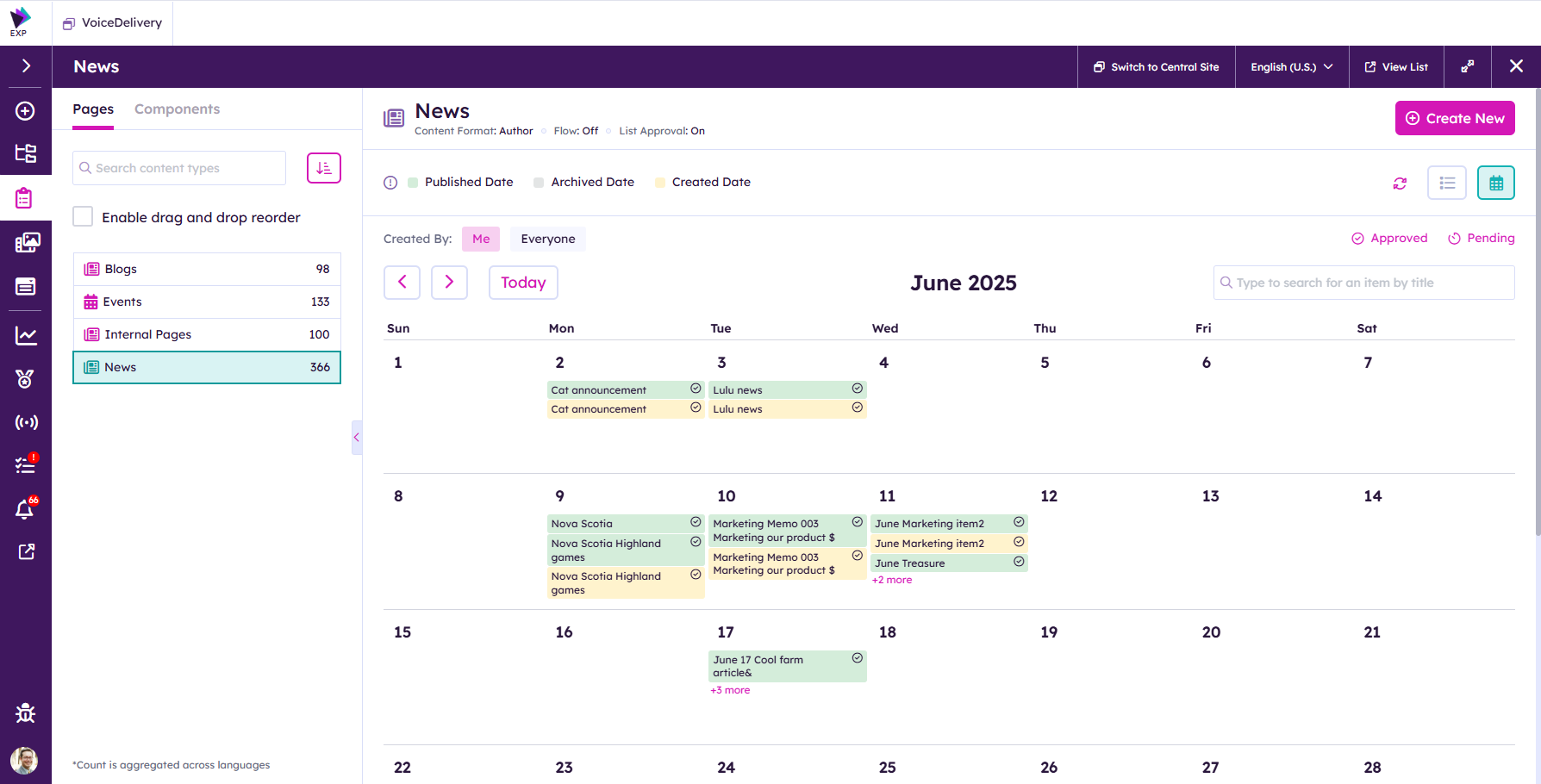
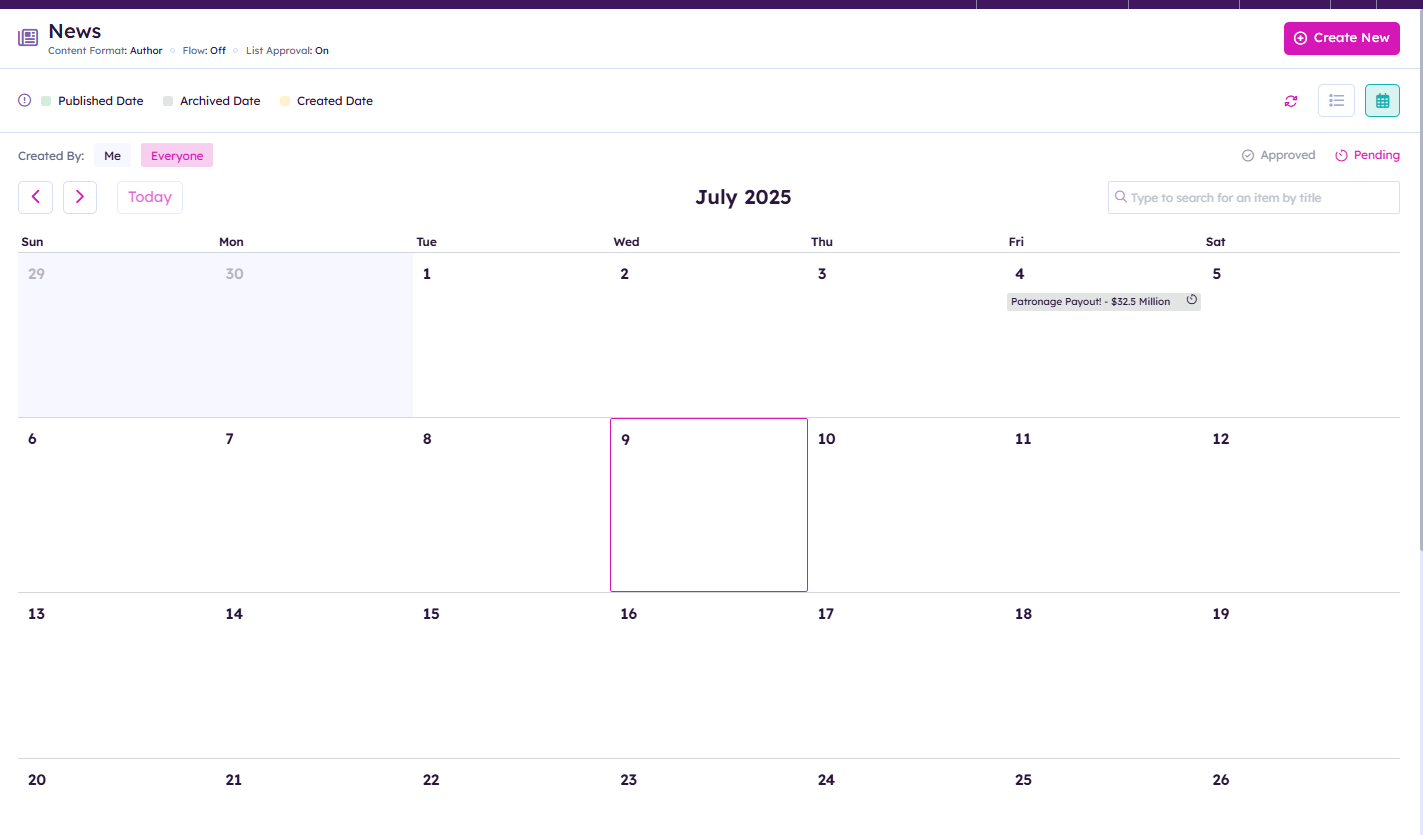
By Default you will just see content authored by yourself. You have the option to click on Everyone. This will show all the content authored for this month.
The article will show the date that it is published, created and archived.

Clicking on an item provides you details about the content item.
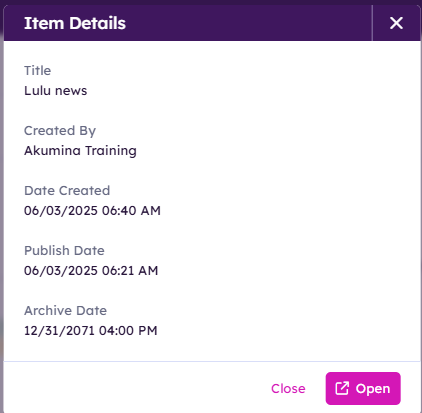
Also giving you the option to open up the item in Voice Editor Experience.
In the Content Calendar you can search for items by title.
 By default you will see both Approved and Pending content. It is possible to just see approved (publish content or content that is pending).
If you click on Approved it will be disabled and only show content in pending state.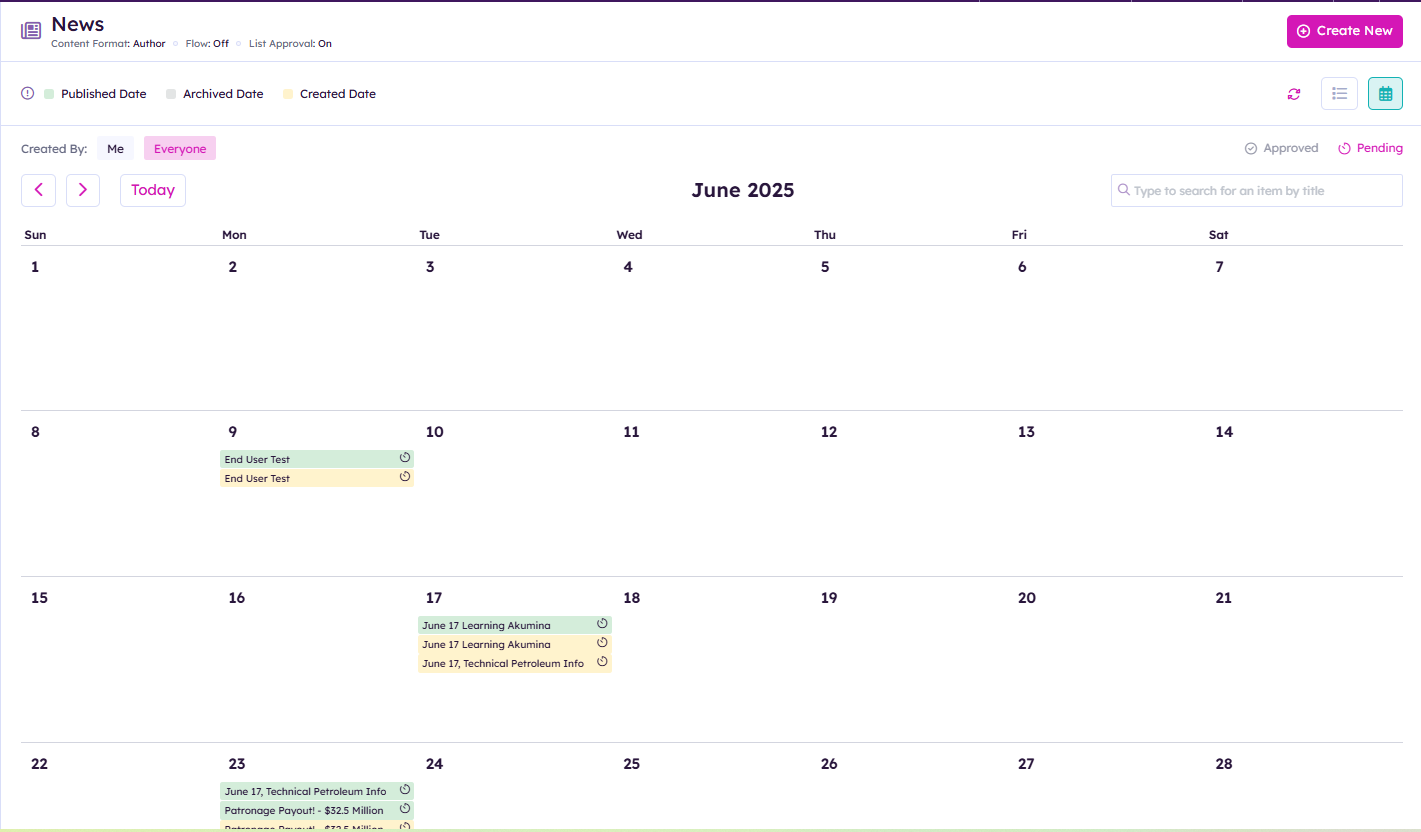
In the content Calendar you can change the month going back or forward with the chevrons.
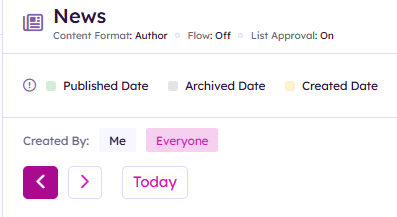
By clicking Today it will show today's date and highlight it.